
Signing Up & Creating Your Account
Creating your SureFeedback account takes less than a minute. Once you’re signed in, you’ll have immediate access to your dashboard and can start setting up your first workspace and site.
Creating a New Account
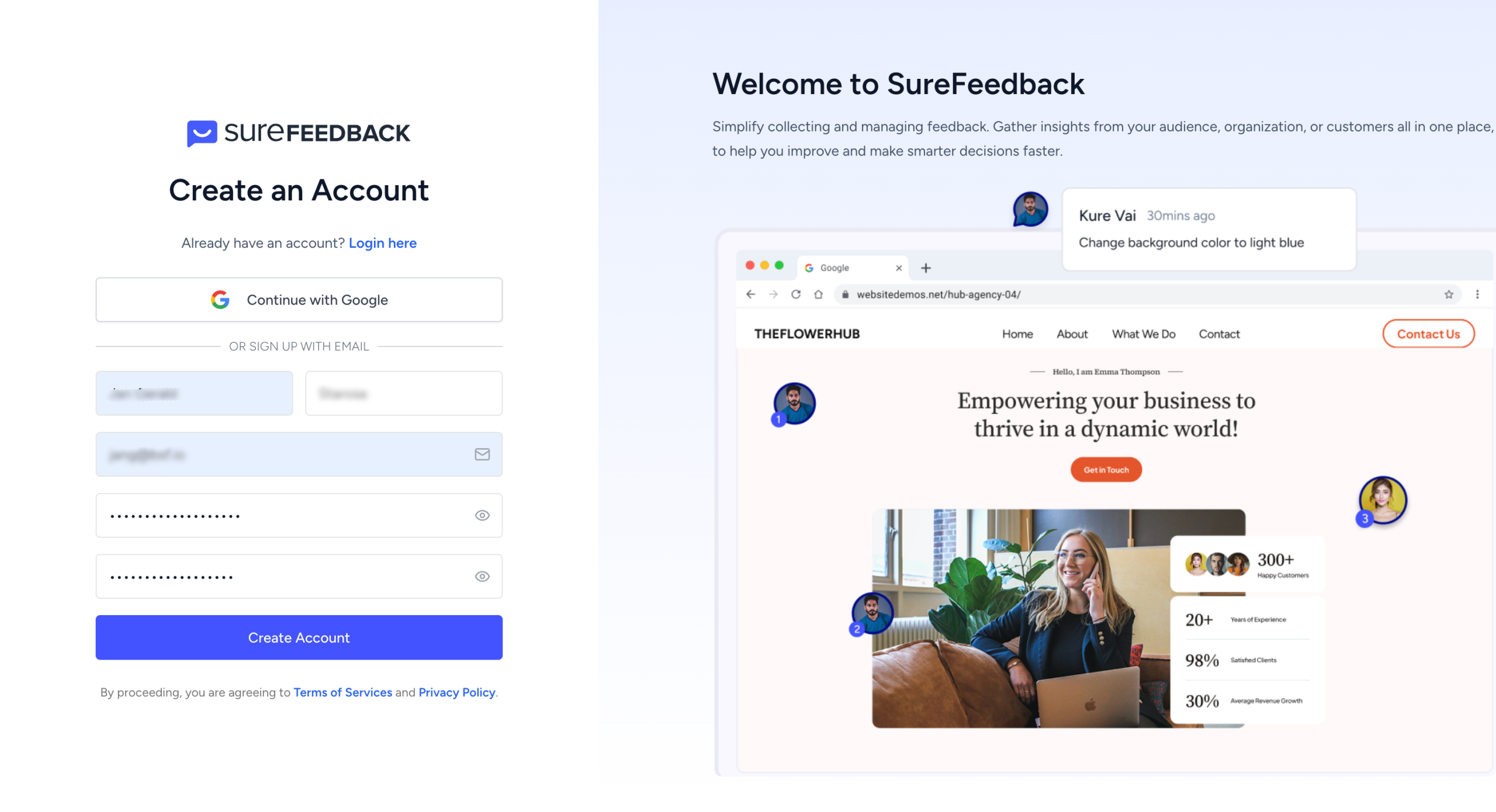
To create a new SureFeedback account, head to:
https://app.surefeedback.com
On the sign-up screen, you have two options:
Sign up with Email
Choose this option if you prefer using an email address and password.
You’ll be asked to enter:
- Your name
- Email address
- Password
After submitting the form, your account will be created instantly.
Sign up with Google
You can also sign up using your Google account. This skips the manual form and lets you access SureFeedback with a single click.
Both methods create the same type of account, choose whichever feels easiest.
Email Verification
If you sign up using email, you’ll receive a verification link in your inbox.
Click the link to confirm your email address. This helps keep your account secure and ensures you receive important notifications.
Once verified, you can log in to SureFeedback right away.
Signing In to an Existing Account
If you already have an account, simply log in from the same page at:
https://app.surefeedback.com
You can sign in using:
- Your email and password, or
- Google (if you signed up with Google)
After signing in, you’ll be redirected to your dashboard.
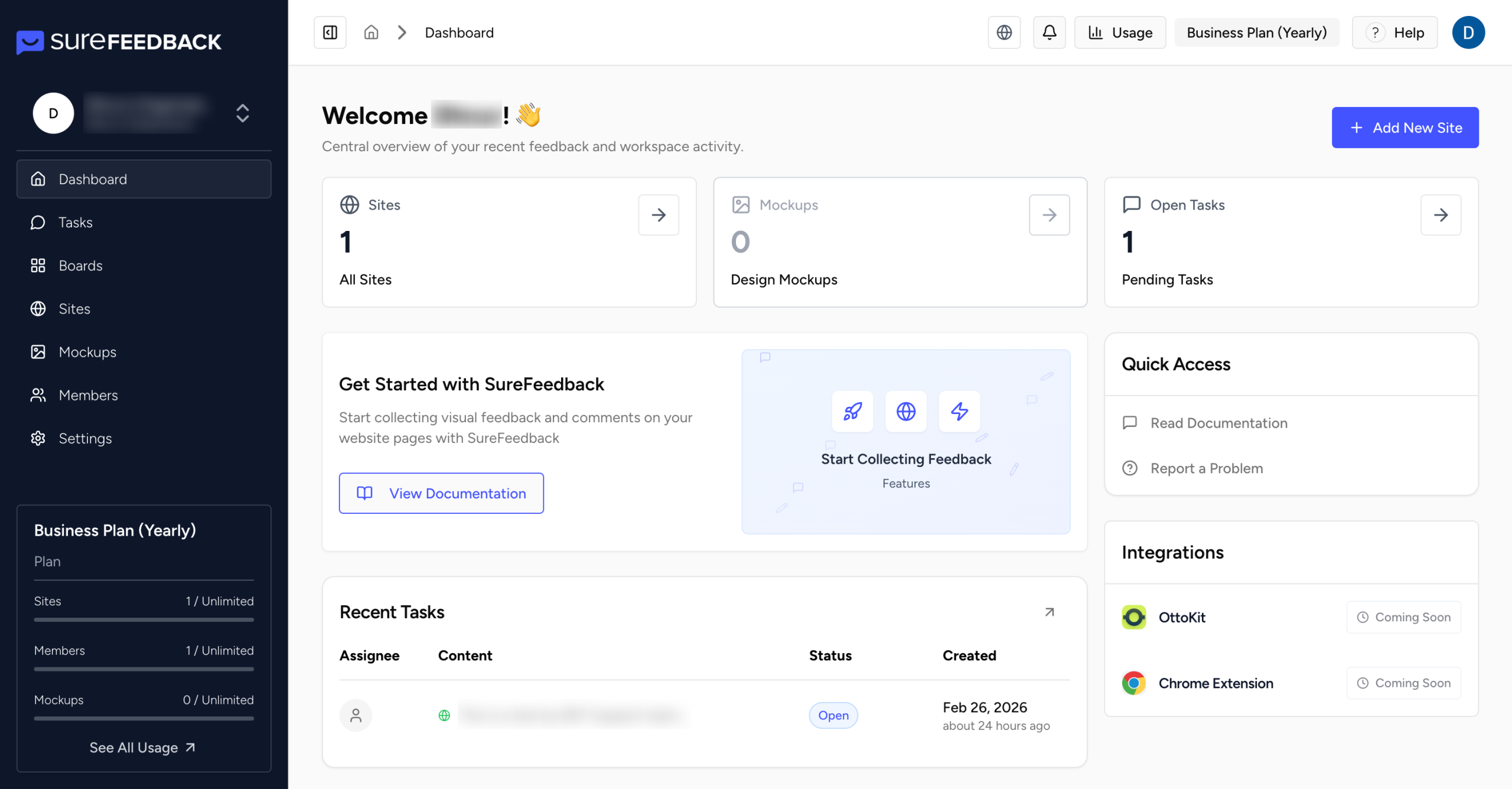
What Happens After You Log In
After your first successful login:
- A default Organization is created for you
- A default Workspace is set up automatically
- You’re taken to the dashboard, where you can see your activity and start adding sites
From here, you can:
- Create or manage workspaces
- Add your website or mockups
- Invite team members
- Start collecting visual feedback
What’s Next?
Once your account is set up, you’re ready to connect your website and start reviewing pages.
You can continue with the Quick Start Guide to learn how to:
- Add a site
- Connect WordPress
- Use Access Links
- Start leaving comments on live pages
We don't respond to the article feedback, we use it to improve our support content.