
Quick Start Guide
Welcome to SureFeedback 👋
SureFeedback helps you collect visual feedback directly on your live website & mockups.
Instead of long email threads, screenshots, or unclear comments, feedback is left right where it belongs, on the actual page elements.
This guide walks you through setting up your account, connecting your website, and starting your first review. Most users are ready in just a few minutes.
How SureFeedback Is Structured
Before jumping in, it helps to understand how SureFeedback keeps your work organized.
- Organization
Your main account. Everything lives inside an organization. - Workspace
A workspace groups related websites, mockups, feedback, and people.
Many teams use one workspace per client or project.
When you create your account, SureFeedback automatically creates:
- One organization, and
- One default workspace
You can create more workspaces later or switch to other organizations you have access to.
1. Create Your Account
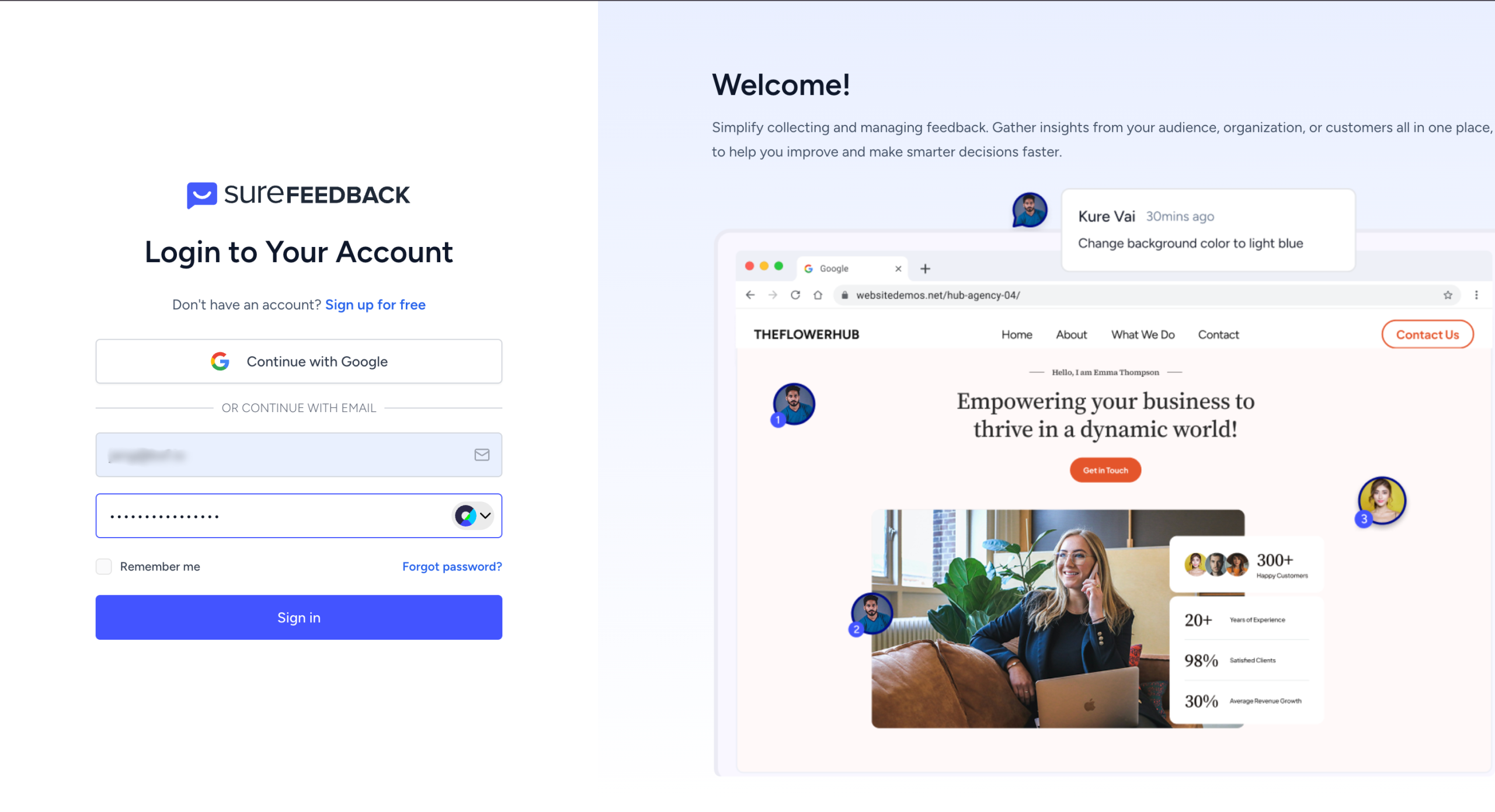
Start by signing up or logging in to SureFeedback. You can use your email address or sign in with Google for quicker access.
Once you’re logged in, you’ll be taken to your dashboard. A default workspace is already set up, so you can move straight into adding a site.
Create your account at:
https://app.surefeedback.com
2. Set Up a Workspace
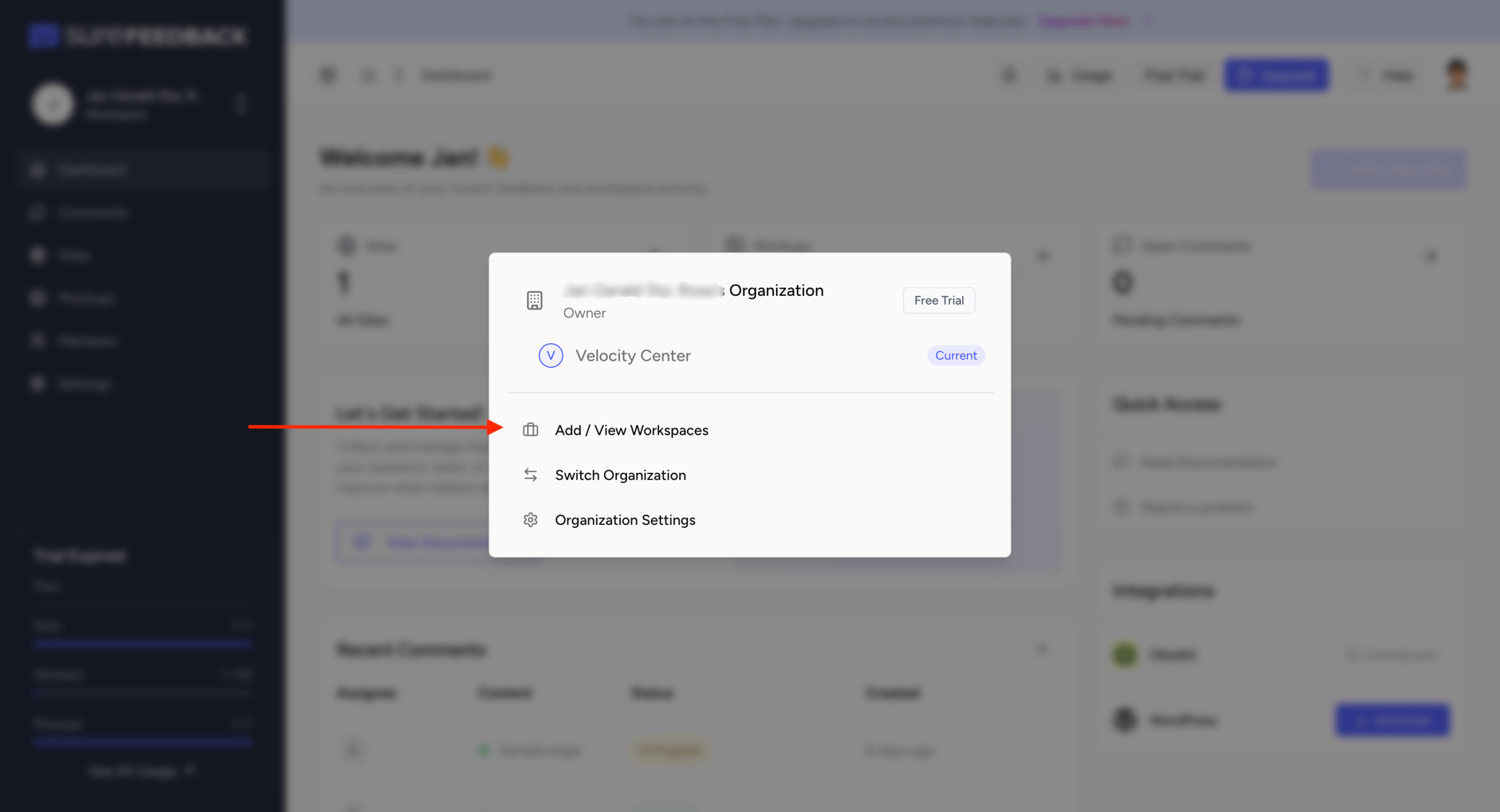
Workspaces help you keep feedback organized & control access, especially if you’re working with multiple websites or clients.
If you’re just getting started, you can continue using the default workspace. If you prefer more structure, create a new workspace to group related sites and mockups and decide who can access them.
If you skip this step, any site you add will simply be placed in the default workspace.You can create a new workspace from the Workspaces section in your dashboard.
3. Add Your Website
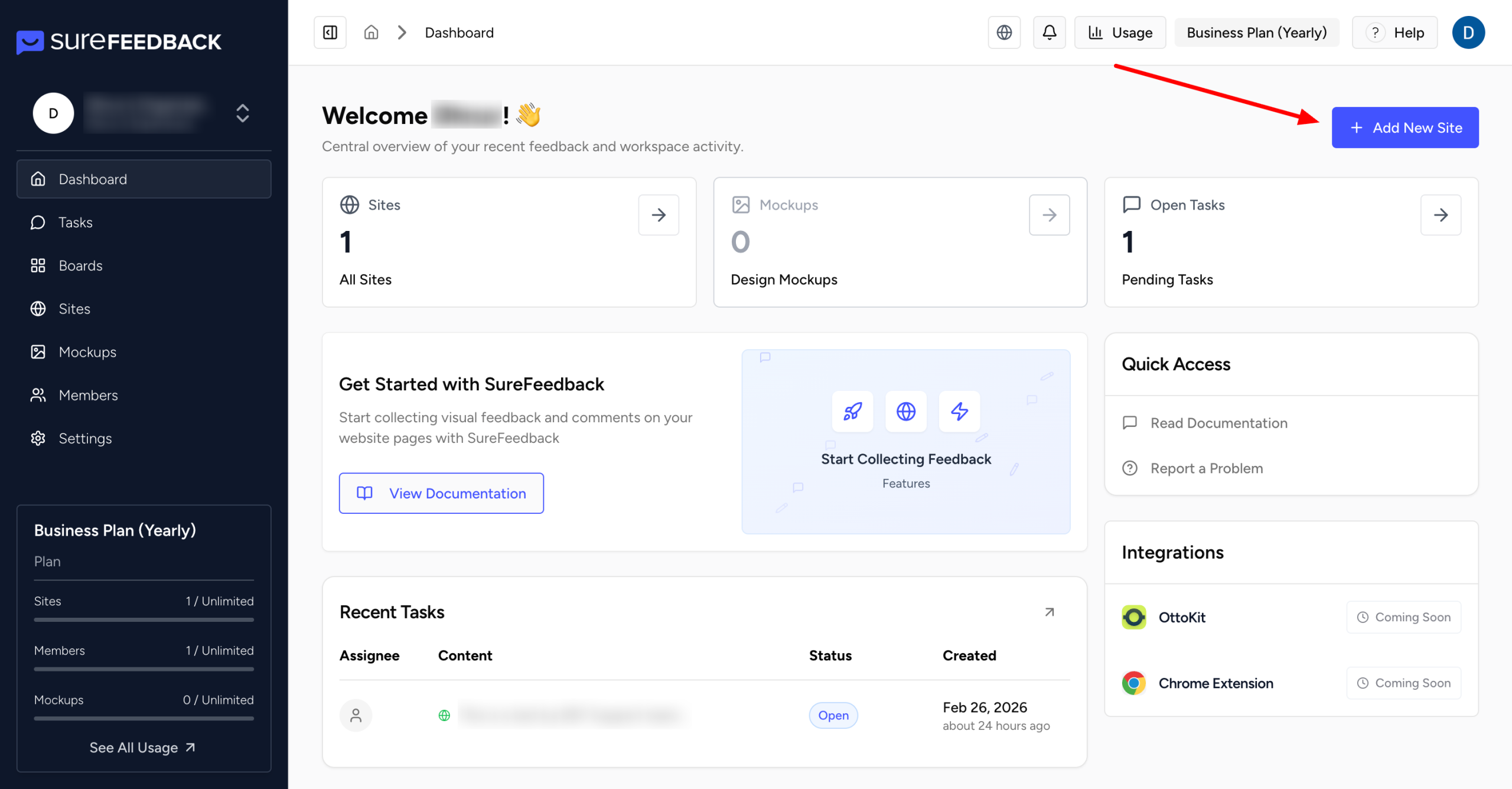
Once you’re inside a workspace, the next step is to add the website you want feedback on.
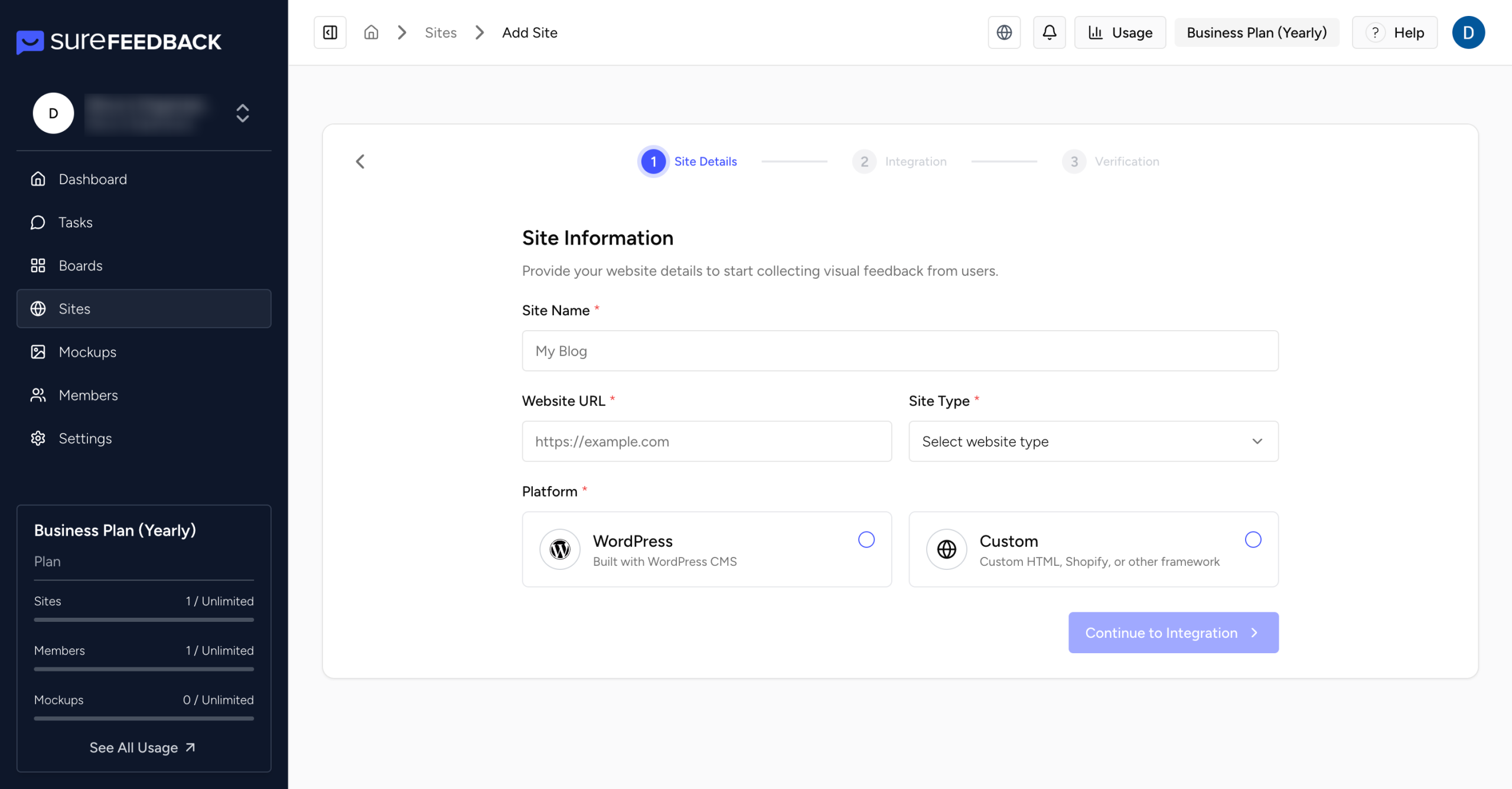
- Add your website URL from Sites tab > Add new Site button, and choose the Site type (WordPress or Custom HTML).
- The site will automatically be assigned to your currently active workspace.
4. Connect Your WordPress Site (Automatic Plugin Installation)
If you’re adding a WordPress site, setup is fully automated.
After entering your site URL, you’ll be prompted to enter your WordPress admin credentials. SureFeedback handles the rest, installing and activating the SureFeedback Cloud Plugin and verifying the connection.
There’s no need to download files, upload plugins manually, or copy any code.
Once the connection is complete, your site will appear in your SureFeedback dashboard and is ready for feedback.
Note:
SureFeedback uses secure, short-lived verification tokens to connect to your site. Your WordPress login credentials are never stored.
5. Start Collecting Feedback
With your site connected, you can start collecting feedback right away.
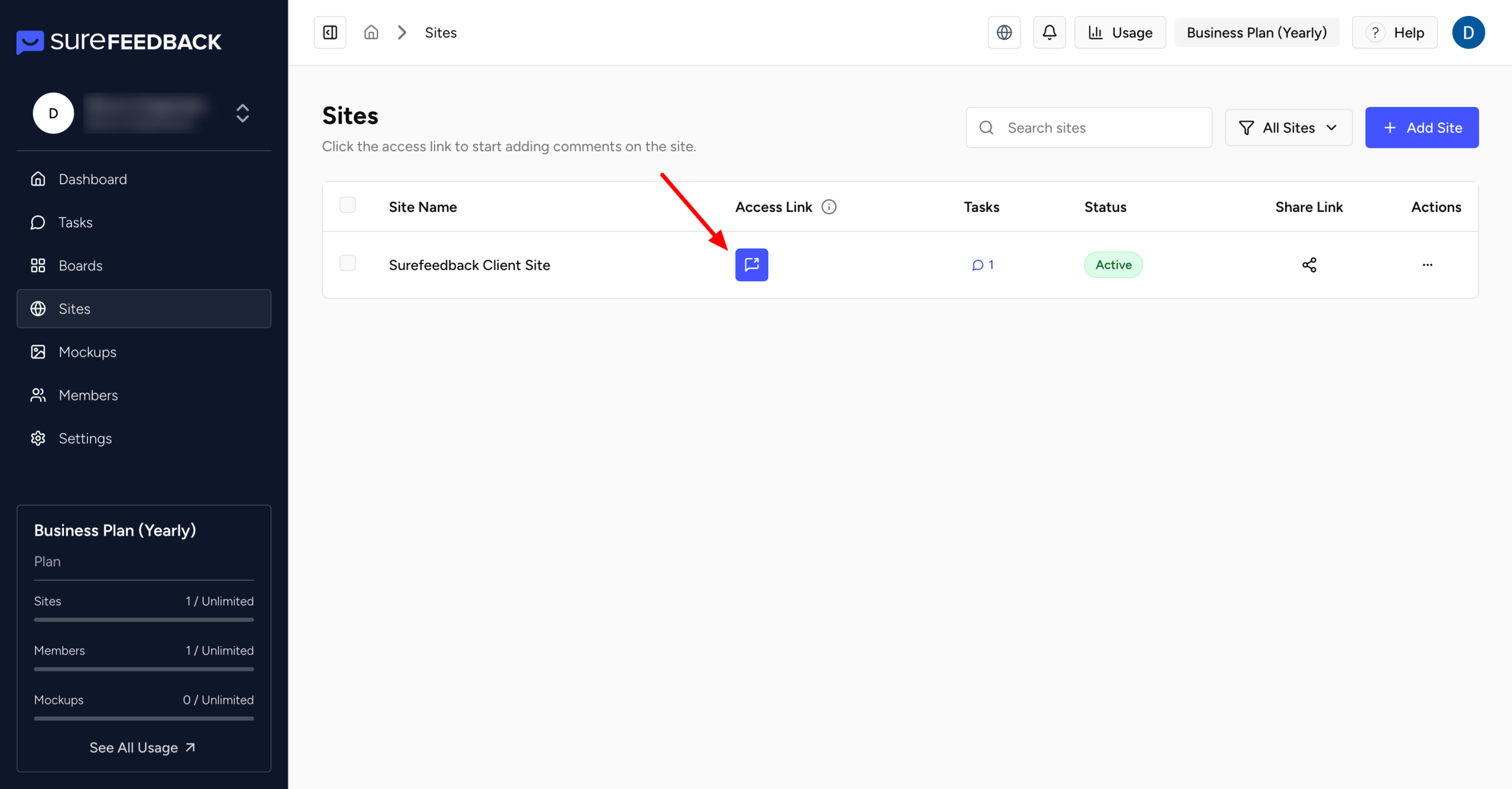
To ensure comments are properly linked to your dashboard, open your website using the Access Link provided by SureFeedback. You’ll find this in Sites, next to your site name and URL.
You can use the Access Link yourself or share it with team members and clients.
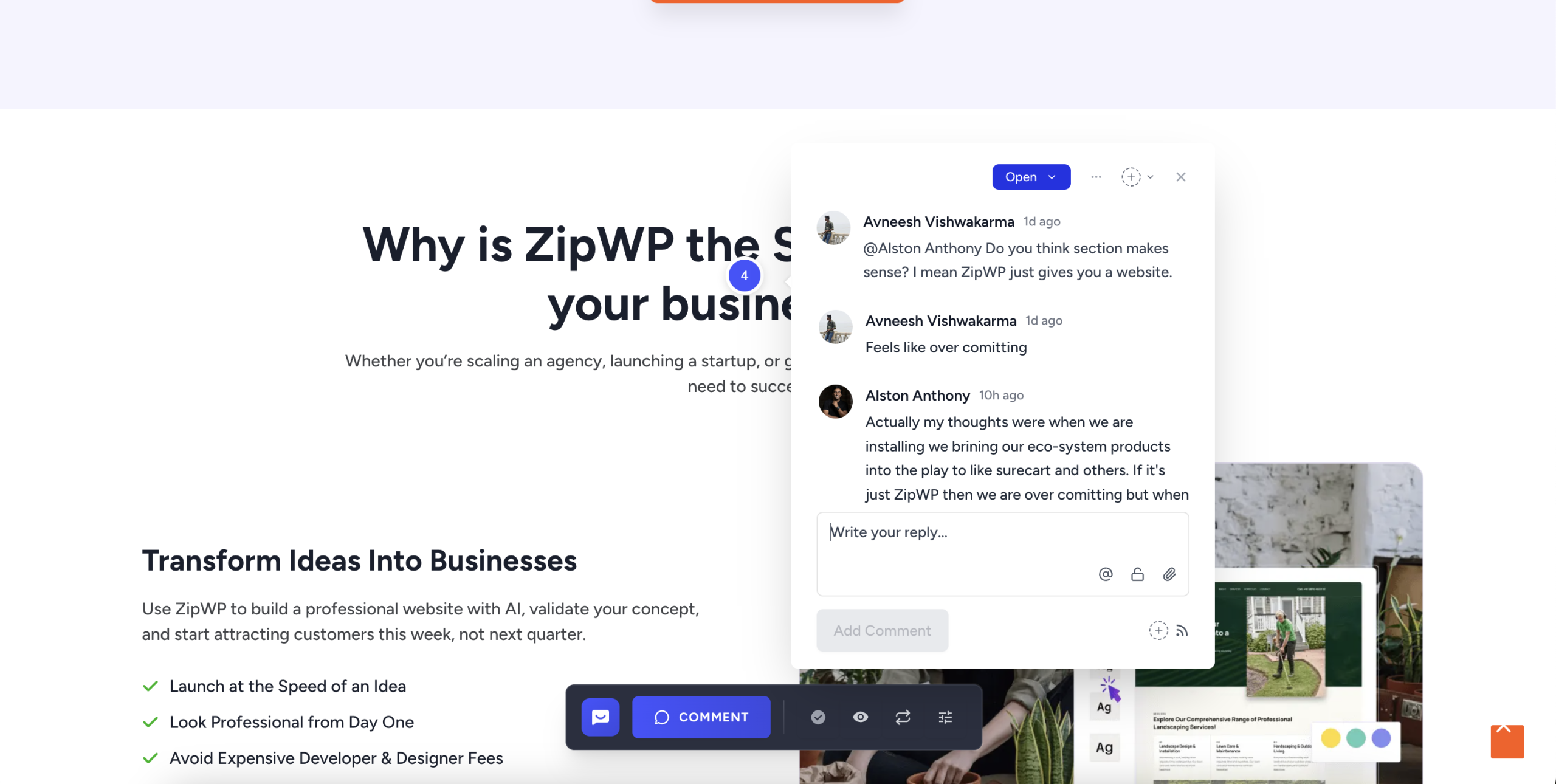
On your live site:
- Click the comment widget
- Select any element on the page
- Leave a comment or annotation
Feedback is pinned directly to the selected element, making it clear what needs attention. All comments automatically appear in your SureFeedback dashboard and are organized by site and workspace.
6. Invite Team Members & Collaborate
SureFeedback is built for collaboration.
You can invite teammates, clients, or external reviewers to your workspace and assign them appropriate roles.
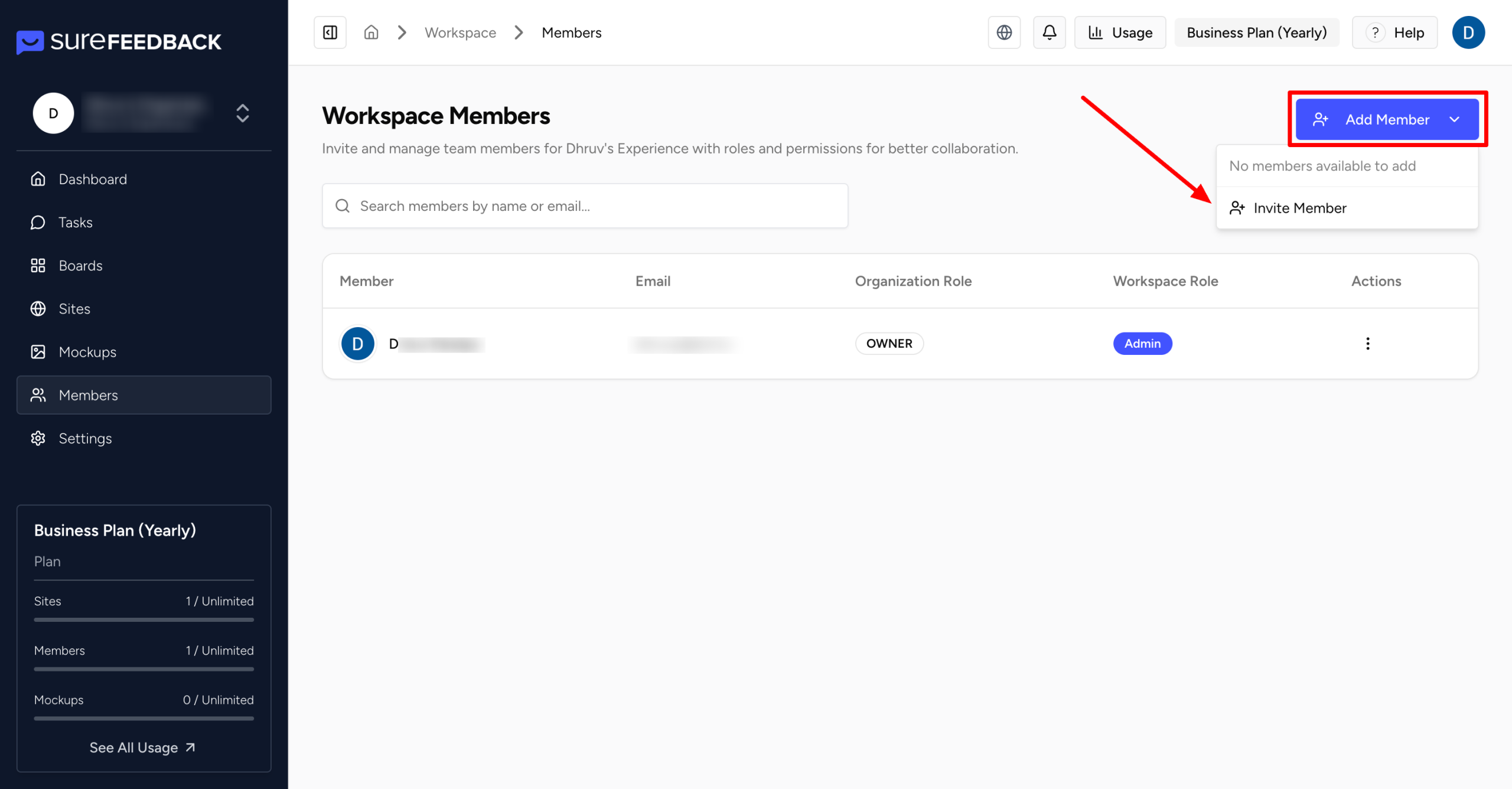
To invite someone, go to Members and click Add Member
You will now see the option to enter the email and other configurations, such as choosing the role, workspaces and more.
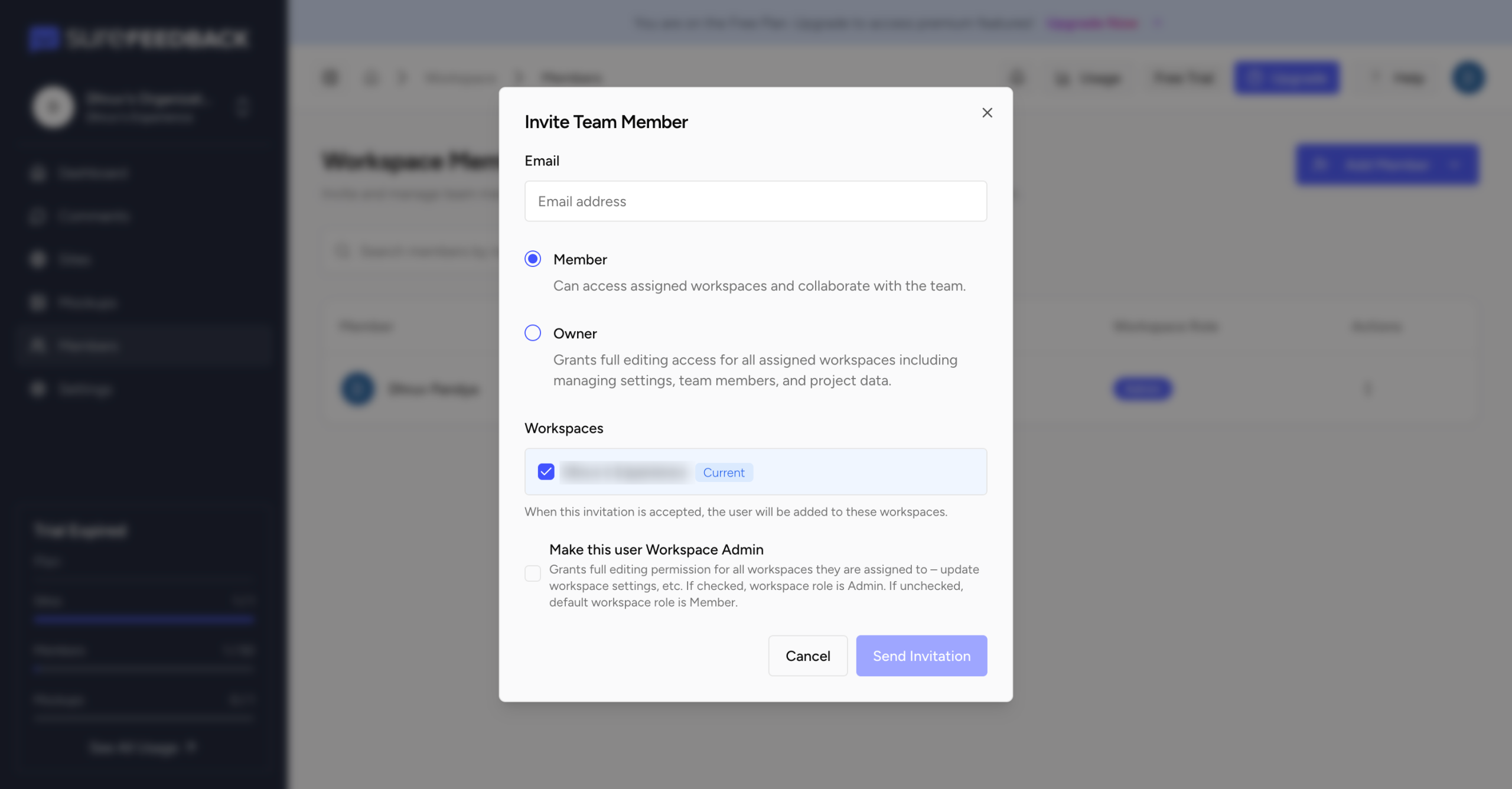
Team Member Roles:
- Member
Can access assigned workspaces and collaborate on feedback. - Owner
Has full access to assigned workspaces, including managing settings, team members, and project data.
You can also choose which workspaces the user should have access to.
Optionally, you can make a user a Workspace Admin, which grants full editing permissions for the workspaces they’re assigned to. If this option is unchecked, their default workspace role is Member.
Once the invitation is accepted, the user will be added to the selected workspaces.
Understanding Workspaces
Workspaces help you manage feedback without clutter, even as your projects grow.
- New sites are added to the active workspace automatically
- You can switch between workspaces at any time
- Access and permissions are managed per workspace
- All workspaces belong to a single organization for seamless collaboration
This setup works equally well for solo users, agencies, and larger teams.
Need Help?
You’re now ready to start collecting feedback, collaborating with your team, and reviewing websites with clarity.
If you have any questions or run into issues, our team is here to help:
https://surefeedback.com/contact-us/
You’ll also find additional guides and tips directly inside your SureFeedback dashboard.
👉 Get started now at: https://app.surefeedback.com
We don't respond to the article feedback, we use it to improve our support content.