
Plugin Set Up Guide
This guide walks you through connecting your WordPress site to SureFeedback using the SureFeedback plugin.
You’ll need this setup if:
- You’re installing the plugin manually, or
- You want to connect your WordPress site from inside WordPress instead of the SureFeedback dashboard
Once connected, you can collect visual feedback directly on your live pages.
1. Install the SureFeedback Client Plugin
Start by installing the SureFeedback Client Site plugin on your WordPress site.
From your WordPress admin dashboard:
- Go to Plugins → Add New
- Search for SureFeedback Client Site
- Click Install Now, then Activate
Alternatively, if you have the plugin ZIP file, you can upload it manually from the same screen and activate it once installed.
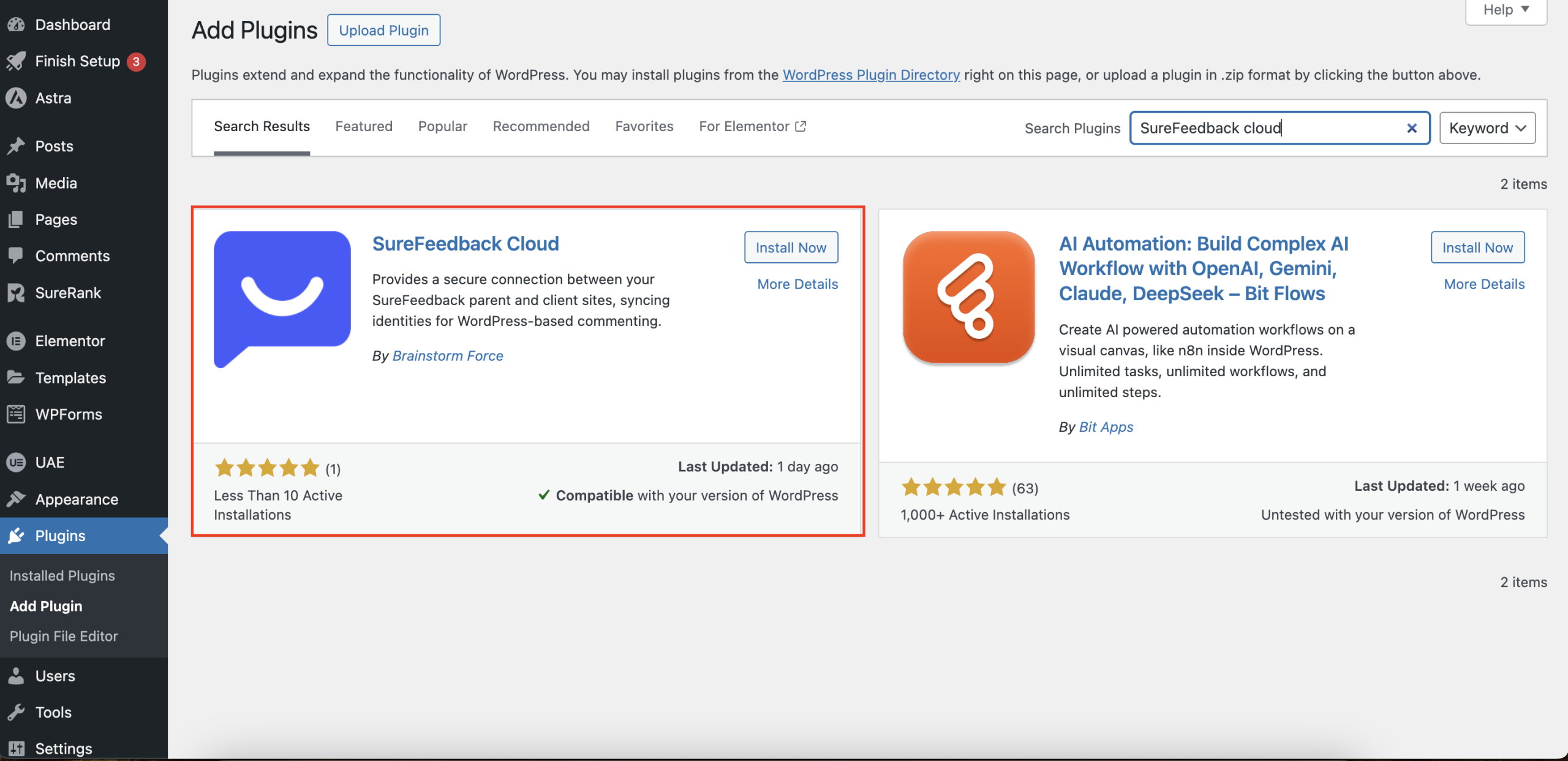
After activation, the setup wizard will launch automatically.
2. Launch the Setup Wizard
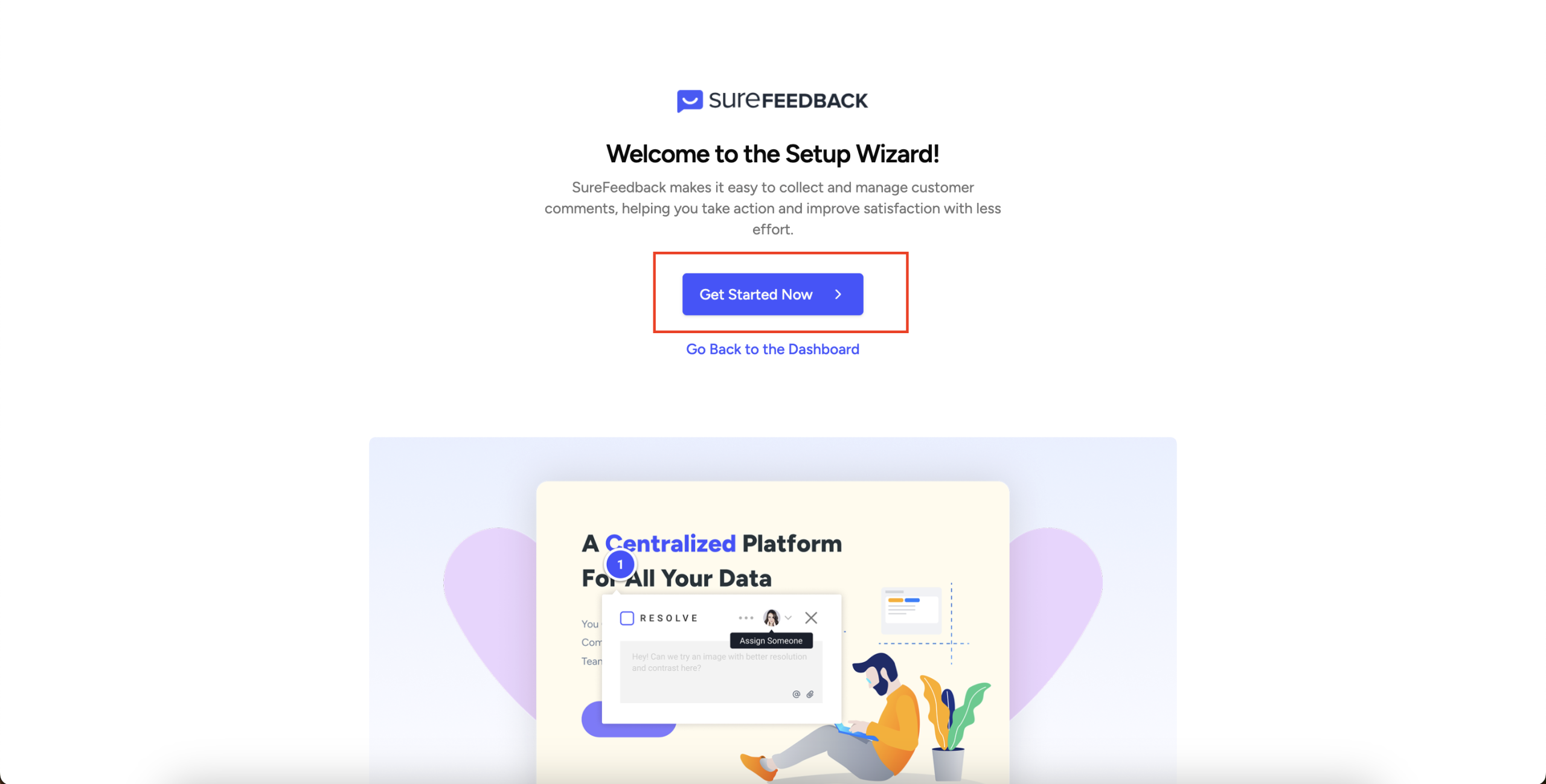
Once the plugin is activated, you’ll see the setup wizard inside WordPress.
Click Get Started to begin connecting your site to SureFeedback.
The wizard guides you step by step and only takes a moment to complete.
3. Log In to Your SureFeedback Account
During the setup process, you’ll be asked to log in to your SureFeedback account.
Use the same credentials you use to access the SureFeedback dashboard. This step securely authenticates your account and prepares the connection between your site and SureFeedback.

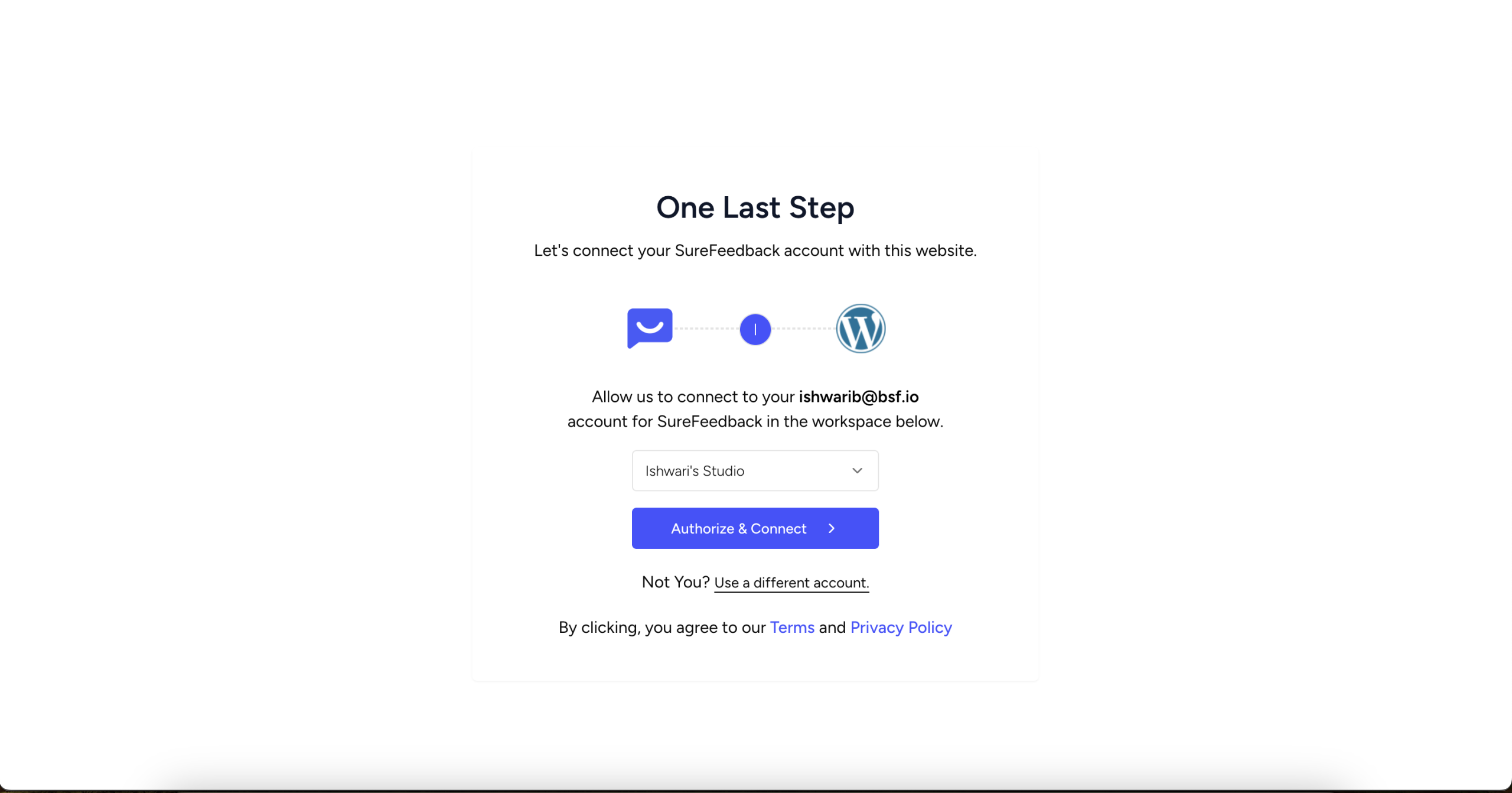
4. Authorize Your Workspace
After logging in, you’ll be prompted to authorize the plugin to access one of your SureFeedback workspaces.
Choose the workspace where you want this website to appear.
This allows SureFeedback to sync your site, feedback, and collaborators correctly.
Once authorized, the connection is established automatically.
5. Verify Your Site in the SureFeedback Dashboard
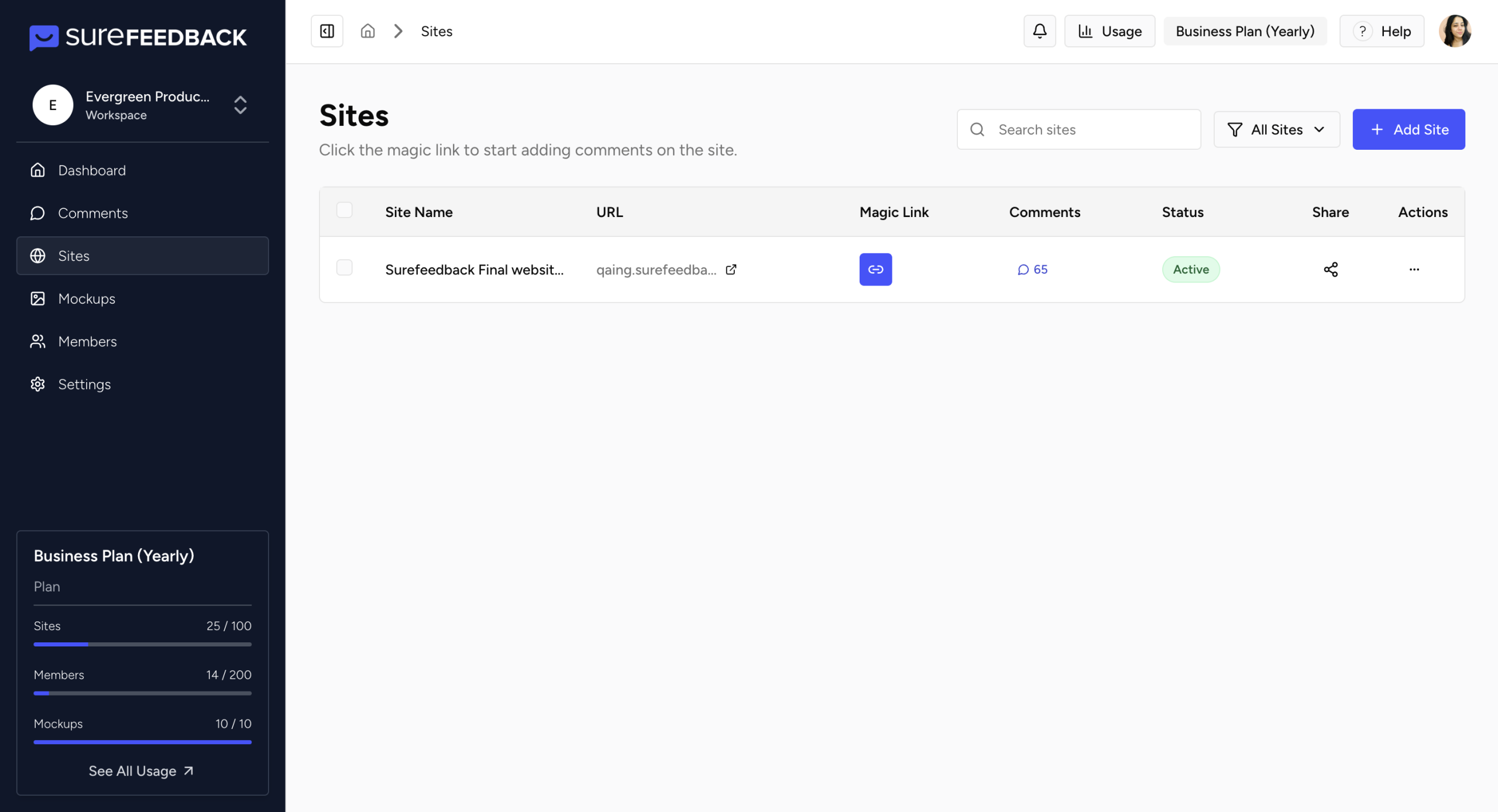
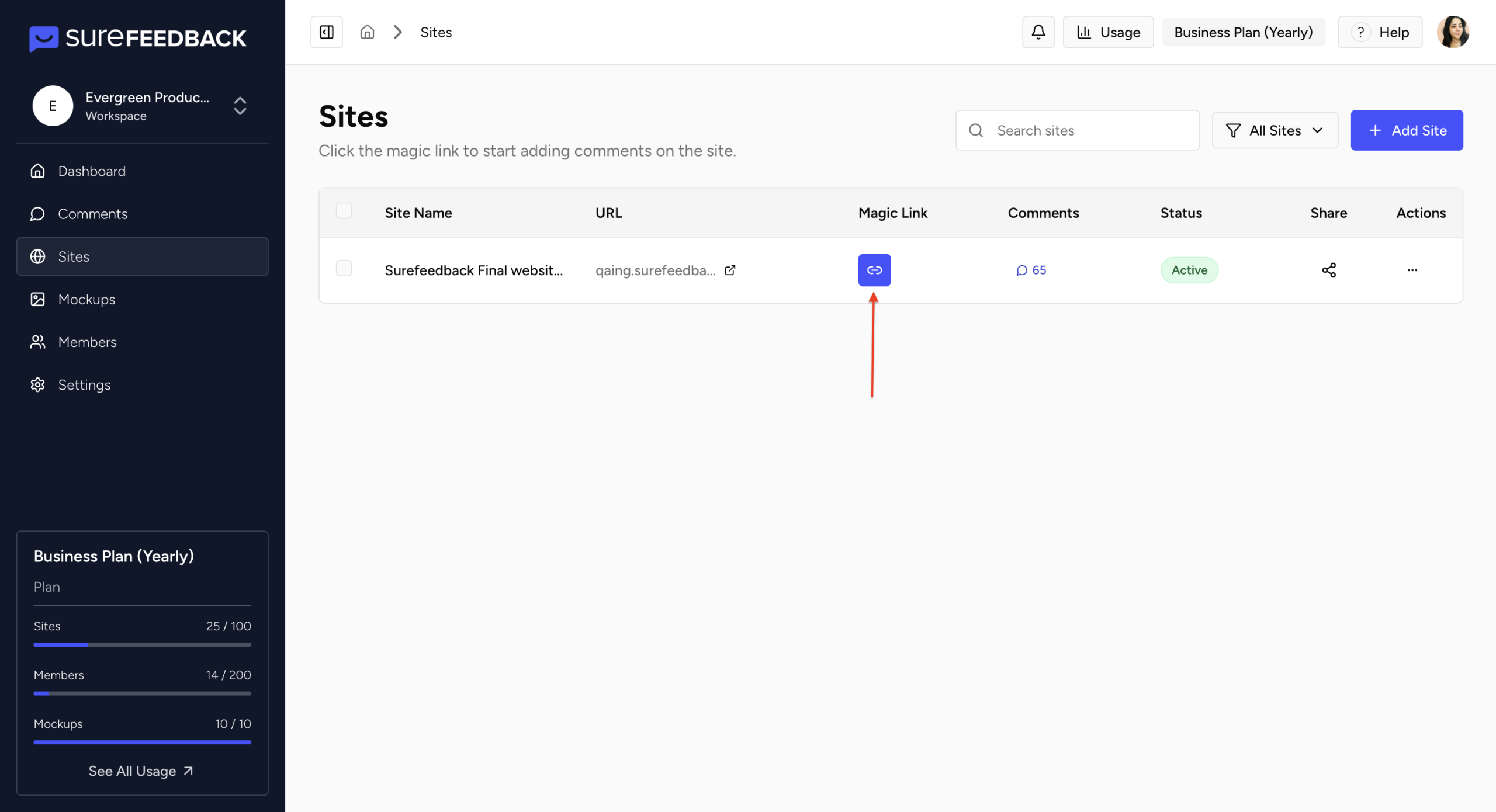
After authorization, your WordPress site will appear in the Sites section of your SureFeedback dashboard.
Seeing your site listed there confirms that the connection is live and working correctly.
No additional configuration is required.
6. Start Collecting Visual Feedback
With the plugin connected, you’re ready to start collaborating.
Open your website using the Magic Link available next to your site in the Sites tab. This ensures feedback is linked to your SureFeedback dashboard.
On your live site:
- Click the comment widget
- Select any element on the page
- Leave a comment or annotation
Feedback from you, your team, and your clients appears instantly in SureFeedback and stays pinned to the exact elements being discussed.
Need Help?
If you run into any issues or have questions during setup, our support team is here to help.
Visit:
https://surefeedback.com/contact-us/
You can also find additional guides and troubleshooting resources inside your SureFeedback dashboard.
We don't respond to the article feedback, we use it to improve our support content.