
Let’s set up Organization & Workspace with SureFeedback
Setting up your Organization and Workspace is the first step to bringing your team together inside SureFeedback. Once that’s done, you’ll be able to invite collaborators, manage projects, and keep client work organized, all from one place.
Not sure what the difference is between an organization and a workspace? Don’t worry, we’ll explain that too.
What is an Organization?
An organization in SureFeedback is the main account space where billing, team settings, and overall management are handled. Your subscription is linked to an organization, and within it you can:
- Create multiple workspaces
- Add and manage members with different permissions
- Oversee all sites, feedback, and activity connected to your workspaces
You can access all organization settings through the Organization section in your dashboard.
What is a Workspace?
Workspaces allow you to divide your SureFeedback environment into clean, dedicated areas for each client, project, or team. This keeps feedback structured and ensures every project stays organized without mixing information.
Here’s what Workspaces offer:
- Isolation that keeps each client or project fully separate so feedback never overlaps
- Centralized management letting you switch between workspaces smoothly from one dashboard
- Collaboration by inviting only the members or clients who should access that specific workspace
- Structured workflows with comments, assignments, approvals, and statuses organized within each workspace
Who’s It For?
Workspaces are ideal for:
- Agencies managing many client websites
- Freelancers handling multiple projects
- Designers, developers, and product teams working through review cycles
- Businesses that divide access across departments or teams
How to create an Organization
- Click “Organization” in the upper left corner of your SureFeedback dashboard.
- Select Switch Organization.
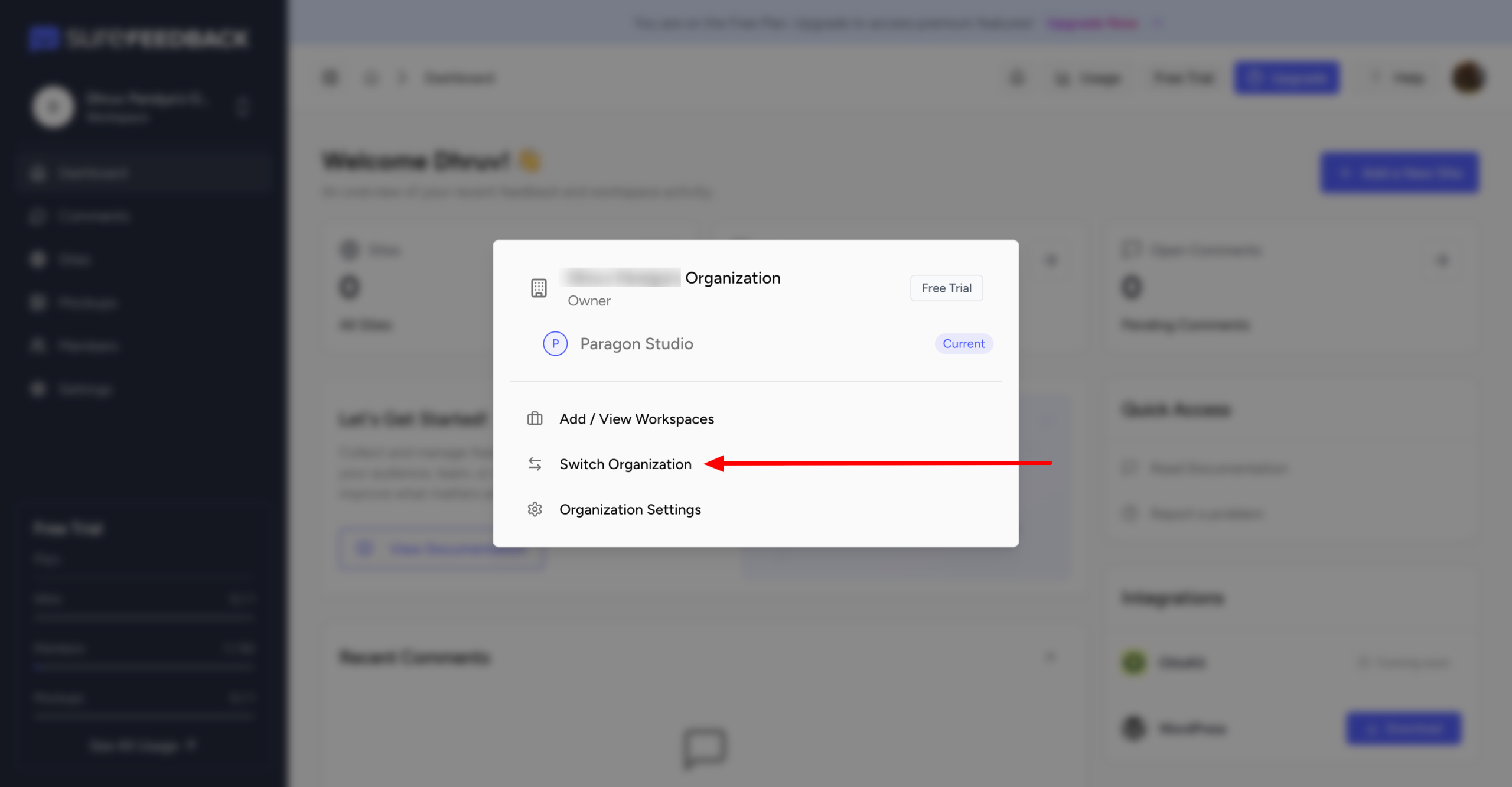
- In the pop up, click Create Organization.
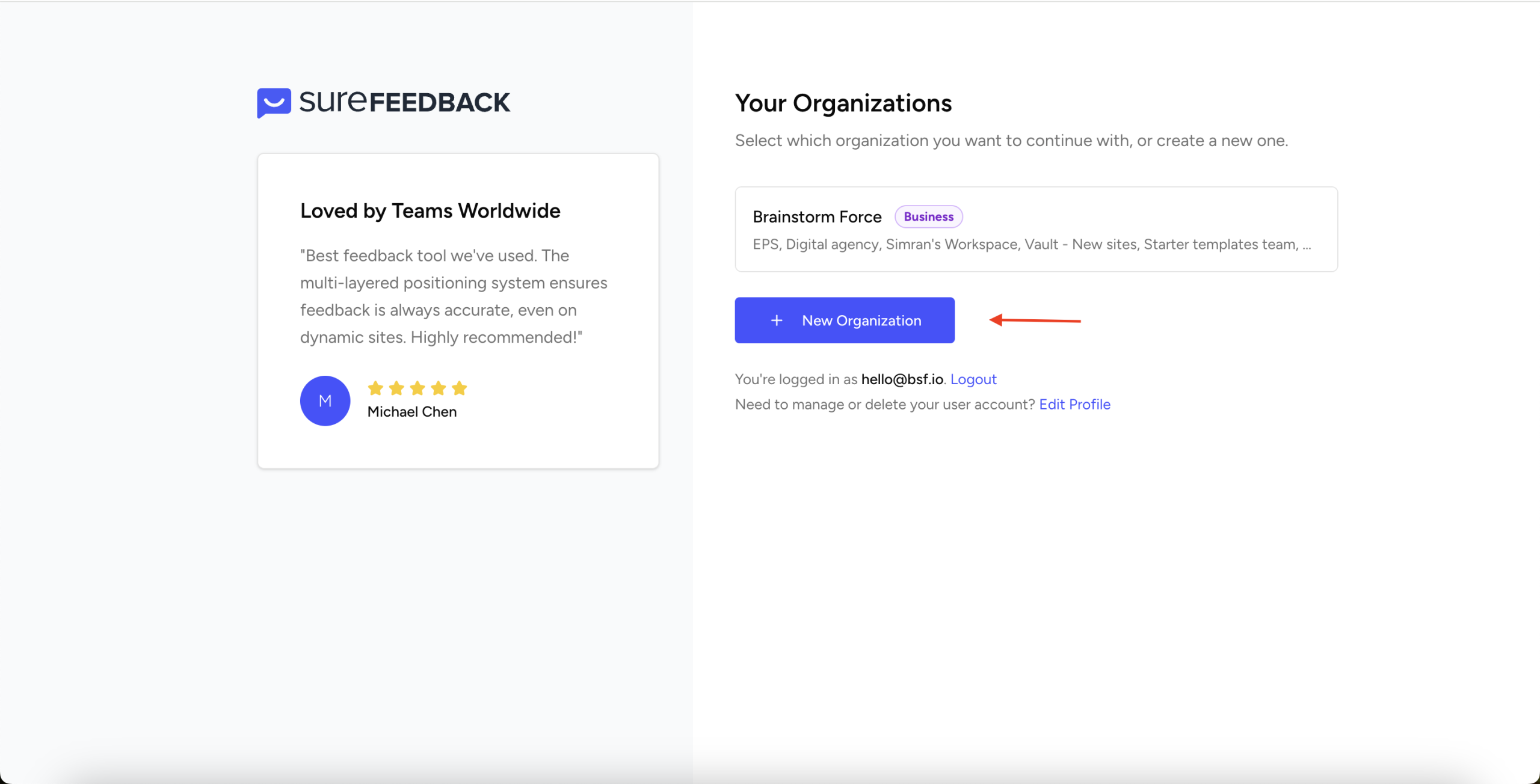
- Please give a name to your new organization, a new organization will be created for your account.
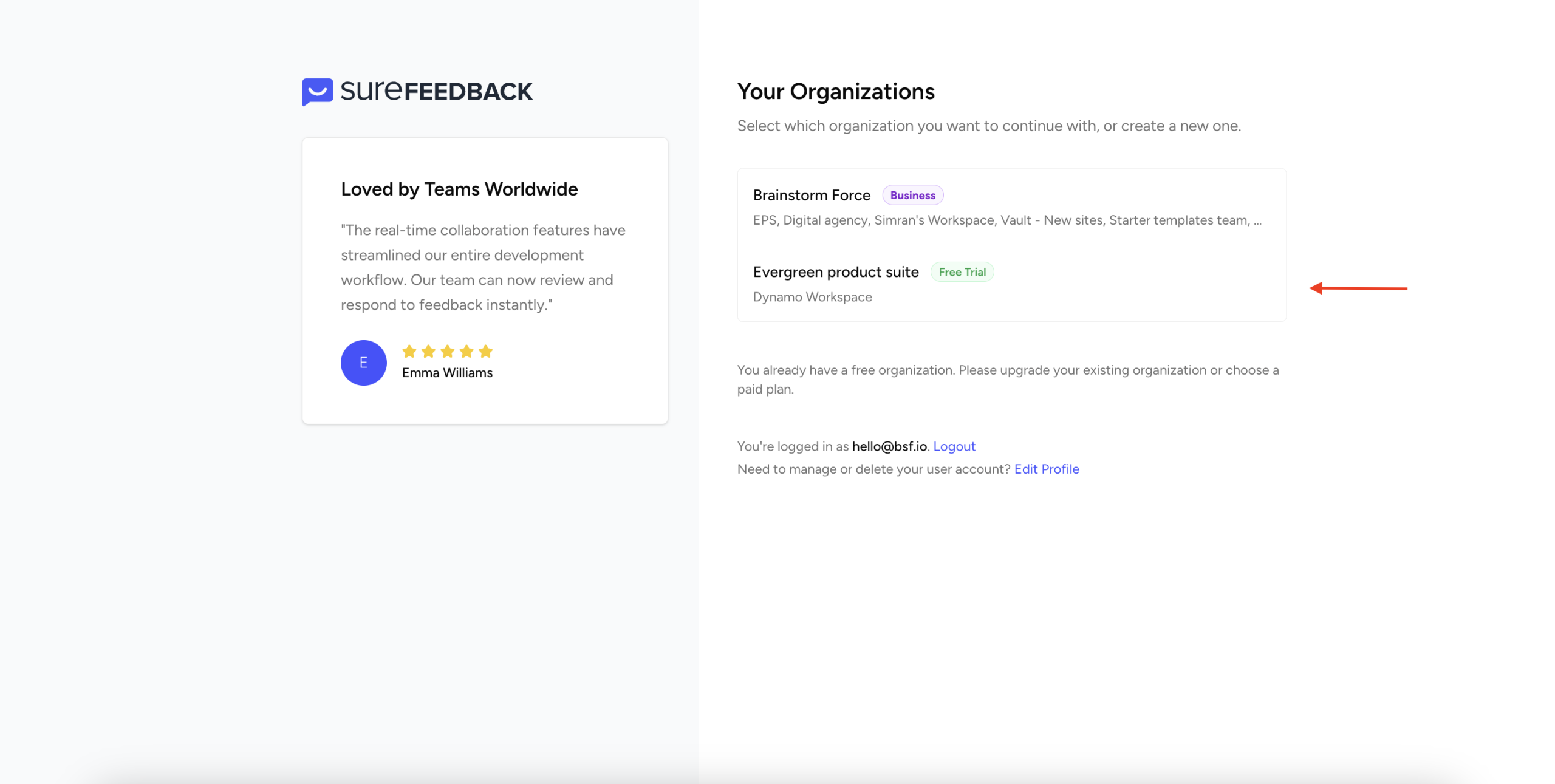
- Choose the organization you want to continue working in.
You’re now ready to start organizing projects within your new workspace.
How to create a Workspace
- Click Organization in the upper left corner of your dashboard.
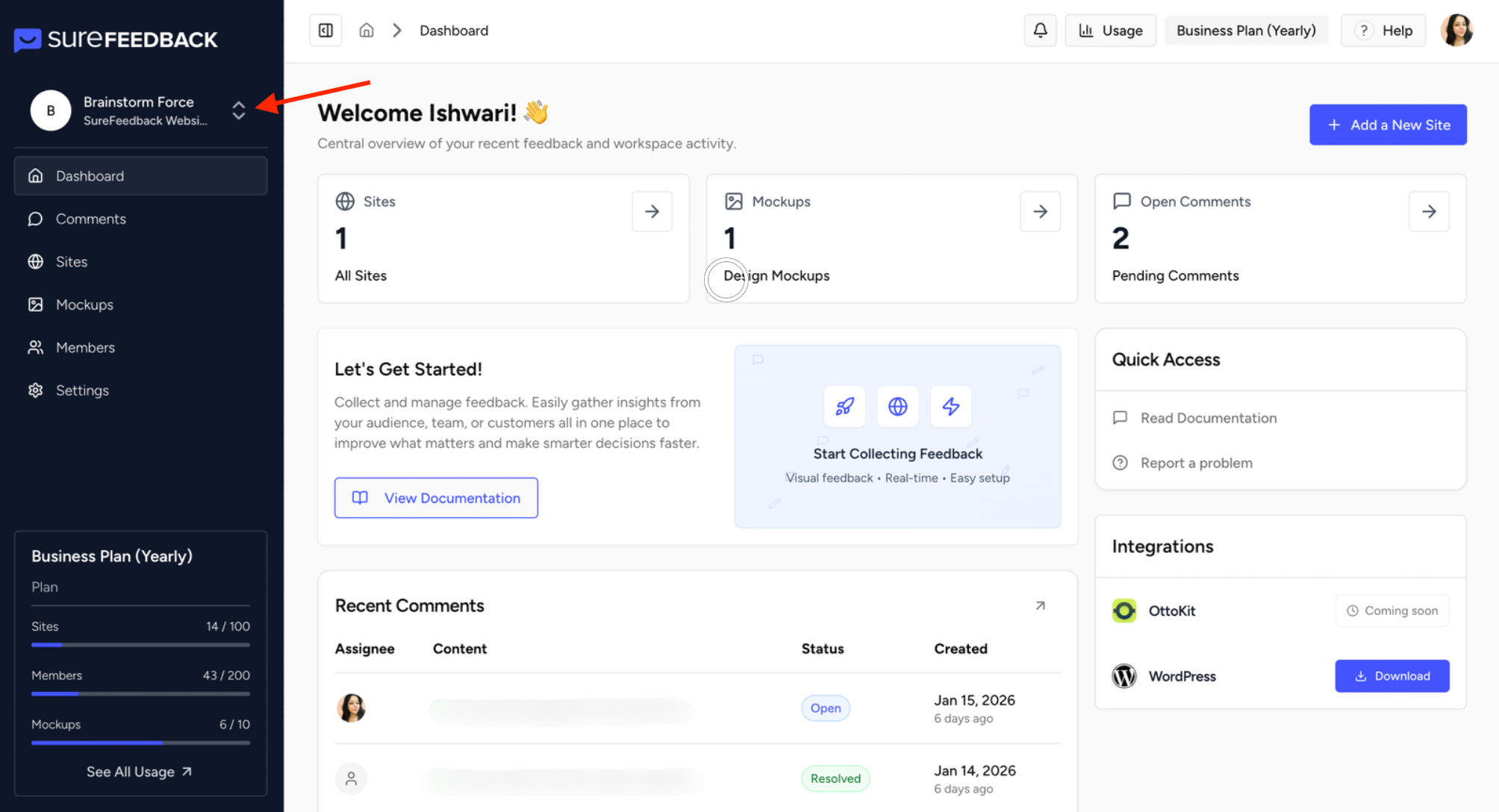
- Click on Add/view workspace.
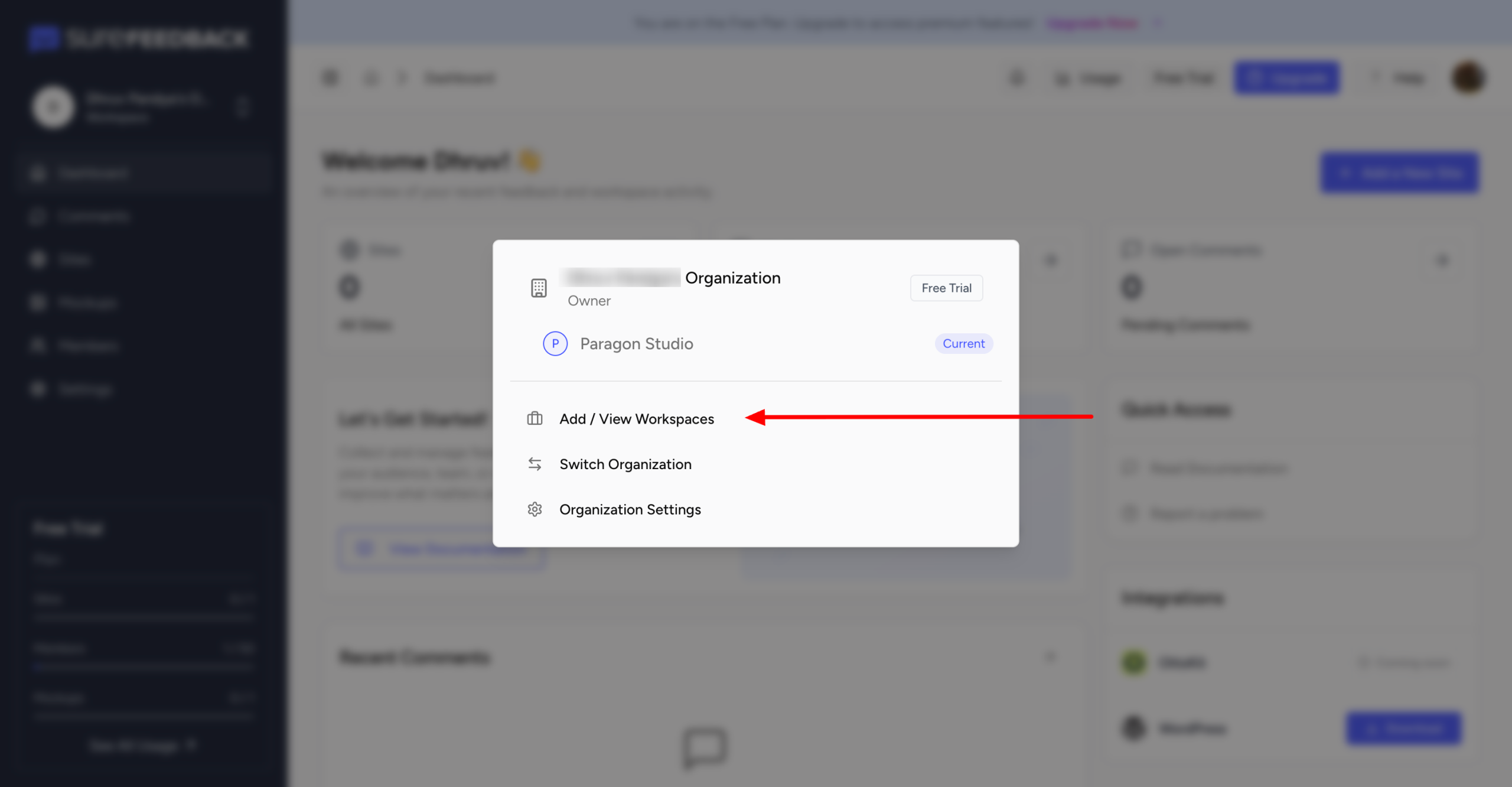
- Select Add Workspace. Note : For the owners of the organizations, they will have the ability to have the centralized view of all the workspaces under view workspace, only for their respective organizations.
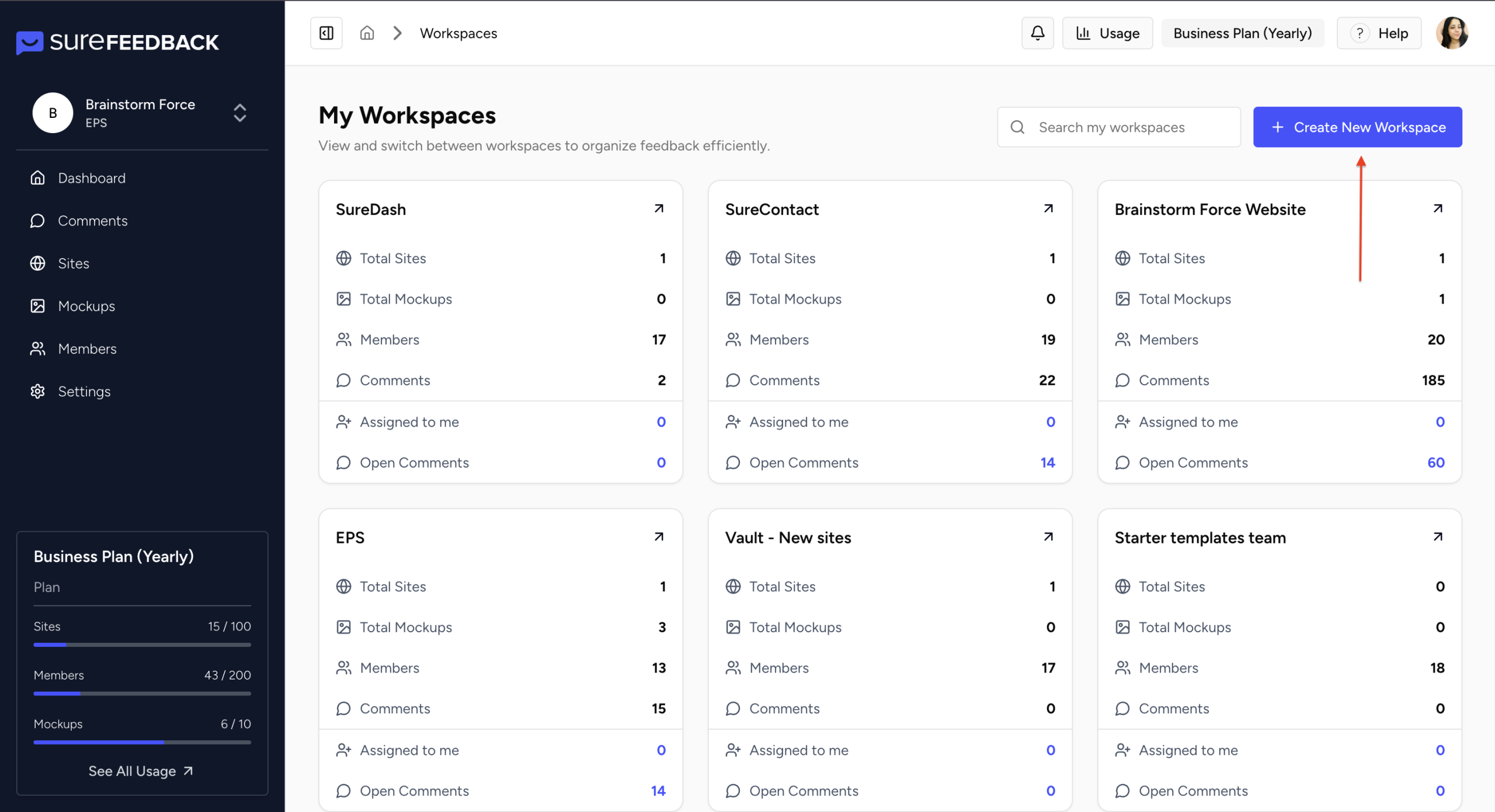
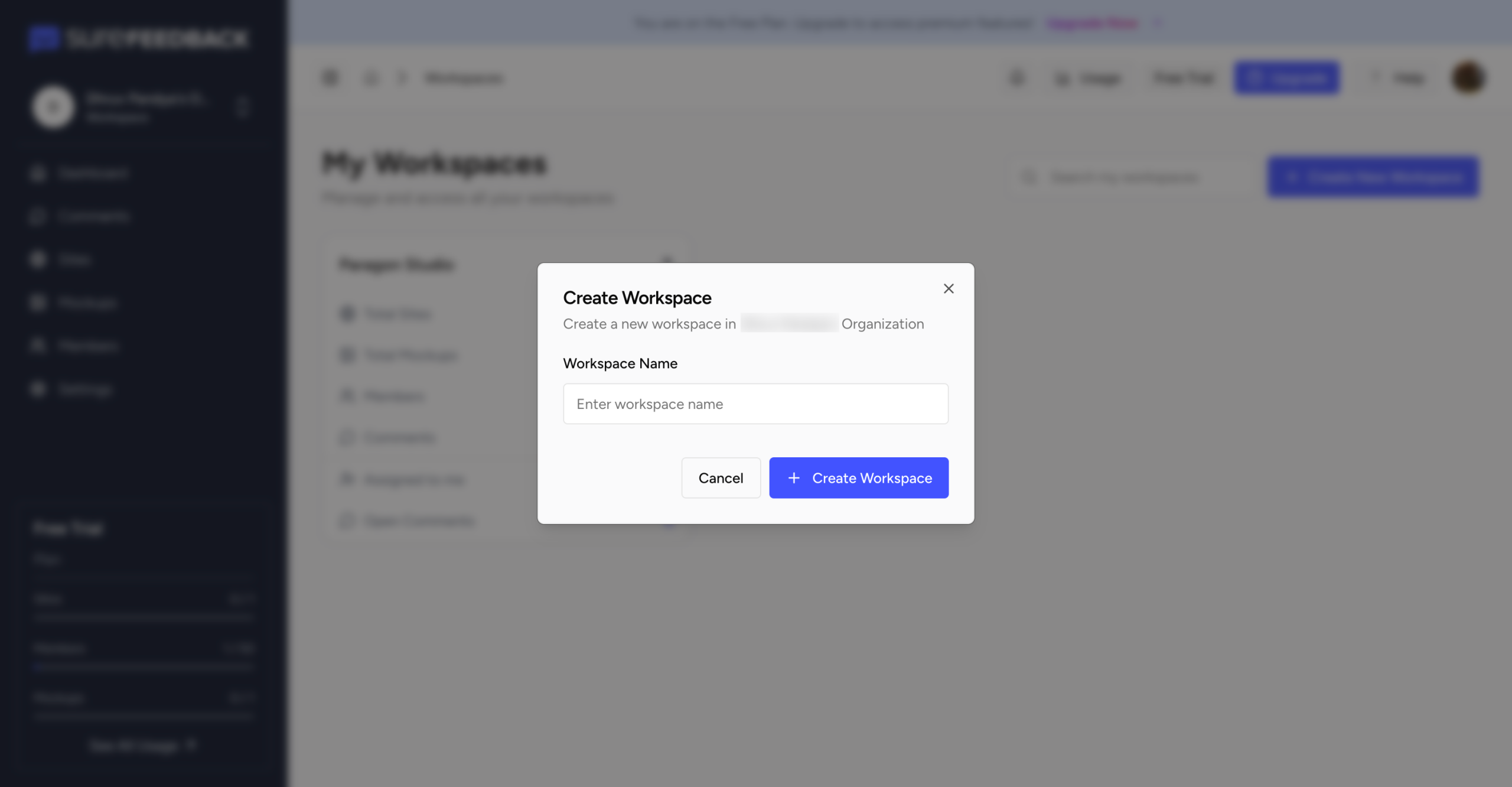
- Enter a name for your workspace.
- Click Create Workspace.
- Select your newly created workspace to begin using it.
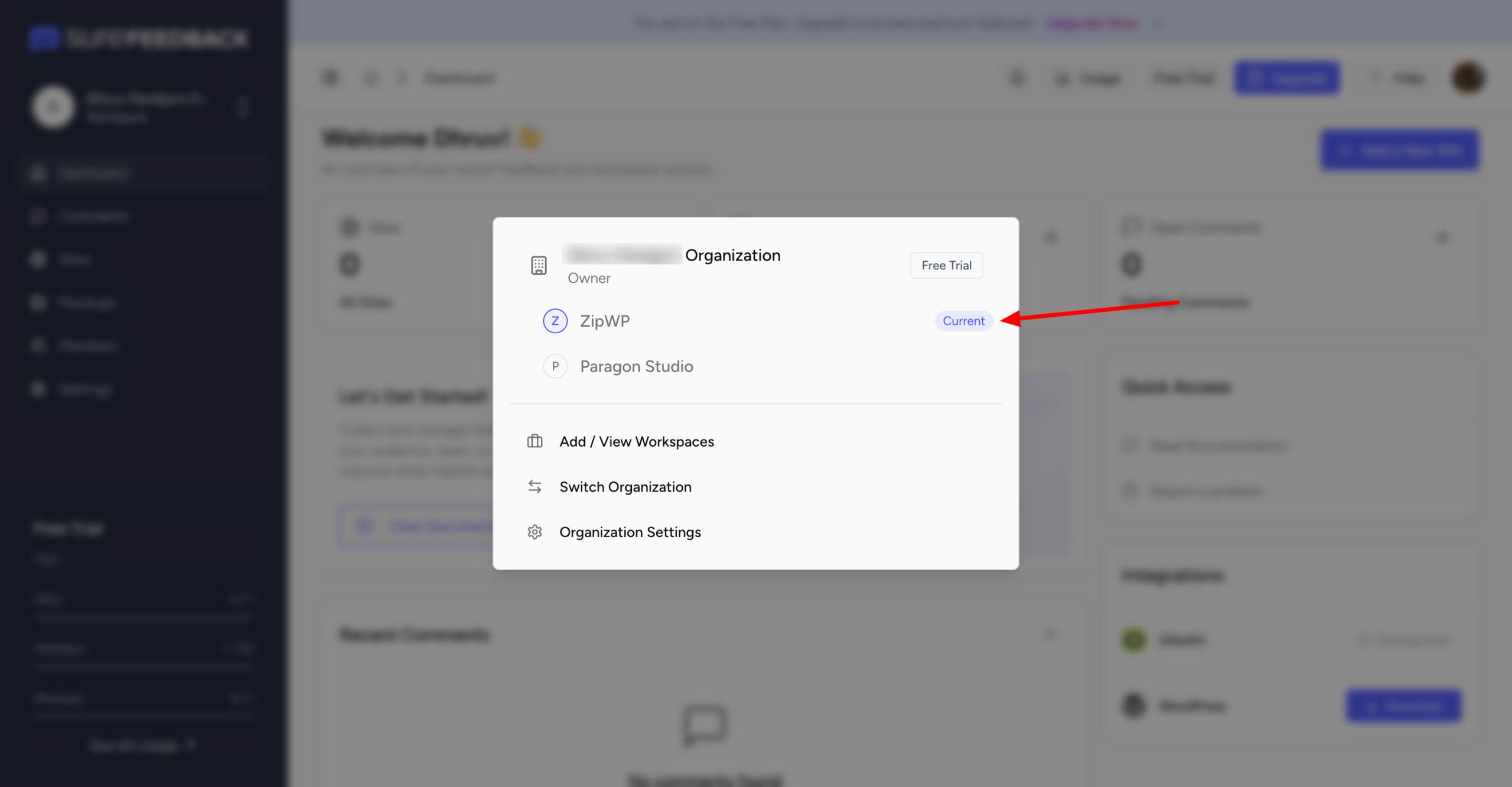
Don’t worry, you can always rename or delete a workspace later if you change your mind.
How to invite members to a Workspace
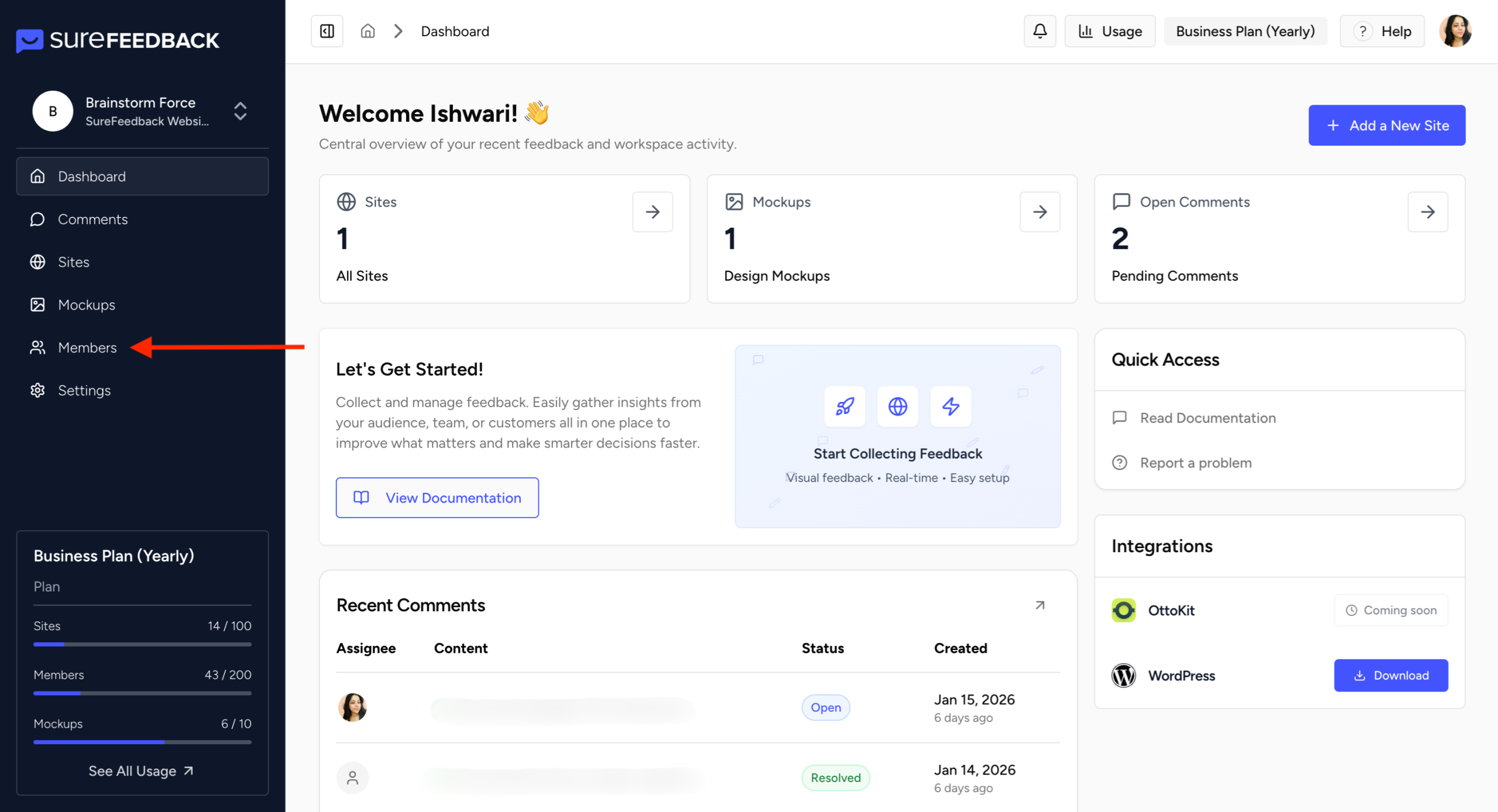
- In your SureFeedback dashboard, select Members from the left menu.
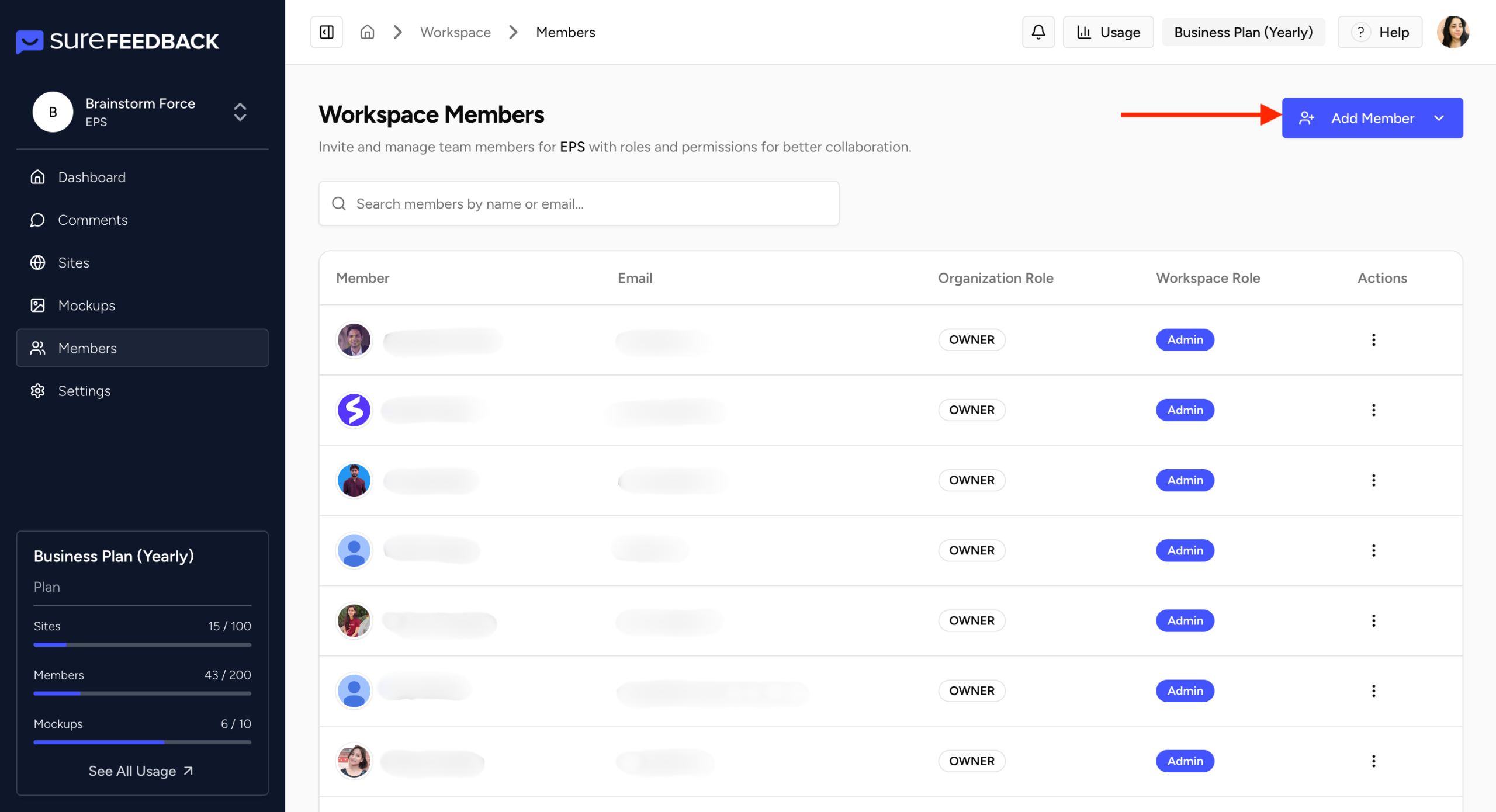
- Click Add Members, a dropdown will appear for selecting the member you want to add in your workspace. Note : The owner and workspace admin will have the permission to invite members into the organization. Owner through the organization settings and admins through the invite member button.
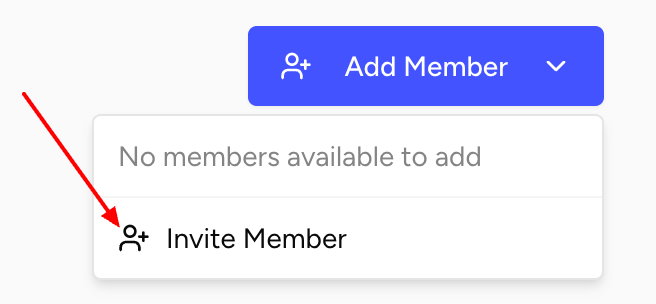
- Enter the email address of the member you want to add.
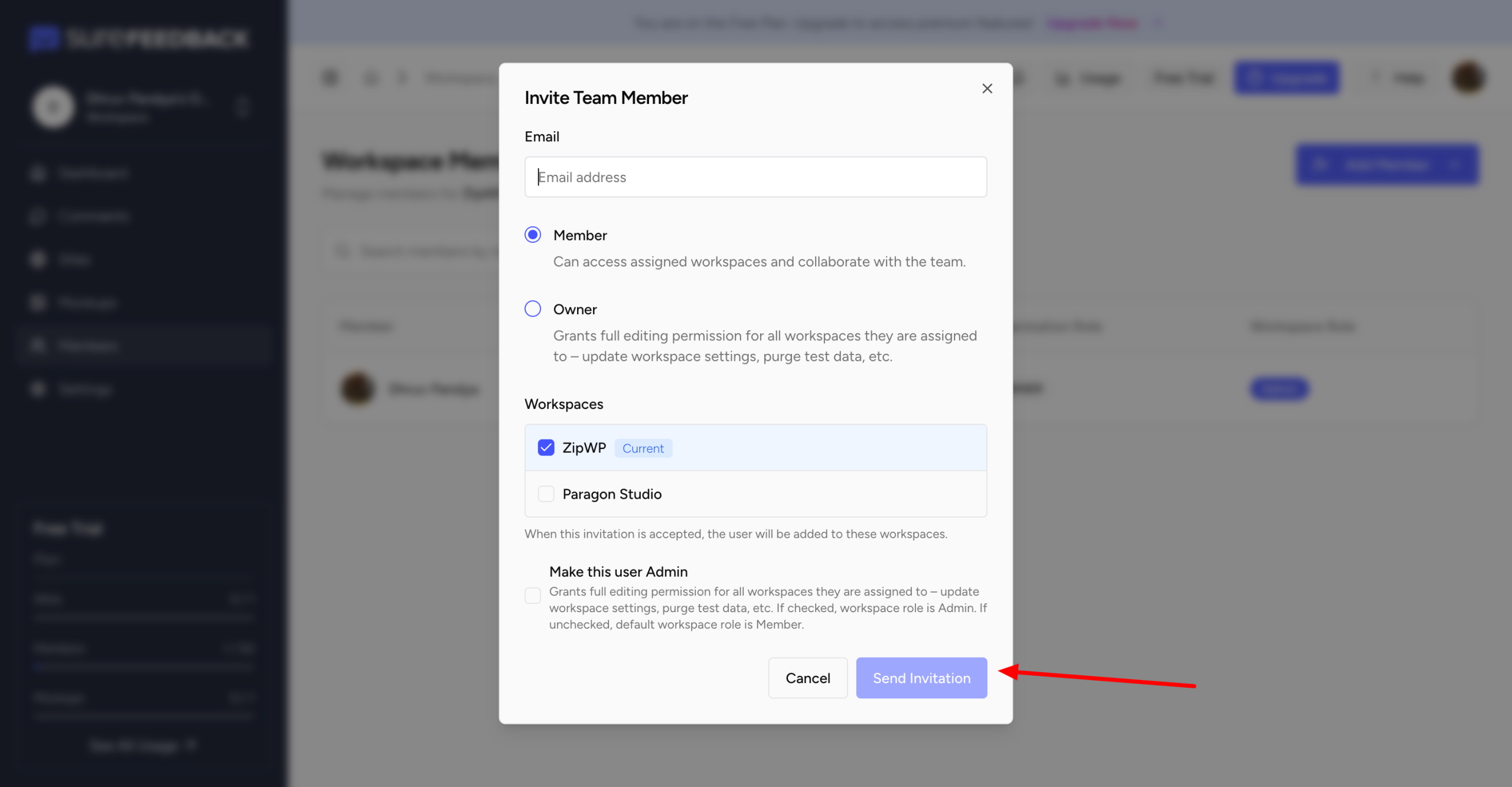
- Assign the permission level they need.
- Click Send Invite.
Need Help?
If you need assistance with setup or have any questions, you can reach the SureFeedback support team directly through their contact page: https://surefeedback.com/contact-us/
They’re always happy to help.
We don't respond to the article feedback, we use it to improve our support content.