
Let’s Add Your First Mockup
Are you looking to collect clear and actionable feedback on designs, wireframes, or client layouts?
If so, you are probably trying to bring all comments into one place, avoid long review cycles, and remove back and forth messages that slow down approvals.
Design reviews often happen across screenshots, emails, chat threads, or separate tools. This creates confusion, version mismatches, and makes it harder for designers, developers, and clients to stay aligned.
This is where SureFeedback helps.
SureFeedback allows you to upload mockups, gather comments directly on the design, and collaborate in real time. Every piece of feedback stays organized, visual, and easy to act on.
In this guide, you will learn how to upload your first mockup, collect comments, and make design reviews smooth and efficient.
What Are Mockups in SureFeedback
Mockups let you upload static design files or import artboards from Figma so you can gather comments without sharing a live website.
They are perfect for design teams, freelancers, agencies, or product teams who want to get early feedback on ideas before development starts.
Common use cases
- Reviewing website layouts before coding directly on the wireframes
- Approving UI Figma design files with clients
- Collecting feedbacks on wireframes or prototypes before final release
- Collecting comments on branding assets
- Creating threaded discussions on specific elements of the Mockups
If your team works with design files, mockups help you centralize feedback and keep your review process simple and organized.
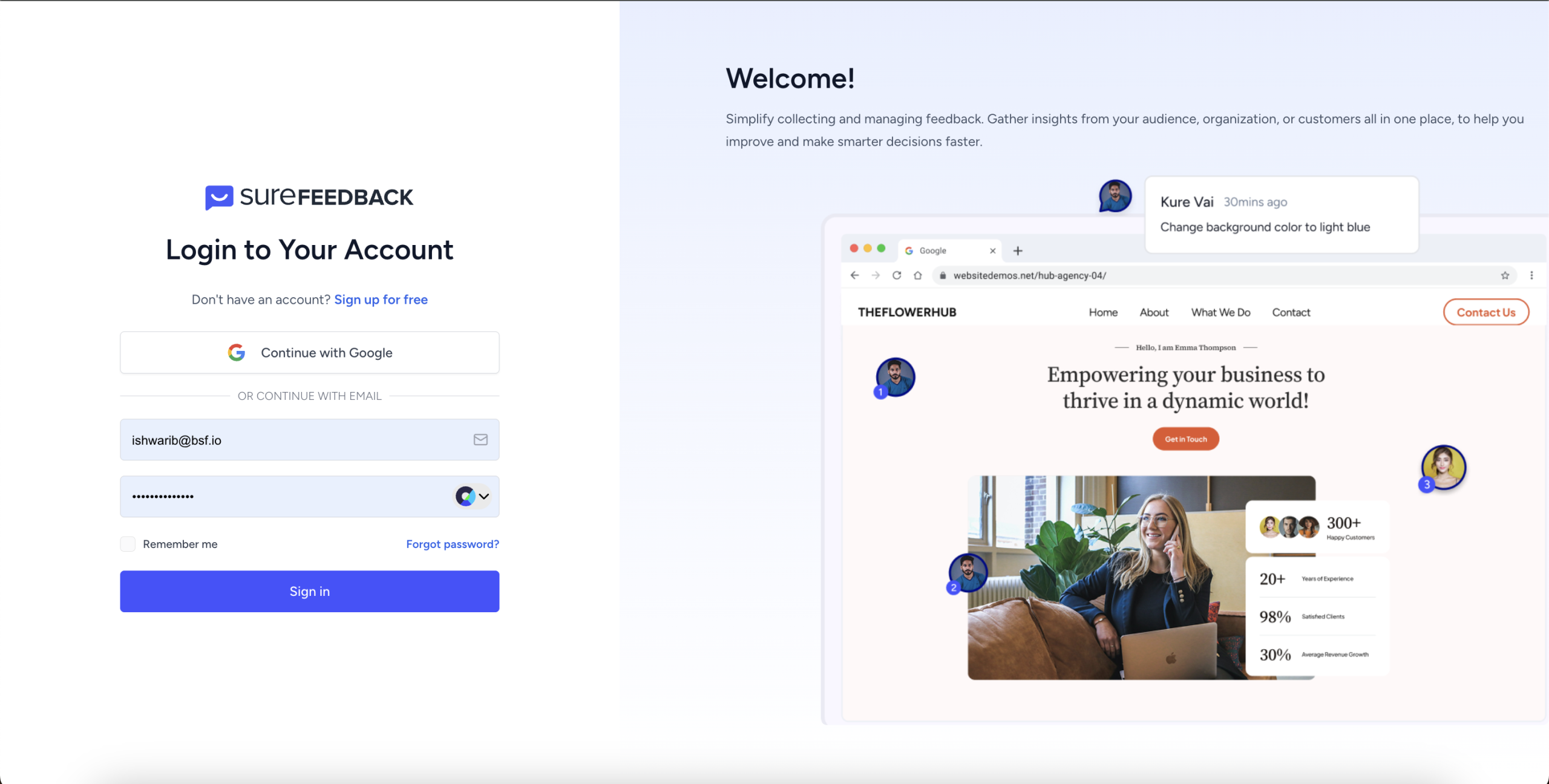
Step 1: Log In to SureFeedback
- Go to app.surefeedback.com and log in using your email and password.
- Once inside, you will land on your dashboard.
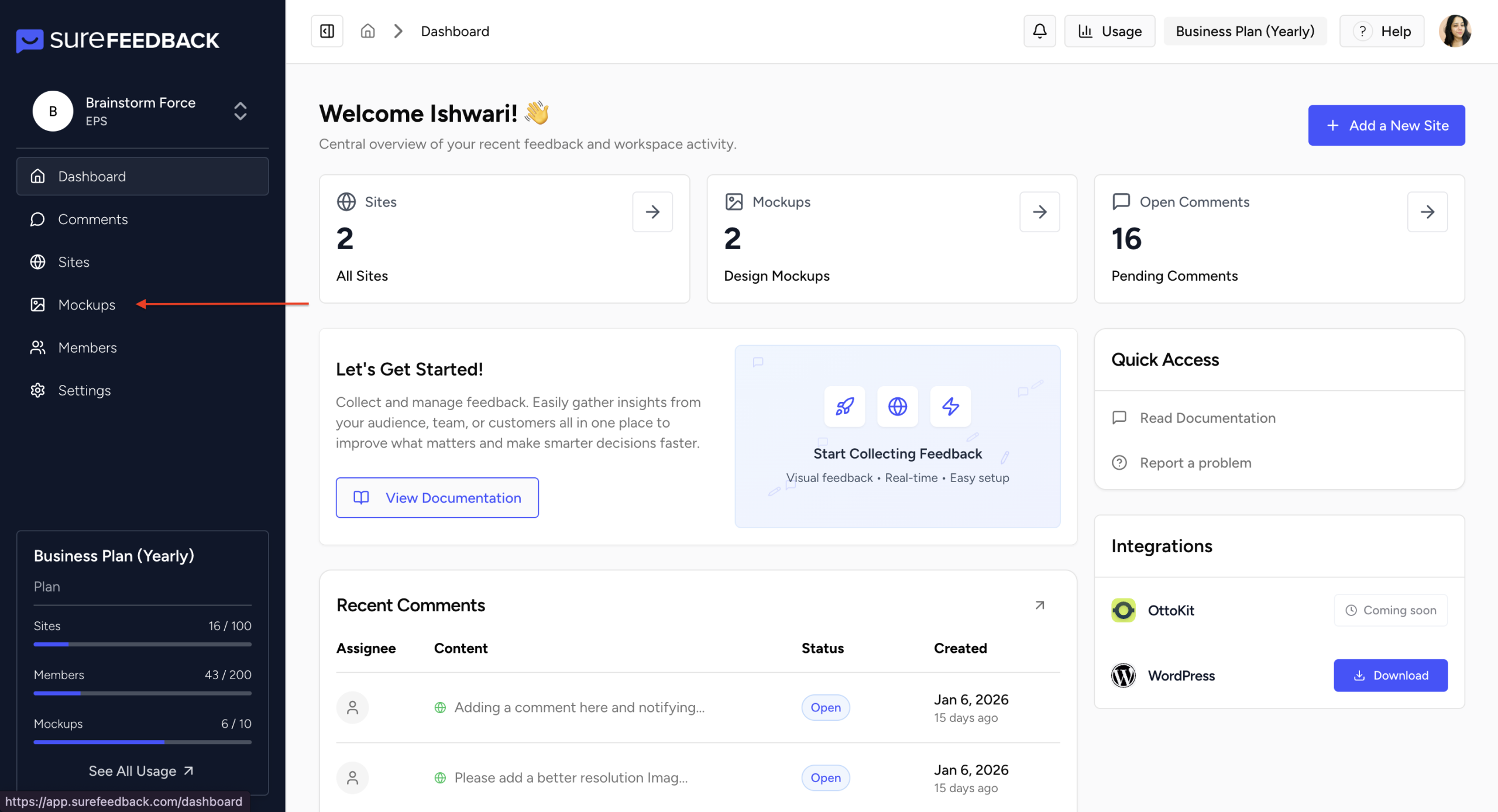
Step 2: Navigate to the Mockups Tab
- From the left sidebar, open the Mockups tab.
- This section stores all your design files and Figma imports.
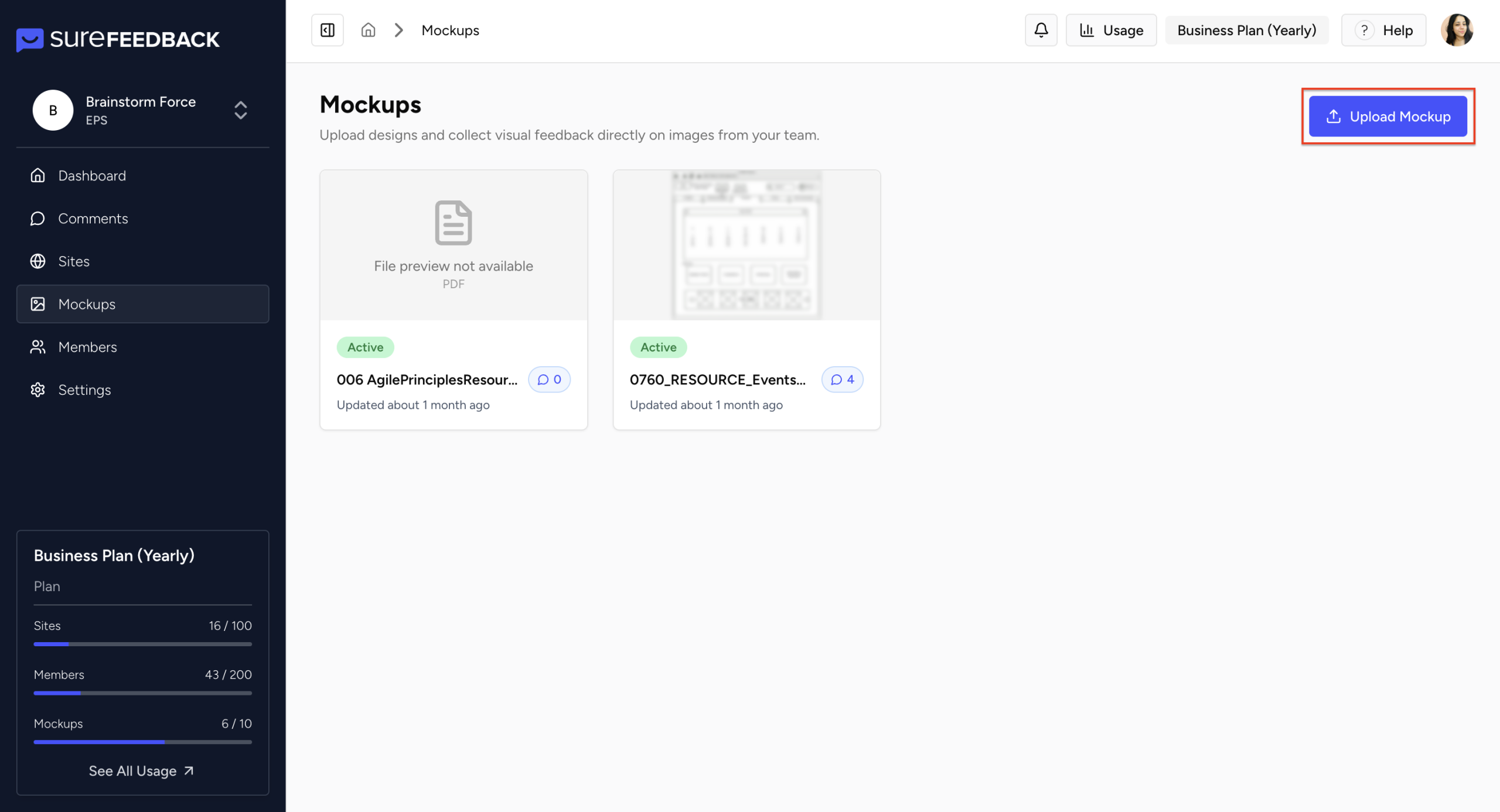
Step 3: Add a New Mockup
- Click the Upload Mockup button.
- A popup will appear where you can upload your file.
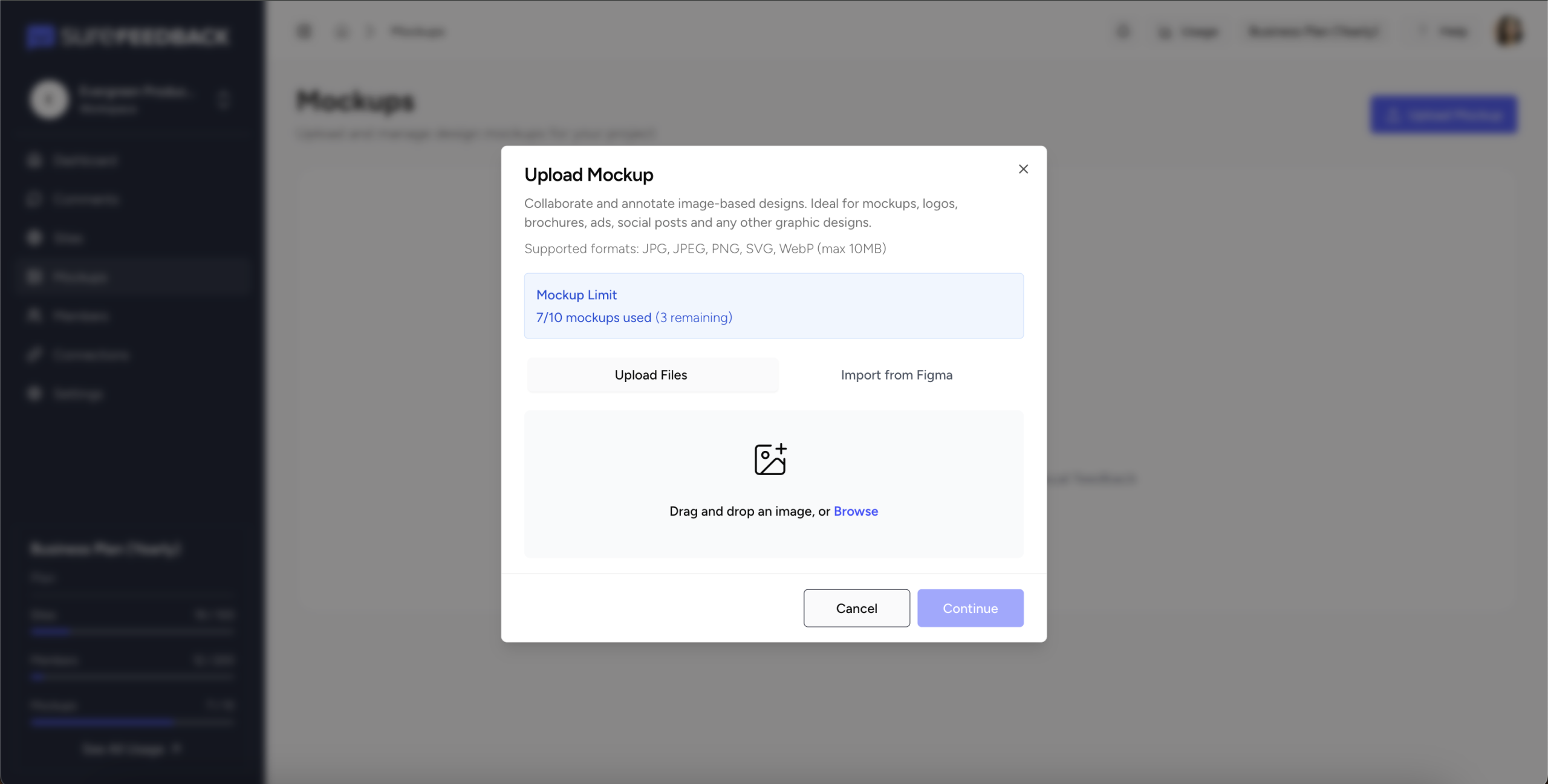
Supported formats
- PDF (Single Page)
- JPG
- PNG
- SVG
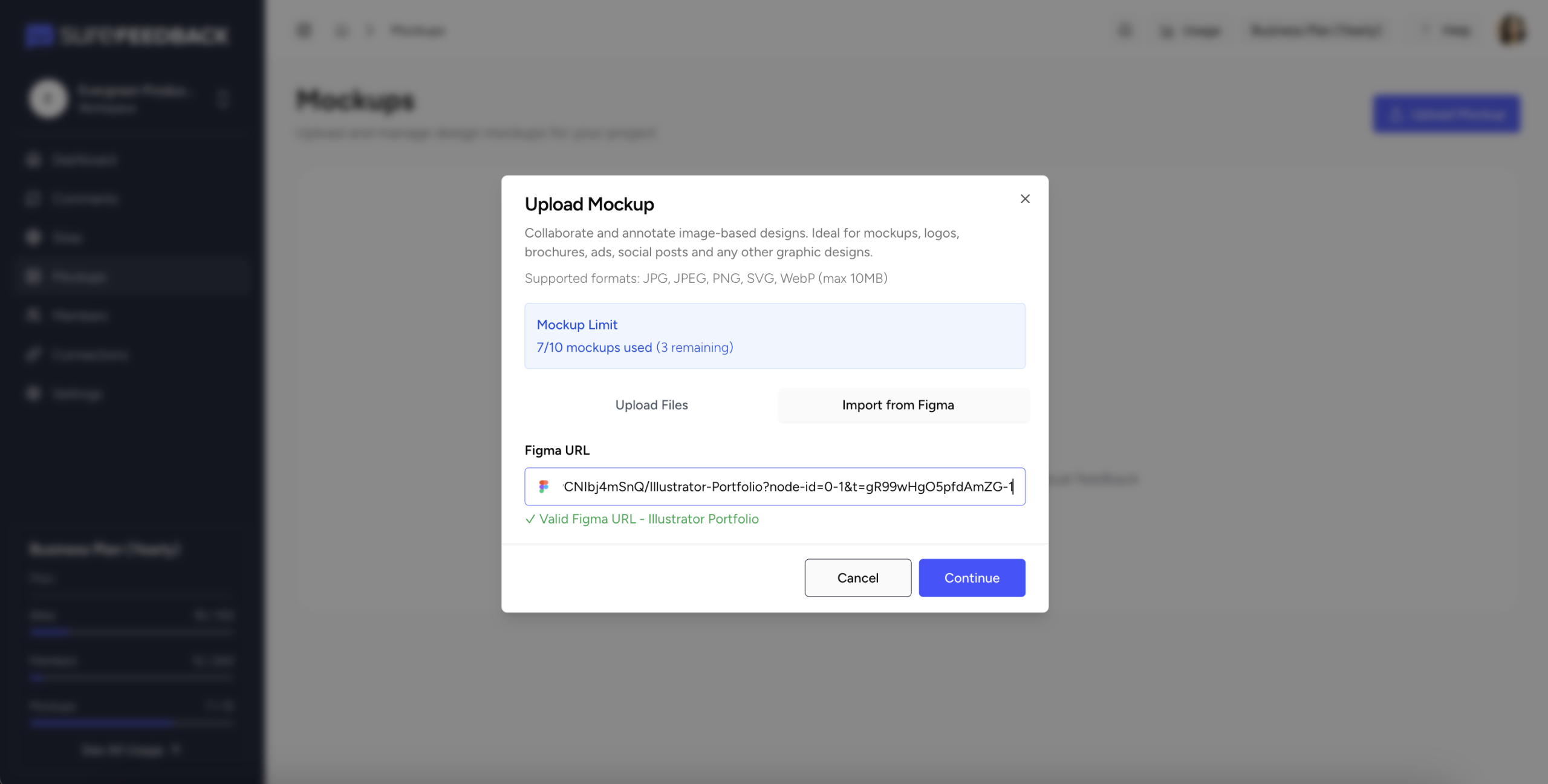
Click on “Continue” button after uploading the mockup of your choice
Step 4: Import from Figma (Optional)
- If your design exists in Figma, click the Import From Figma tab inside the same popup.
- Once imported, the designs behave just like any other mockup in SureFeedback.
- Click on “Continue” button to proceed
Step 5: Start Collecting Comments
- After uploading or importing your mockup, it will open in the viewer.
- You can now start pin pointing feedback and organizing discussions.
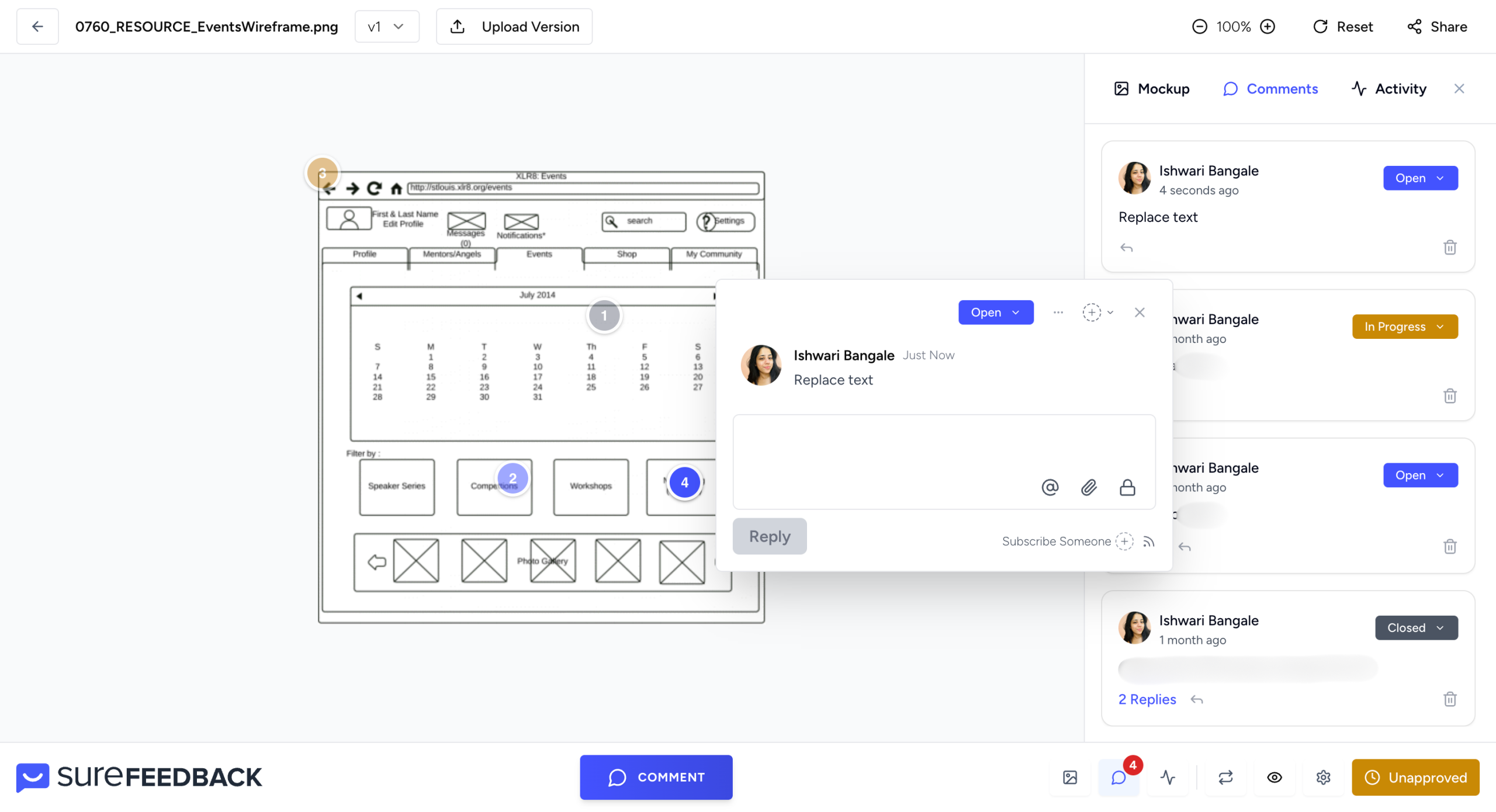
You can
- Click anywhere on the mockup to drop a comment pin
- Add comments with clear instructions
- Attach files
- Assign the comment to a team member
- Subscribe to comments to stay notified
- Change the status such as Open or Resolved
- Mark a comment as Private for internal discussions
- Copy the comment link from the three dot menu to share directly
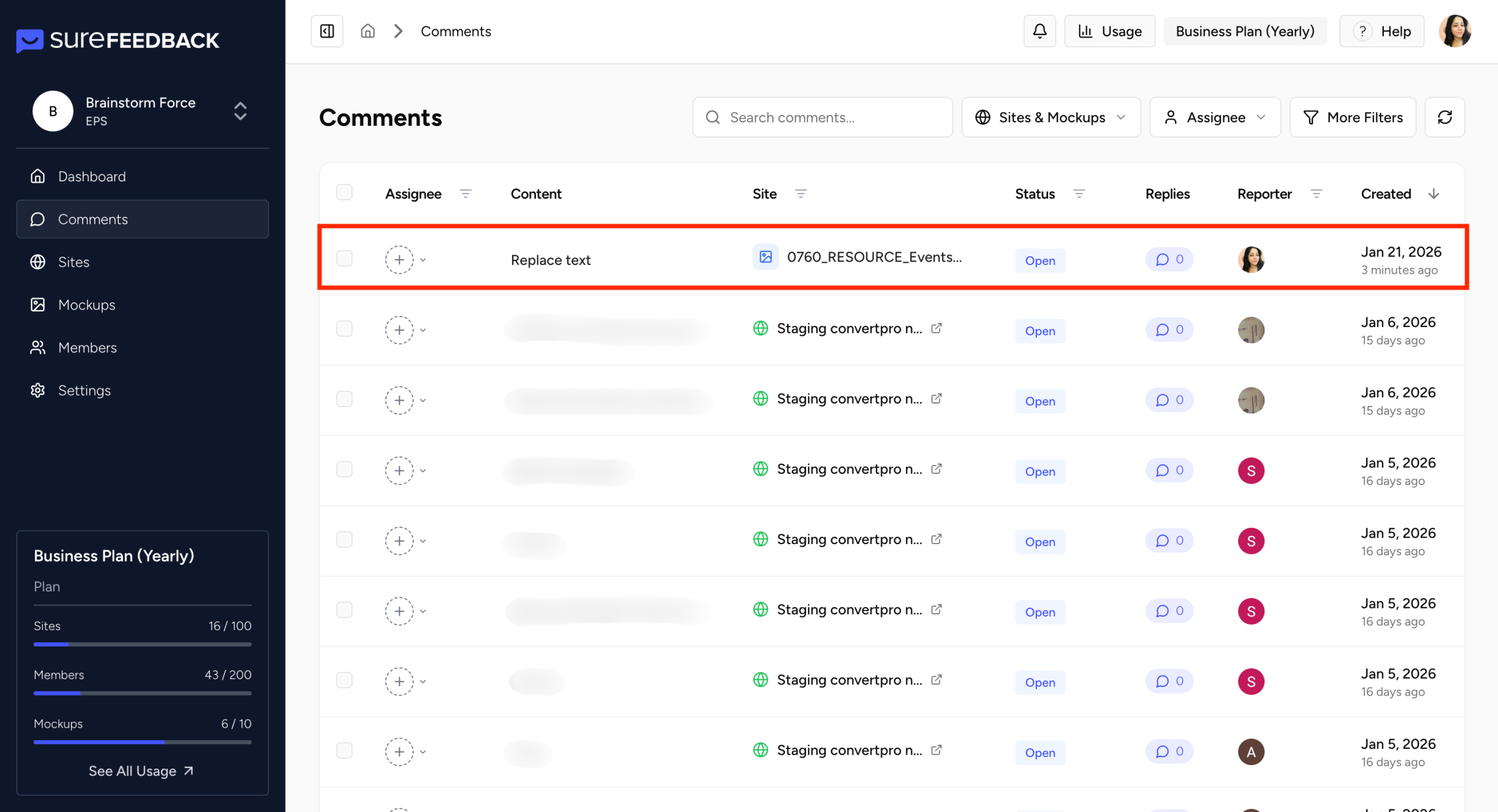
All comments added here will also appear inside the platform wide Comments tab so you can manage everything from a single place. Note : You and your team can reply to comments, discuss changes, and mention teammates to keep conversations organized. Everything above works the same way for both uploaded mockups and Figma imports.
Step 6: Share the Mockup With Others
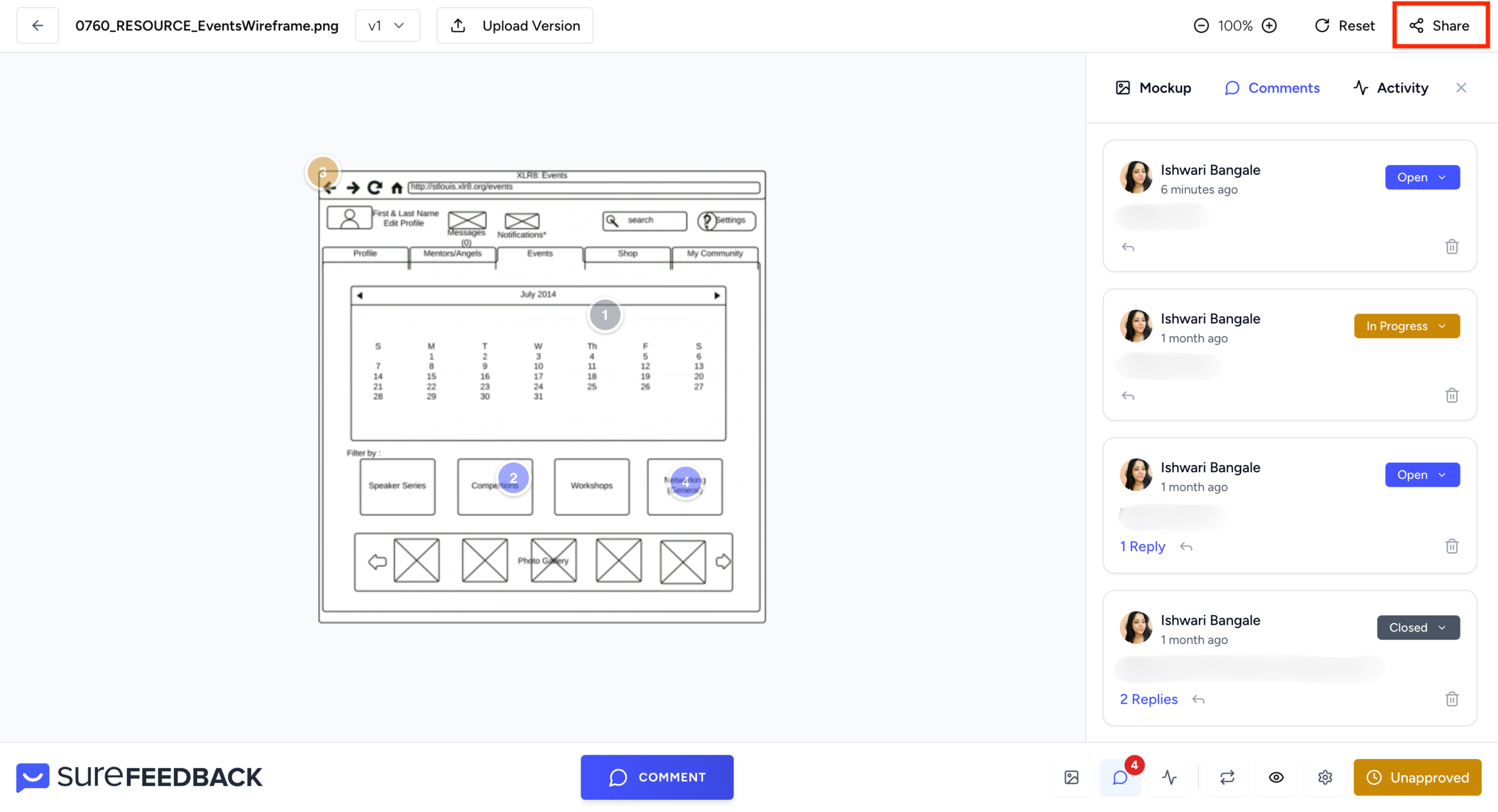
You can share the mockup link using the Share button at the top.
Before sharing, make sure the Allow Guests setting is enabled.
This lets your clients or external reviewers open the mockup without creating an account.
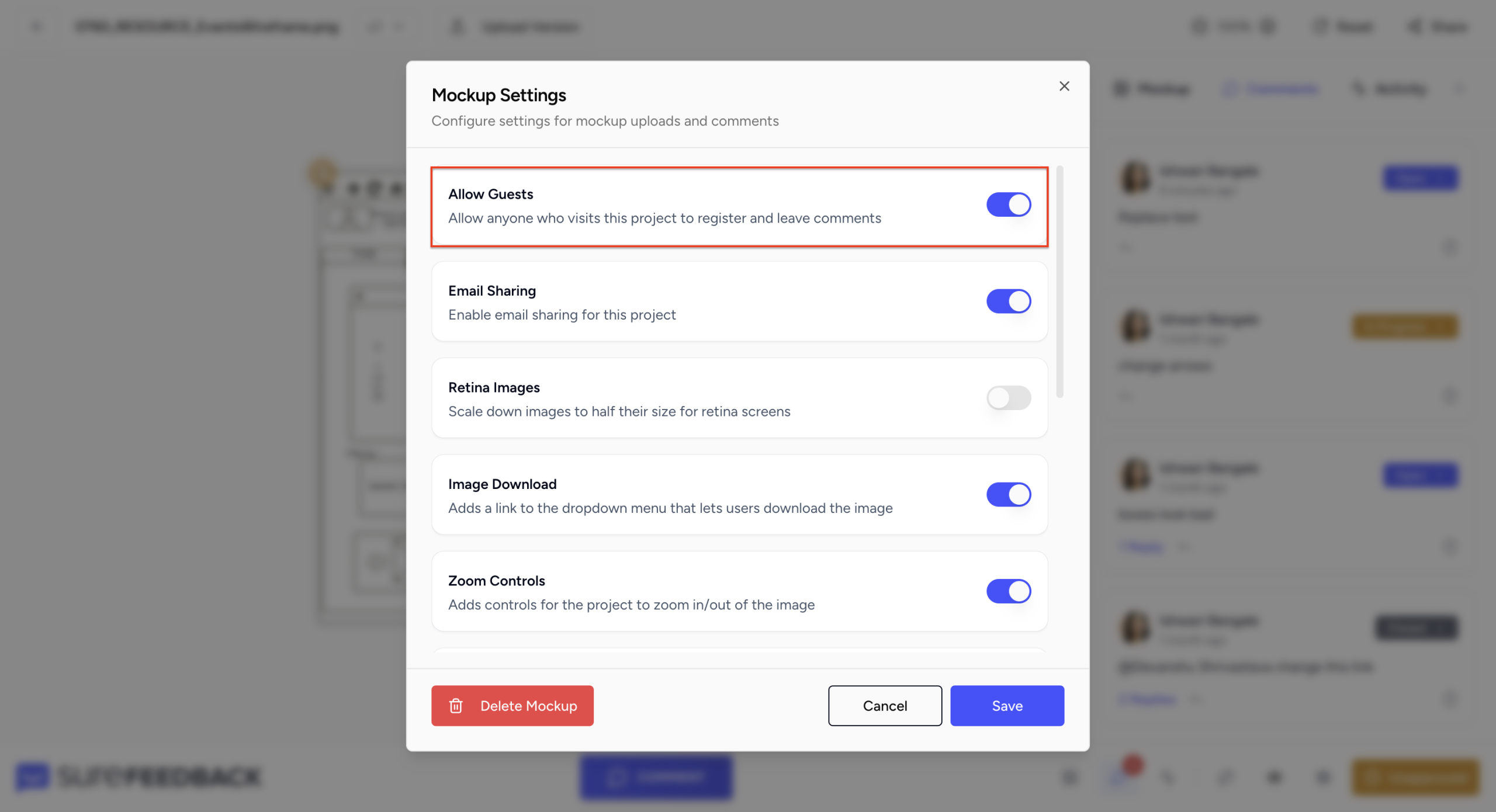
This is ideal for client approvals, quick feedback rounds, or sharing with stakeholders.
How to Get Support?
By now, you’ve learned the key features and steps to begin using SureFeedback.
You can start collecting comments, coordinating with your team, and improving your website with clarity.
If you encounter any issues or have questions, we’re here to help. Simply reach out through our contact page: https://surefeedback.com/contact-us/
You can also explore additional resources and helpful articles inside your dashboard for more guidance.
We don't respond to the article feedback, we use it to improve our support content.