
How To Add A Custom Site On SureFeedback
Add a Custom Website on SureFeedback cloud
Connecting a custom website to SureFeedback is quick and requires only a small script added to your site. Follow the steps below to start collecting comments and feedback instantly.
Step 1: Log In to SureFeedback
- Go to app.surefeedback.com and log in with your email and password.
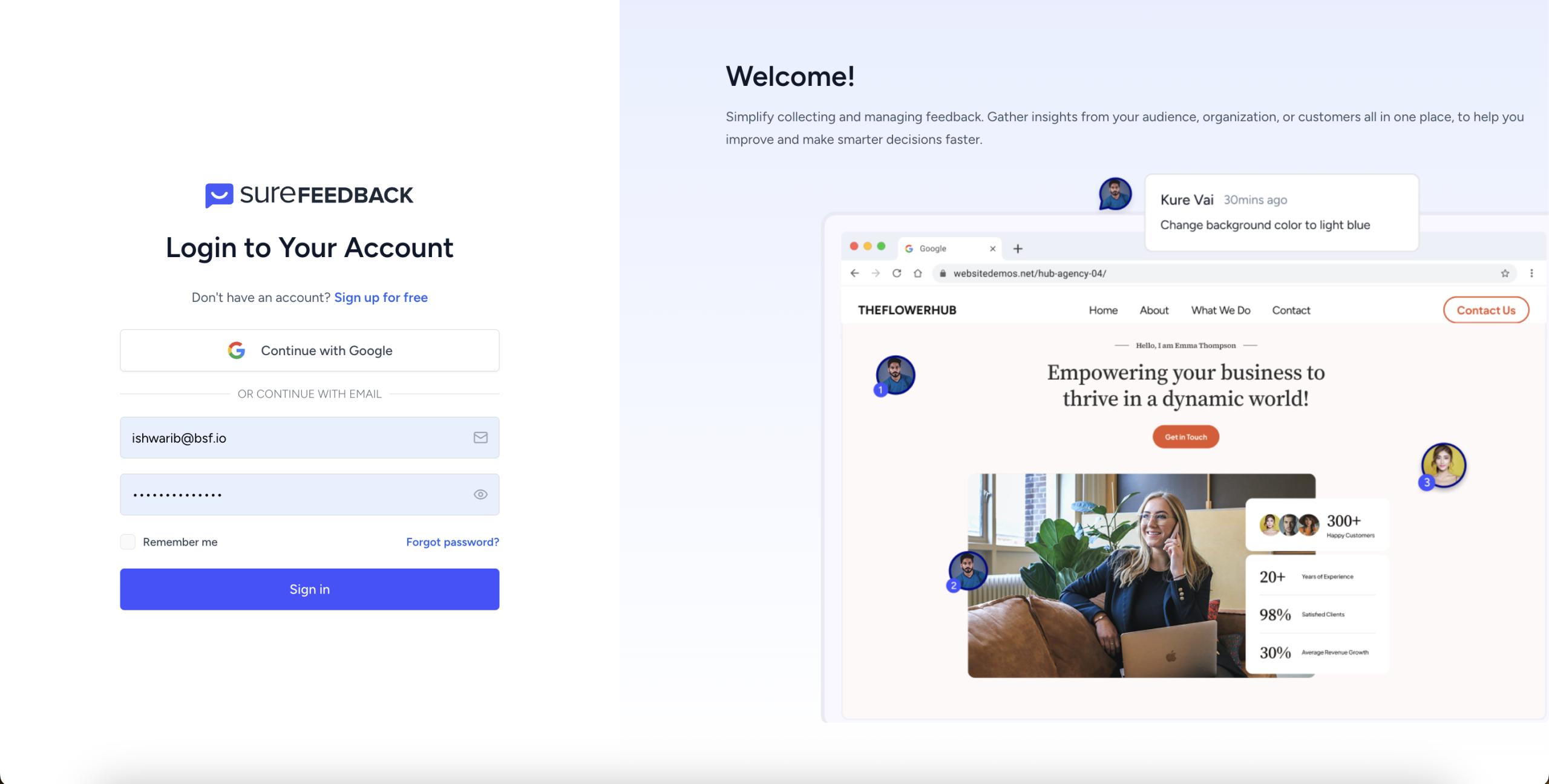
- If you are new to SureFeedback, sign up for free to create your account, otherwise login with your existing credentials.
Step 2: Add a New Site
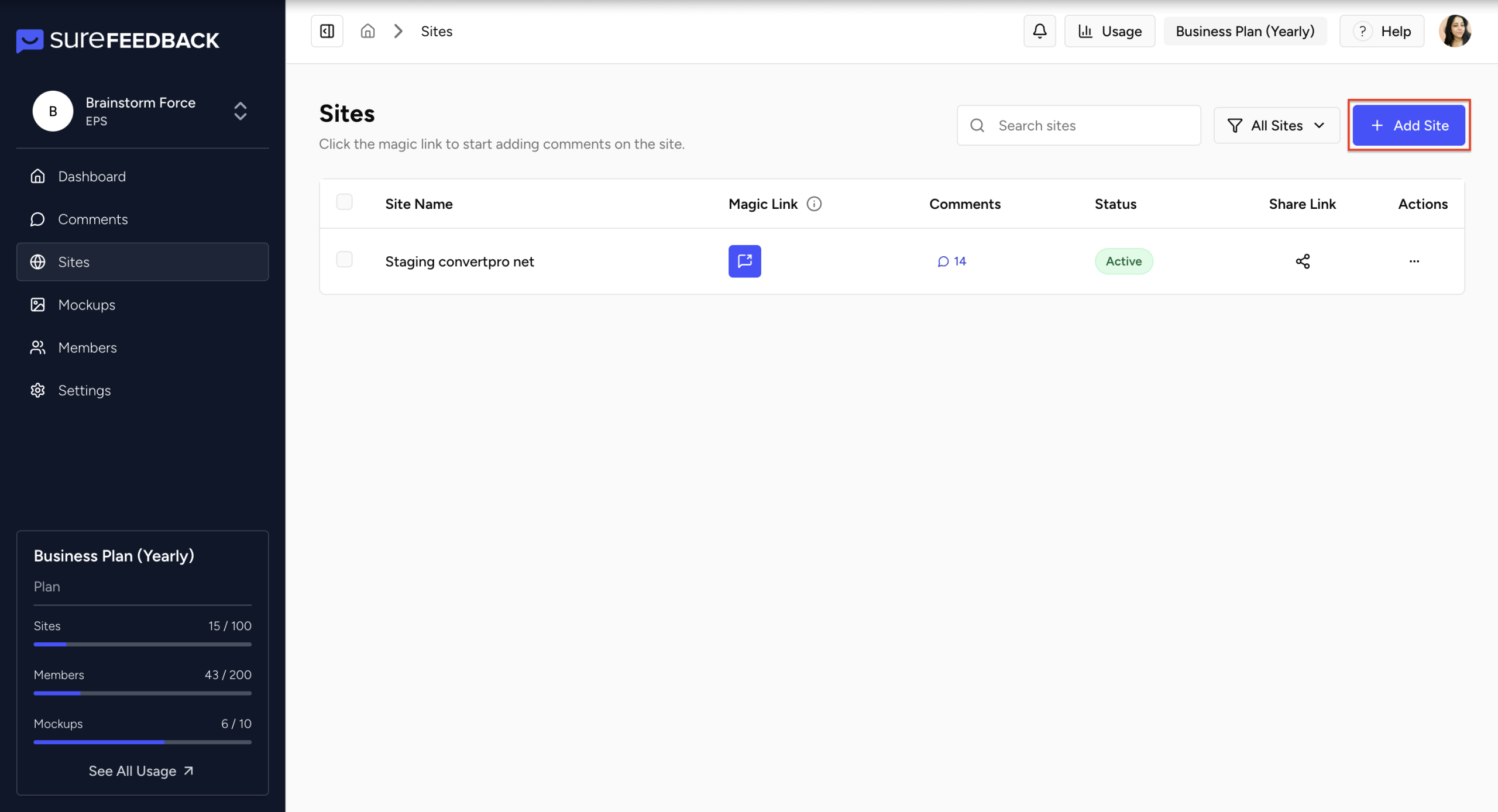
- From your dashboard, click Add New Site at the top right. This begins the setup for connecting your custom website.
Step 3: Enter Your Website Details
Provide your site information:
- Paste your website URL
- Enter a name for the site
- Pick your platform from the dropdown
- Select Custom as your site type
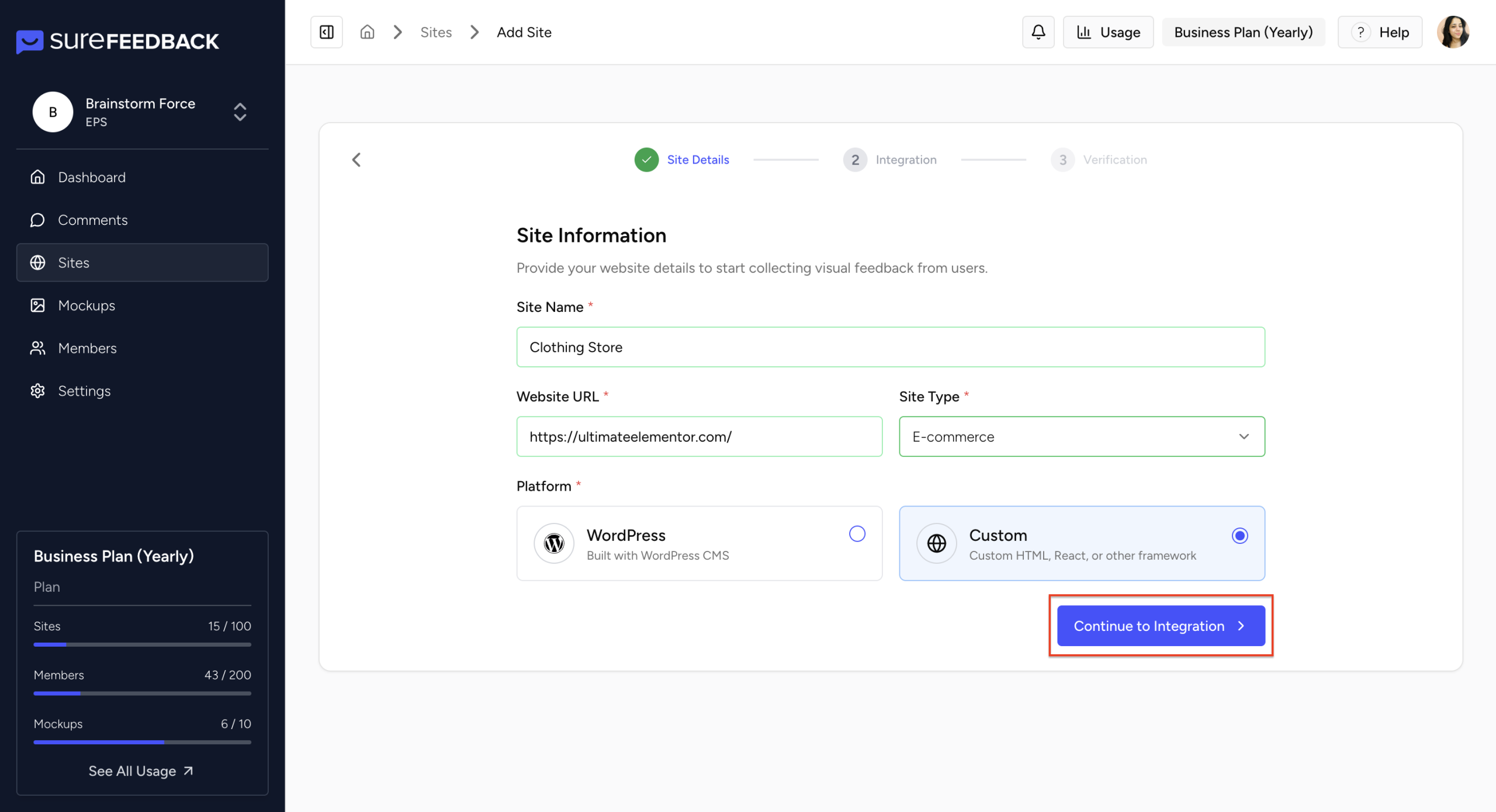
Click Continue Integration to proceed.
Step 4: Copy the Embed Script
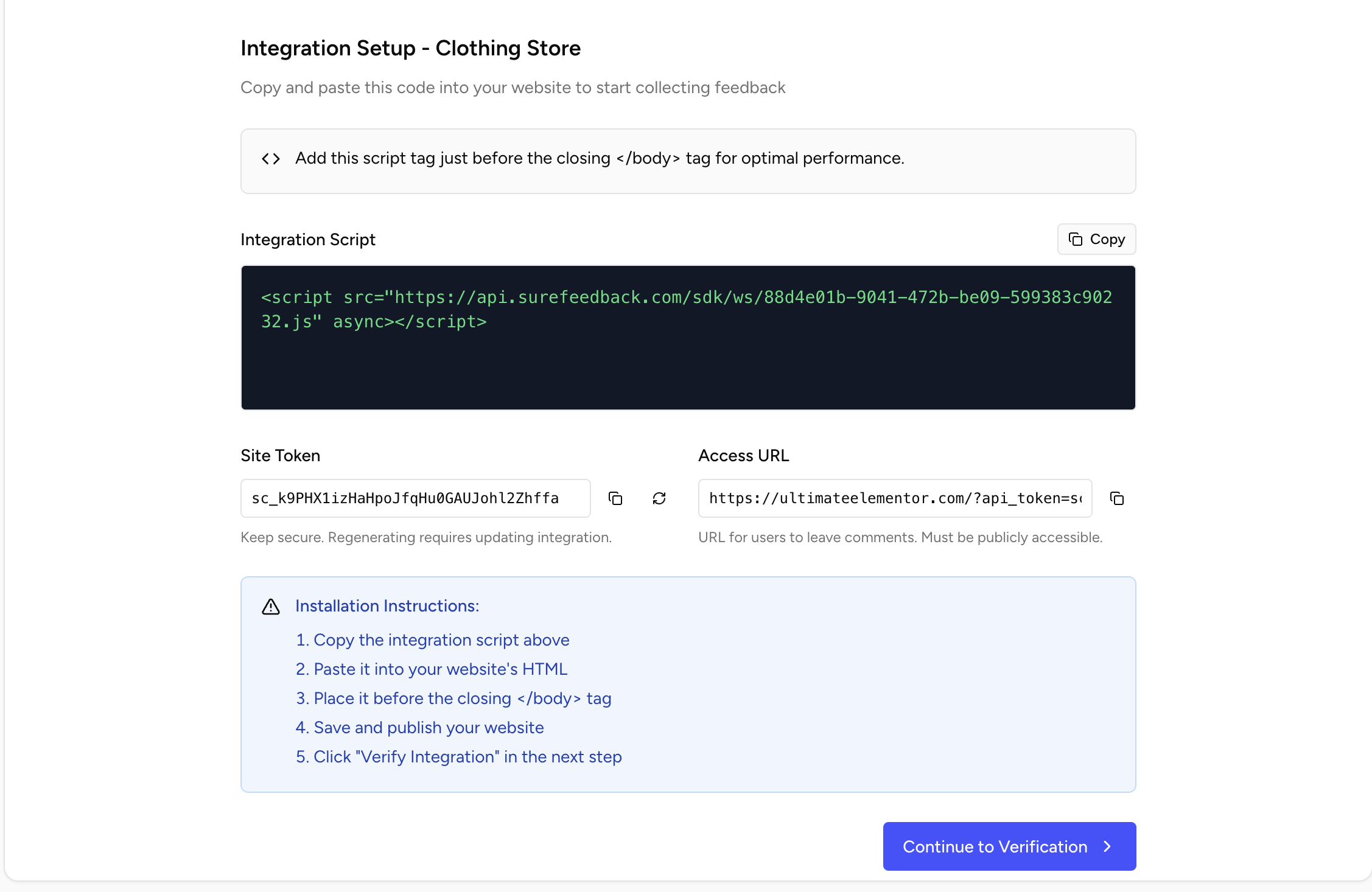
- You will now see a small script snippet generated by SureFeedback.
- Copy this script.
Step 5: Add the Script to Your Website
- Paste the script inside the <body> tag of your custom website’s HTML.
- This snippet loads the SureFeedback widget on your site so visitors and clients can leave feedback directly on the live page.
- Once added, publish or deploy your website changes.
- Click on verify integration on the next step, a widget to add feedback will be loaded. Start adding feedback by pin pointing on the component.
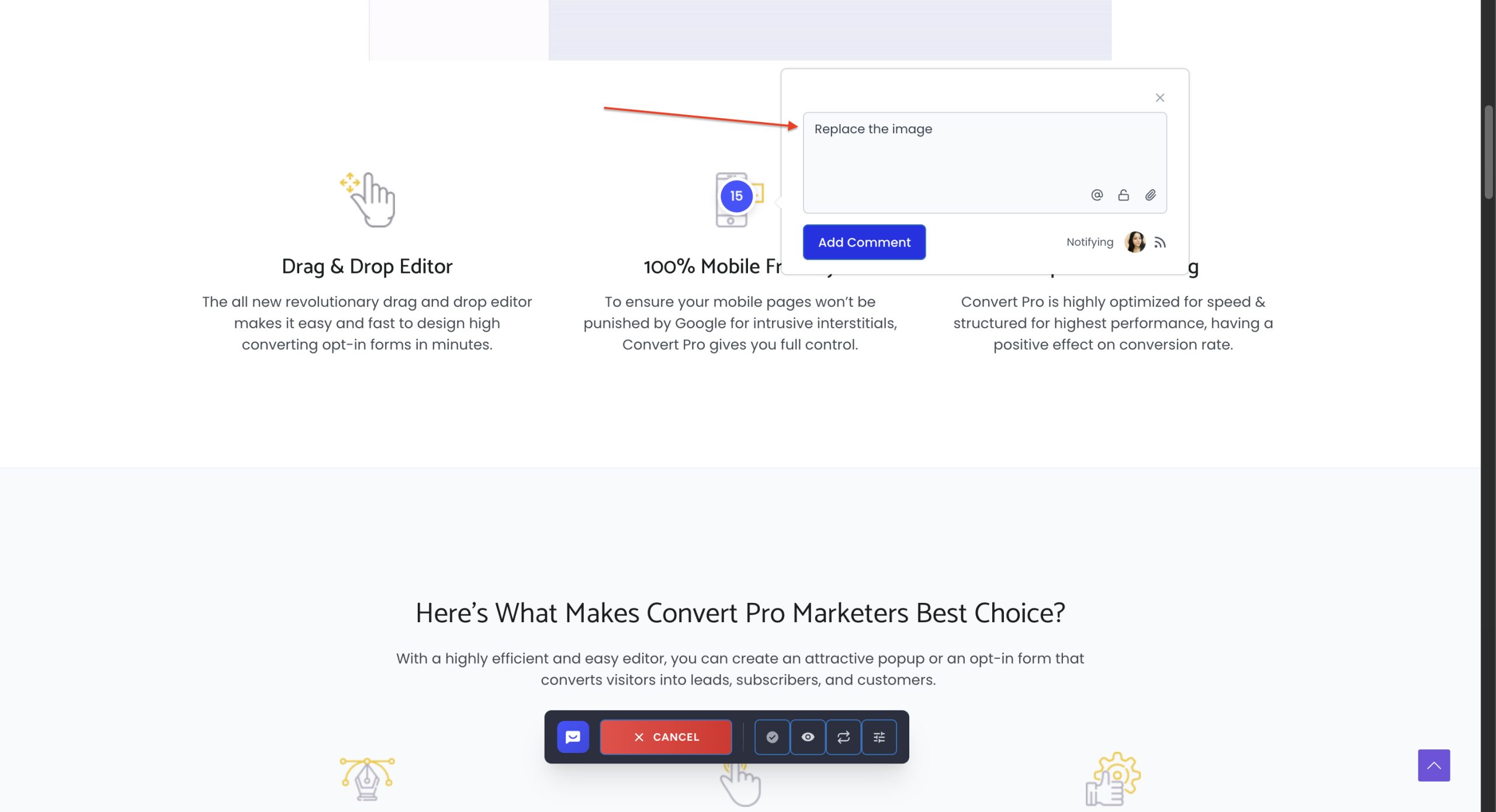
Step 6: Access the Site With Magic Link (Optional)
- If the site fails to load, then visit the sites tab.
- Use the Magic Link provided for your site.
- This opens your site with the SureFeedback widget active and ready to collect comments.
- All the comments added on the website will be visible inside the platform under comments tab.
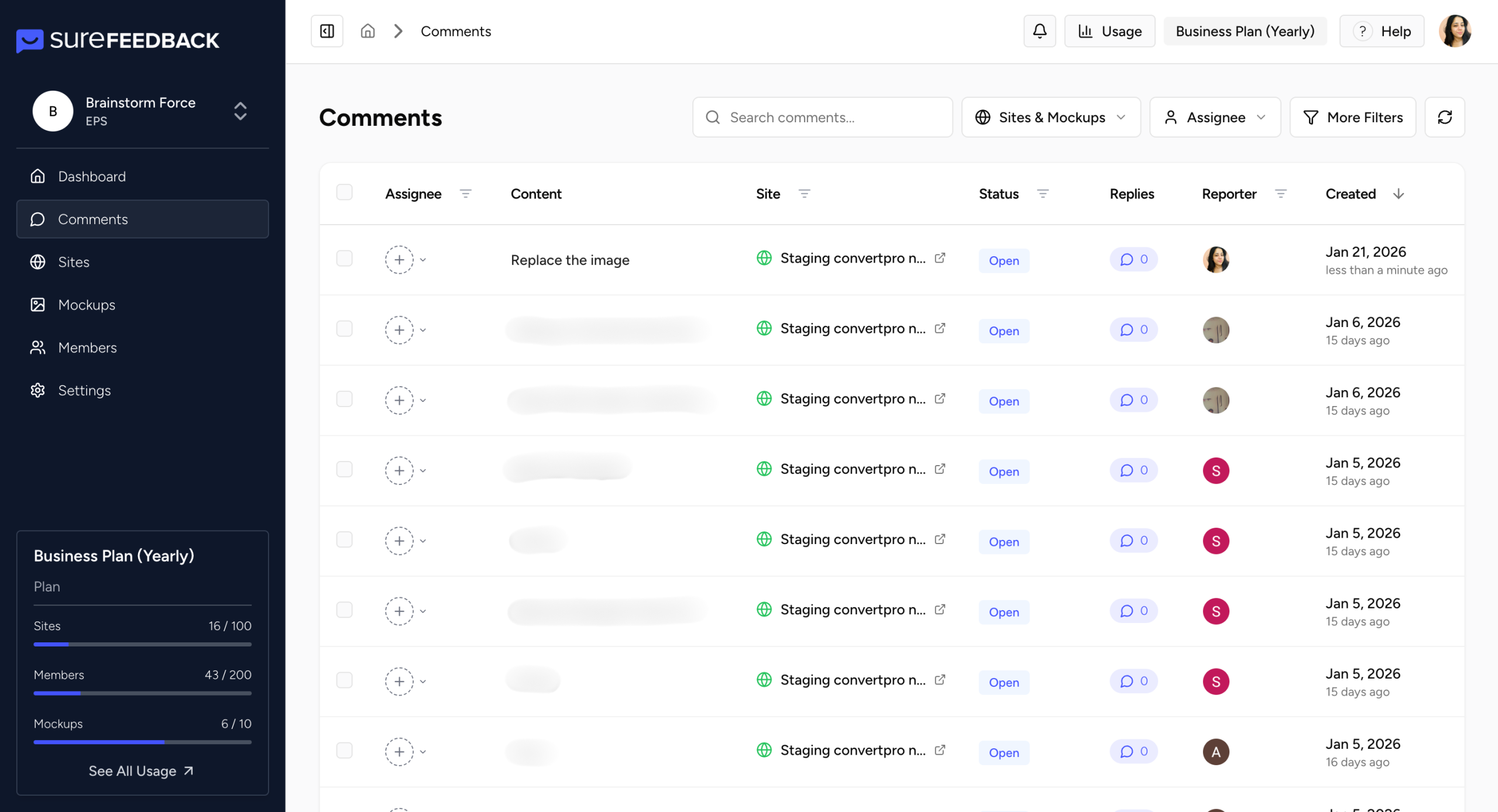
Step 7: Confirm Installation
- Visit a page on your site using the Magic Link.
- After the widget loads, your integration is successful. You can now start collecting comments, annotations, and insights from your visitors or clients.
If the widget does not load:
- Go to the specific site on your dashboard
- Click Actions
- Open Integrations
- Confirm that the correct script is added on your website
Need Help?
If you run into any issues or want guidance, we’re always here to help.
Contact our support team anytime through:
https://surefeedback.com/contact-us/
You can also explore more resources and guides inside your dashboard to learn how to get the most out of SureFeedback.
Was this doc helpful?
What went wrong?
We don't respond to the article feedback, we use it to improve our support content.
On this page