
- Install SureFeedback & Addons
- Update SureFeedback
- Translate SureFeedback
- WPML For Multilingual Sites
- Main Site Or Dedicated Installation?
- Automating SureFeedback Workflows With OttoKit
- Manage Licenses
- Caching & SureFeedback
- Litespeed Caching
- Chrome Incognito: Session Expired Notice
- Gridpane Compatibility
- Breeze Compatibility
- W3 Total Cache Compatibility
- Download Failed: Unauthorized
- Flywheel Cache Exclusion
- Generate Invoice
- WPRocket Compatiblity
- Swift Performance Caching
- Debugging
- Varnish Caching
- Website Comments Not working
- Flywheel Compatibility
- Emails Not Sending
- WPEngine Cache Exclusion
- Increasing WordPress Memory Limit
- Client & Colleague Accounts
- Permissions Cheatsheet
- Slack Integration
- Export Comments in PDF / CSV
- Provide Project Access
- Hosting
- Subscribed Projects Shortcode (Below 3.1.x)
- Activate SureFeedback License
- Dashboard Shortcode
- Cloudways Compatibility
- Known Issues
- SureFeedback On External Site
- Emails
- Project Shortcode
- Customization Settings
- Project Shortcode (Below 3.1.x)
Emails
Emails will be sent to all users who have commented on the project whenever a new comment has been made.
Additionally, the site administrator will receive emails when comments are made or projects are approved. You can adjust the email settings that the site administrator will receive.
Emails
Enter the “From” Name and “From” Email Address from whom your emails will be delivered.
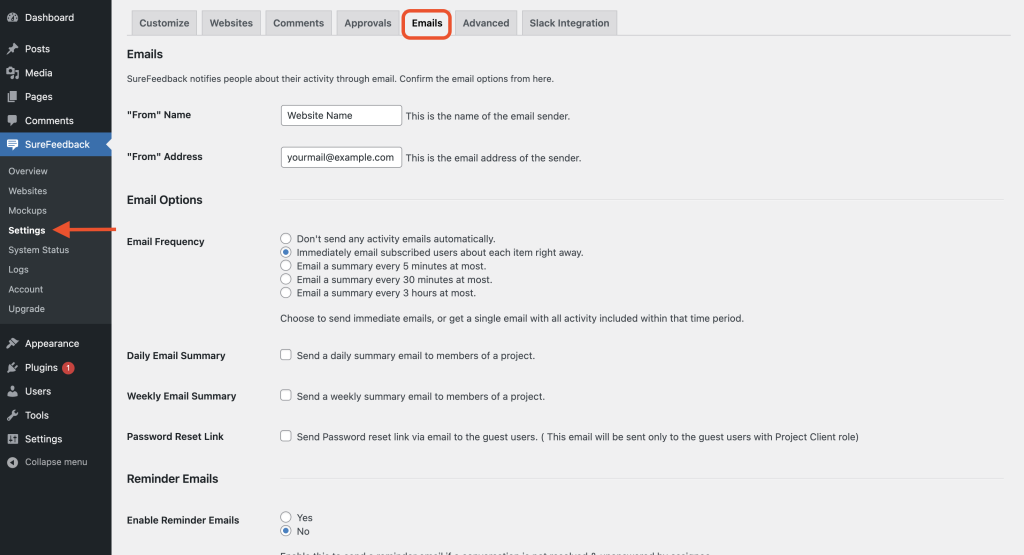
Email Options
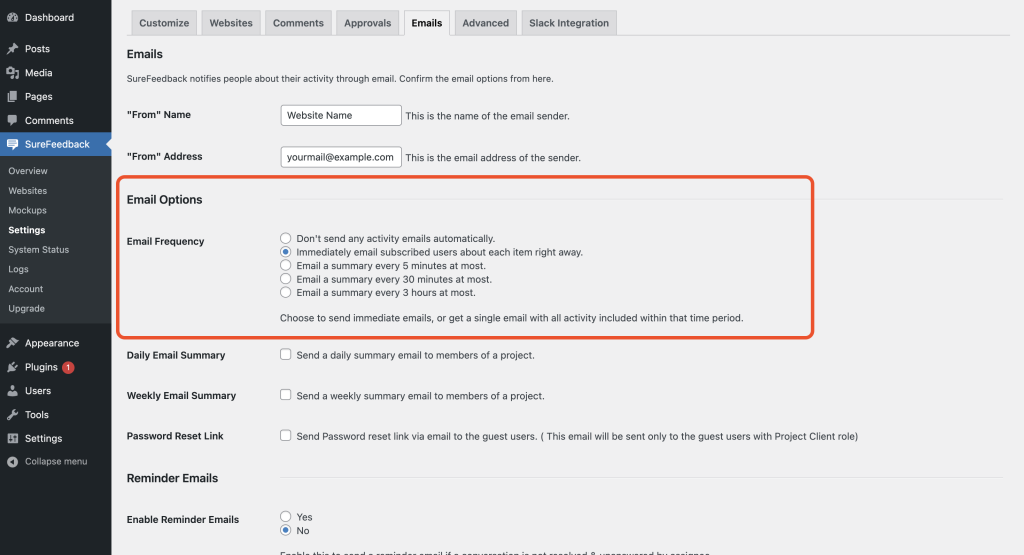
The admin will be provided the option to set the Email frequency for how soon the client’s feedback is received for your website.
You can choose from not sending any emails automatically to sending an email summary every 5 minutes at the most.
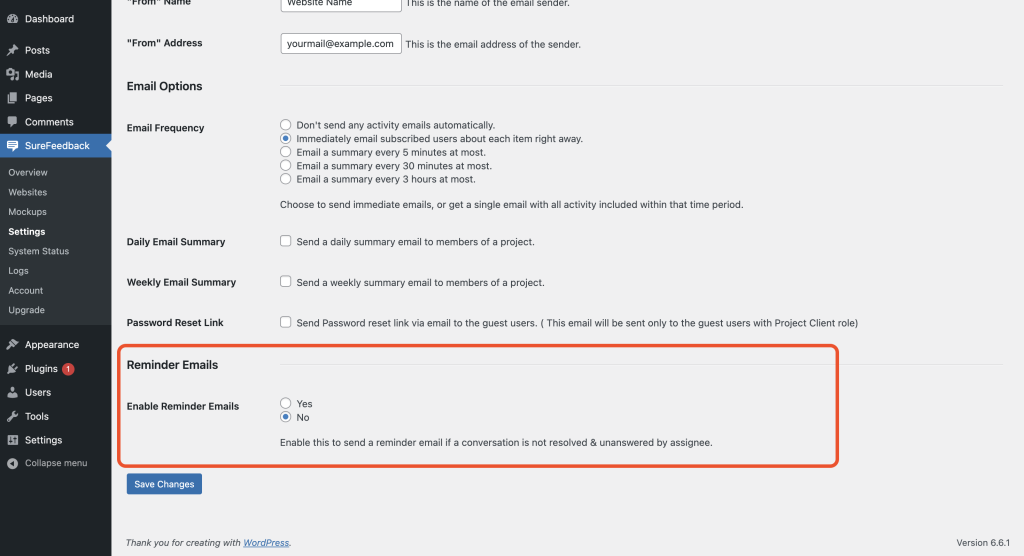
Reminder Emails
As the name suggests enabling this option would send reminder emails if a conversation is unresolved by the assignee.
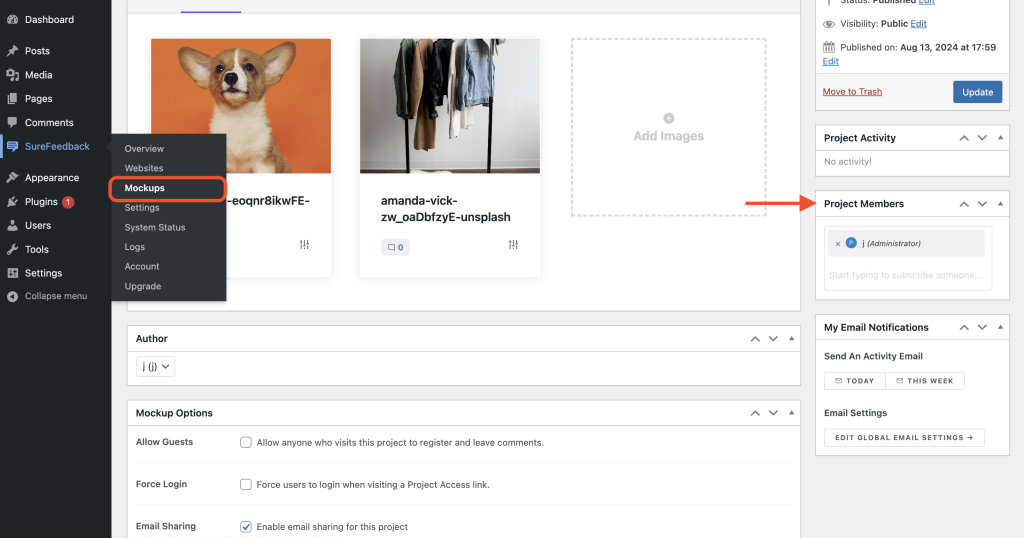
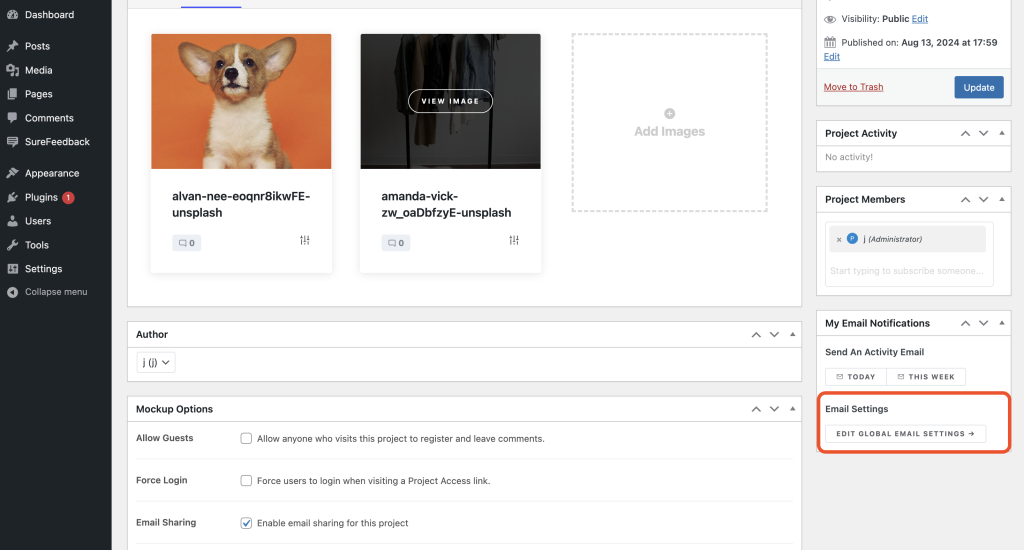
The admin can also remove users from a project’s email notification list from the Edit Project page, SureFeedback > Mockups > Project Members, found on the right side under Publish.
Simply remove the user’s email who would like to be removed from receiving notifications and save the project.
Global Email Settings
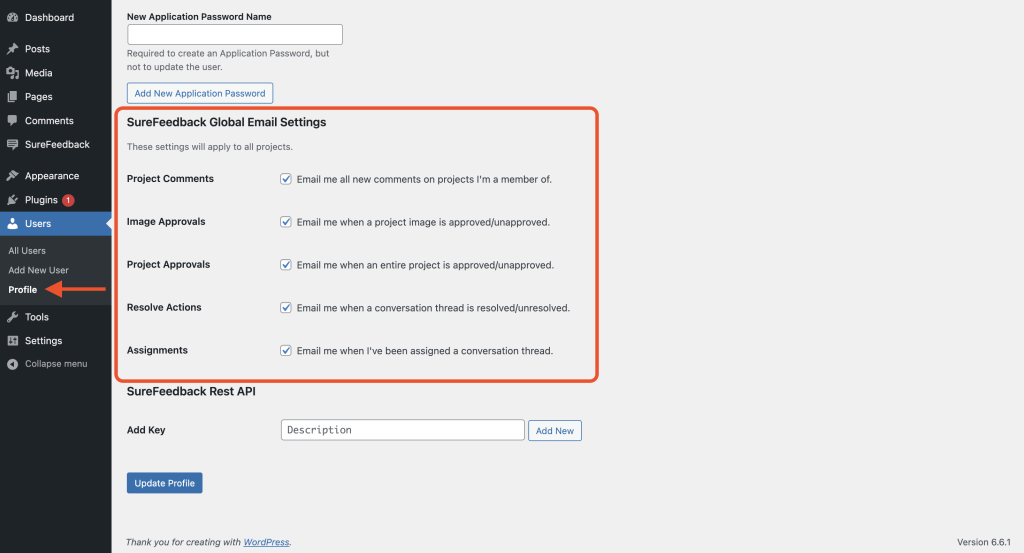
You can adjust SureFeedback’s global email settings by clicking on Edit Global Email Settings or going directly to Users > Profile.
Below are the global email settings for your profile, which apply to all projects. You can opt-in or opt out of each setting by ticking to unticking the box and saving by clicking ” Update Profile“.
That’s all! If you face any issues configuring your emails, please feel free to reach out to us.
We don't respond to the article feedback, we use it to improve our support content.