
- Install SureFeedback & Addons
- Update SureFeedback
- Translate SureFeedback
- WPML For Multilingual Sites
- Main Site Or Dedicated Installation?
- Automating SureFeedback Workflows With OttoKit
- Manage Licenses
- Caching & SureFeedback
- Litespeed Caching
- Chrome Incognito: Session Expired Notice
- Gridpane Compatibility
- Breeze Compatibility
- W3 Total Cache Compatibility
- Download Failed: Unauthorized
- Flywheel Cache Exclusion
- Generate Invoice
- WPRocket Compatiblity
- Swift Performance Caching
- Debugging
- Varnish Caching
- Website Comments Not working
- Flywheel Compatibility
- Emails Not Sending
- WPEngine Cache Exclusion
- Increasing WordPress Memory Limit
- Client & Colleague Accounts
- Permissions Cheatsheet
- Slack Integration
- Export Comments in PDF / CSV
- Provide Project Access
- Hosting
- Subscribed Projects Shortcode (Below 3.1.x)
- Activate SureFeedback License
- Dashboard Shortcode
- Cloudways Compatibility
- Known Issues
- SureFeedback On External Site
- Emails
- Project Shortcode
- Customization Settings
- Project Shortcode (Below 3.1.x)
SureFeedback Customization Settings
SureFeedback comes with a variety of customizable features that allow you to change the look of the projects to match your brand.
We’ll see how each of them works in this article.
Customize
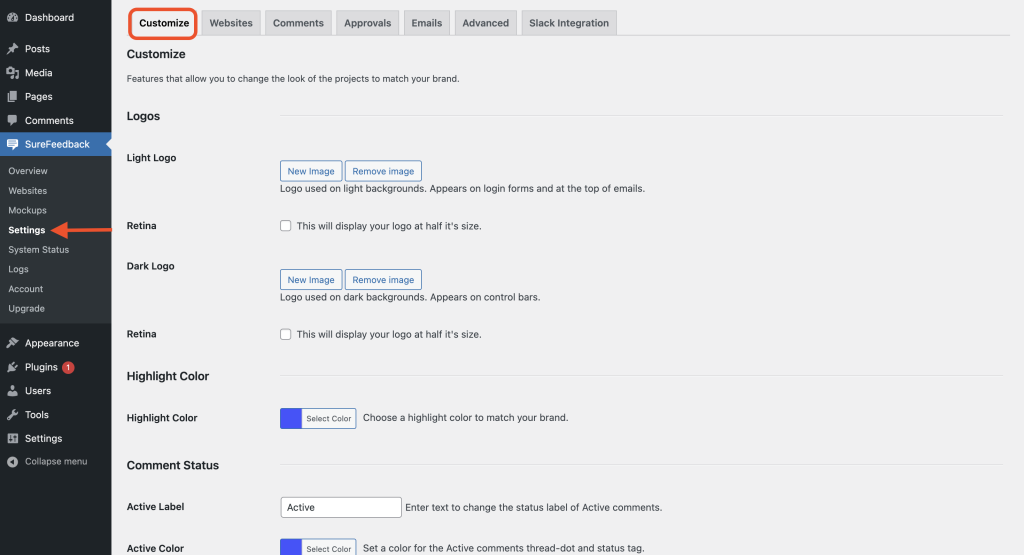
Under Settings > Customize, you can add your company logo, which will appear on login forms and at the top of emails.
After you add a logo, emails and login forms will now carry your brand image.
You can also select a highlight color, which appears throughout the app and client experience.
Websites
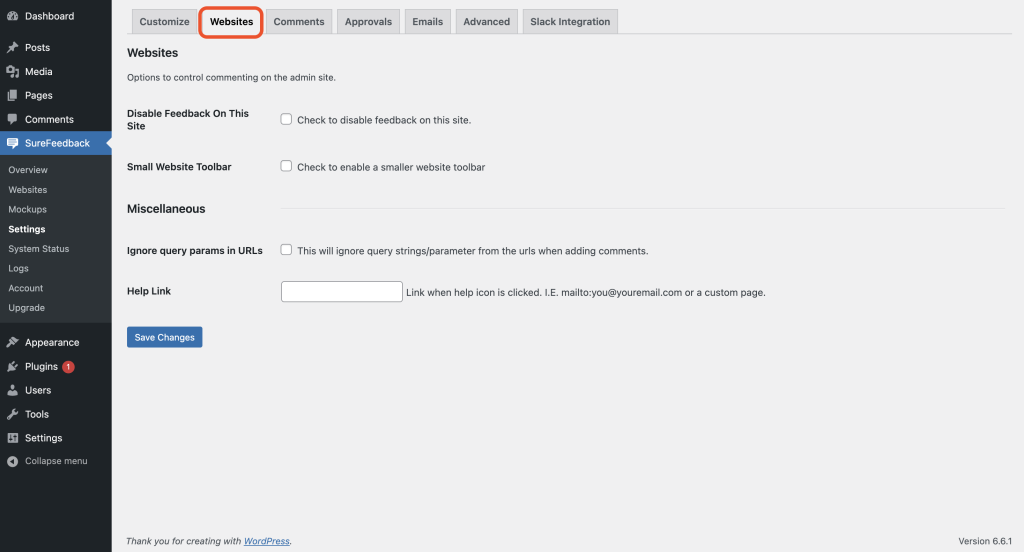
Under Settings > Websites, you can add your company logo to live website projects – which appear in the pop-out comments panel.
You can also add a custom help contact link for your clients, which will route them to a specific email or page when the frontend help link is clicked.
Comments
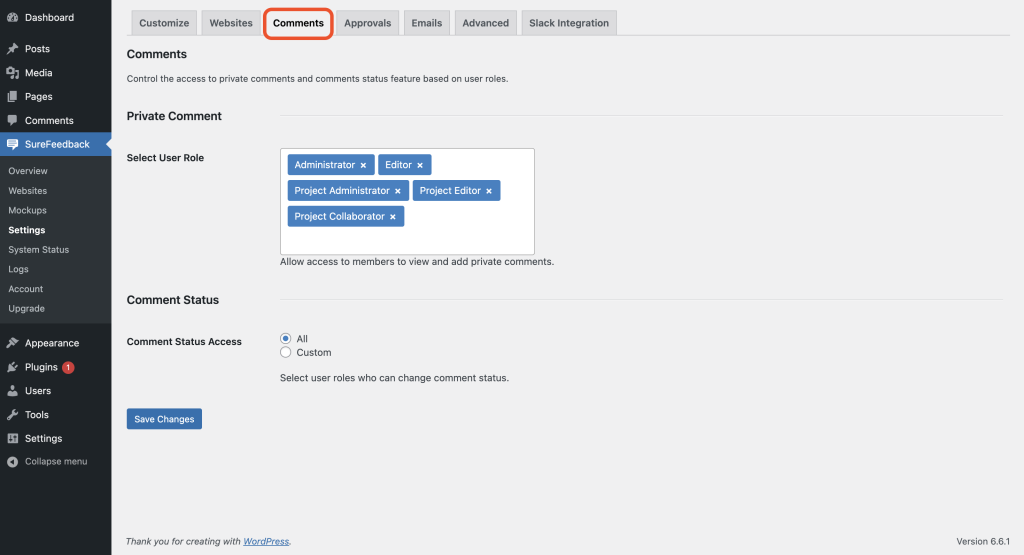
The Comments tab basically allows providing Private Comments Access to members to view and add private comments.
You can find them under Settings > Comments.
Approvals
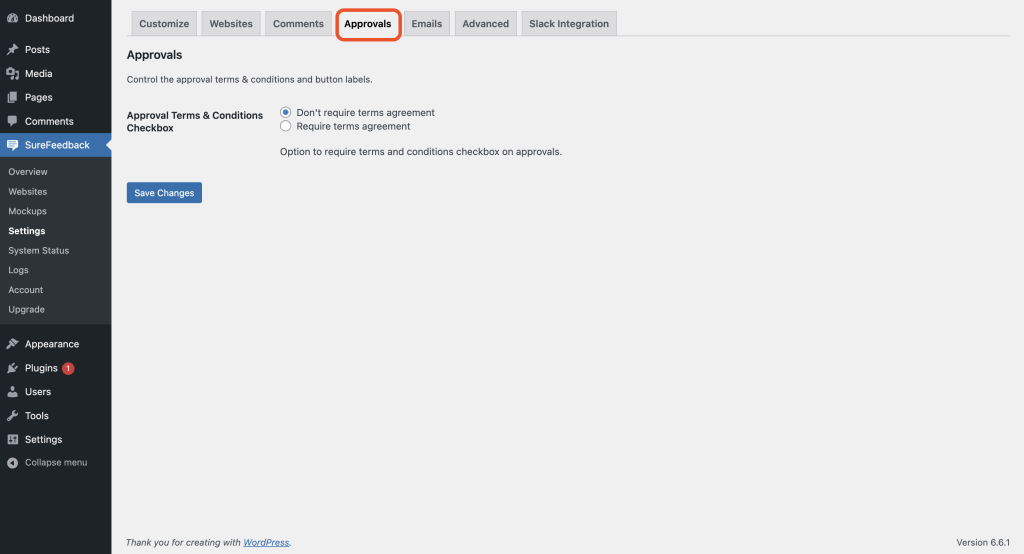
Under Settings > Approvals, you can choose if you want to make the terms and agreement mandatory on the approvals.
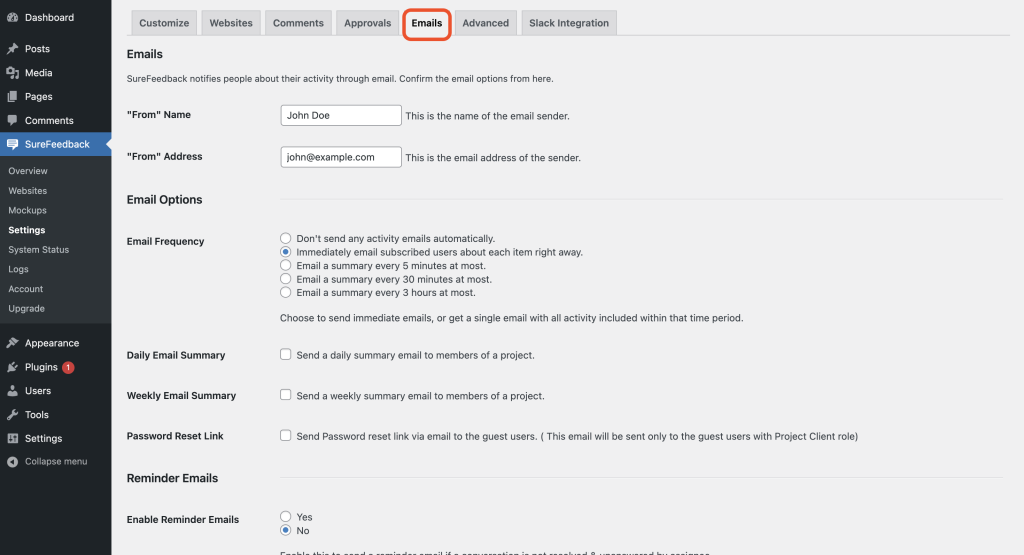
Emails
Under Settings > Emails, you can adjust the email sender options like the name and email of whom the emails are received.
Advanced
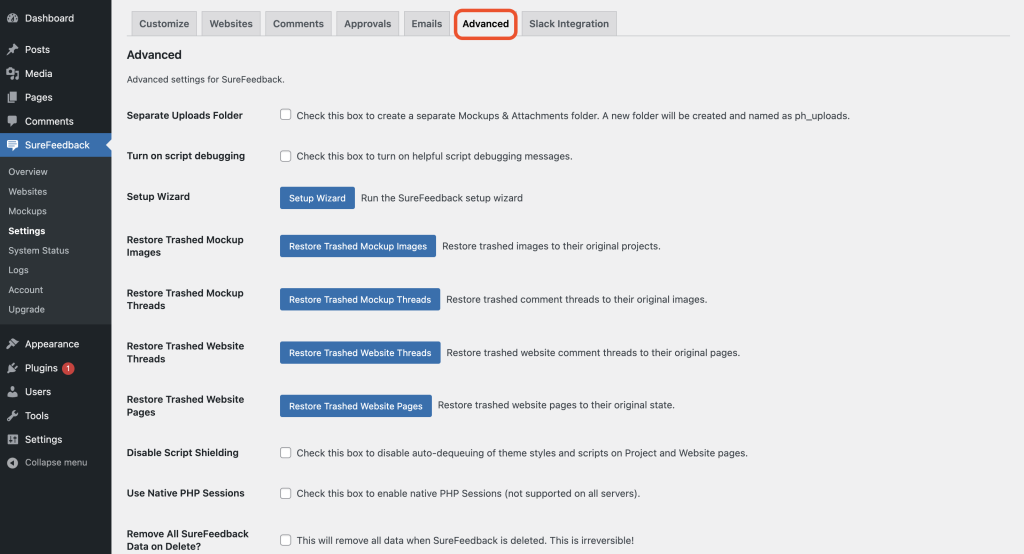
The Advanced tab provides a wide range of options from enabling the Send Error Reports, Turn on script debugging, Setup Wizard, restore options, etc.
Slack Integration
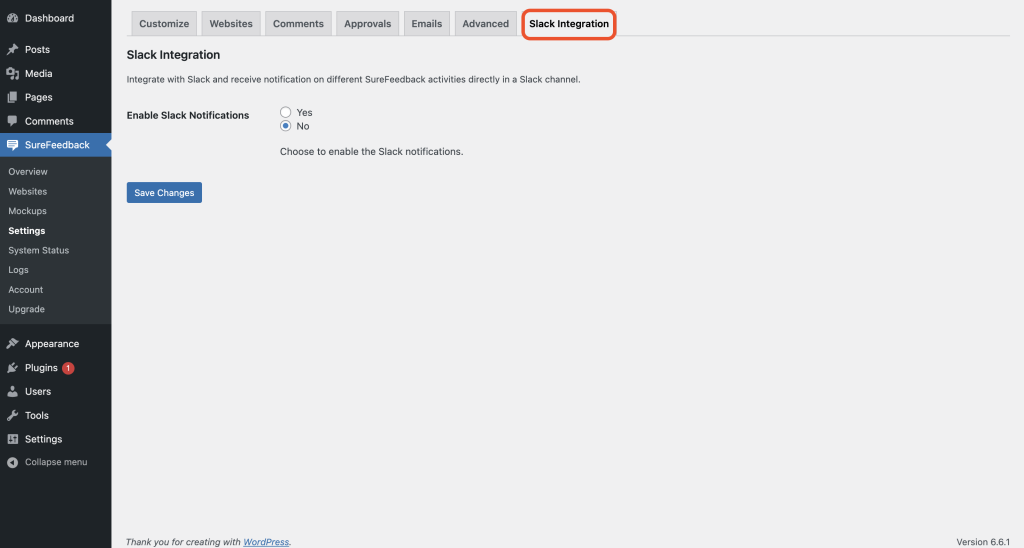
The Slack Integration tab provides the option to manage your Slack Integration and settings.
That’s all! If you have any further questions, please feel free to reach out. We’re here to help!
We don't respond to the article feedback, we use it to improve our support content.