
- Install SureFeedback & Addons
- Update SureFeedback
- Translate SureFeedback
- WPML For Multilingual Sites
- Main Site Or Dedicated Installation?
- Automating SureFeedback Workflows With OttoKit
- Manage Licenses
- Caching & SureFeedback
- Litespeed Caching
- Chrome Incognito: Session Expired Notice
- Gridpane Compatibility
- Breeze Compatibility
- W3 Total Cache Compatibility
- Download Failed: Unauthorized
- Flywheel Cache Exclusion
- Generate Invoice
- WPRocket Compatiblity
- Swift Performance Caching
- Debugging
- Varnish Caching
- Website Comments Not working
- Flywheel Compatibility
- Emails Not Sending
- WPEngine Cache Exclusion
- Increasing WordPress Memory Limit
- Client & Colleague Accounts
- Permissions Cheatsheet
- Slack Integration
- Export Comments in PDF / CSV
- Provide Project Access
- Hosting
- Subscribed Projects Shortcode (Below 3.1.x)
- Activate SureFeedback License
- Dashboard Shortcode
- Cloudways Compatibility
- Known Issues
- SureFeedback On External Site
- Emails
- Project Shortcode
- Customization Settings
- Project Shortcode (Below 3.1.x)
Creating Client and Colleague Accounts
Sometimes you’ll want to require your clients or colleagues to have user accounts to access project pages. This provides another layer of security to your project pages so that no non-registered users can view your project pages.
If you’re an Administrator and you’d like to create a user account for your client or colleague, go to Users → Add New. Fill in the required info, choose a password for them, check the box “Send this password to the new user by email” and select the role you wish to give them using the dropdown.
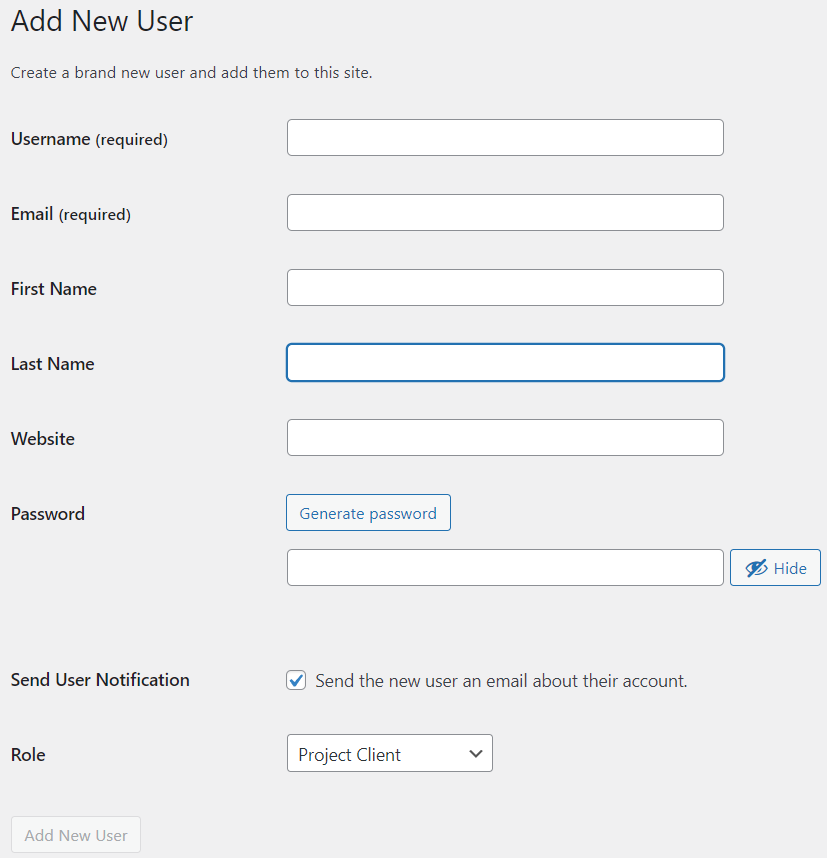
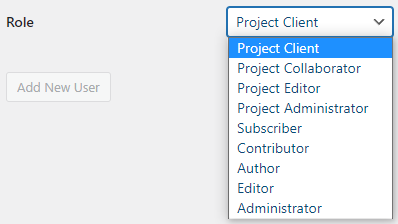
As of version 2.0, there are several roles included that you can give to your client or colleague accounts. Most of the time a Project Client role is enough for clients and a Project Editor account is great for colleagues. For more information on what capabilities default WordPress roles have with SureFeedback, check out the Permissions article.
Your new user will get their password in the email with instructions on how to log in. Once logged in they can change their password and any other info (except their username) by editing their profile.
We don't respond to the article feedback, we use it to improve our support content.