
Automatic site connection
How to Install and Connect the SureFeedback WordPress Plugin
If you’re a Website owner, you know that gathering accurate, organized feedback from clients or team members can be challenging. Wouldn’t it be great if you could place comments directly on your live pages and manage everything from one dashboard?
That’s where SureFeedback comes in.
SureFeedback helps you collect visual, point-and-click feedback on your WordPress pages, posts, and landing pages so you can streamline collaboration and accelerate approvals.
Examples of what you can do with SureFeedback:
- Collect precise comments directly on your website
- Help clients leave clear feedback without screenshots or long emails
- Assign comments to team members with statuses and threads
- Organize every project inside dedicated workspaces
The possibilities are endless.
Installing the Plugin from the SureFeedback Dashboard
Let’s install the latest ZIP version of the SureFeedback plugin directly from your SureFeedback SaaS dashboard.
Follow the steps below:
- Sign Up or Login
Create or log in to your SureFeedback account on the SaaS platform using this link.
- Download Plugin
From your dashboard, click Download Plugin to get the required installation file.
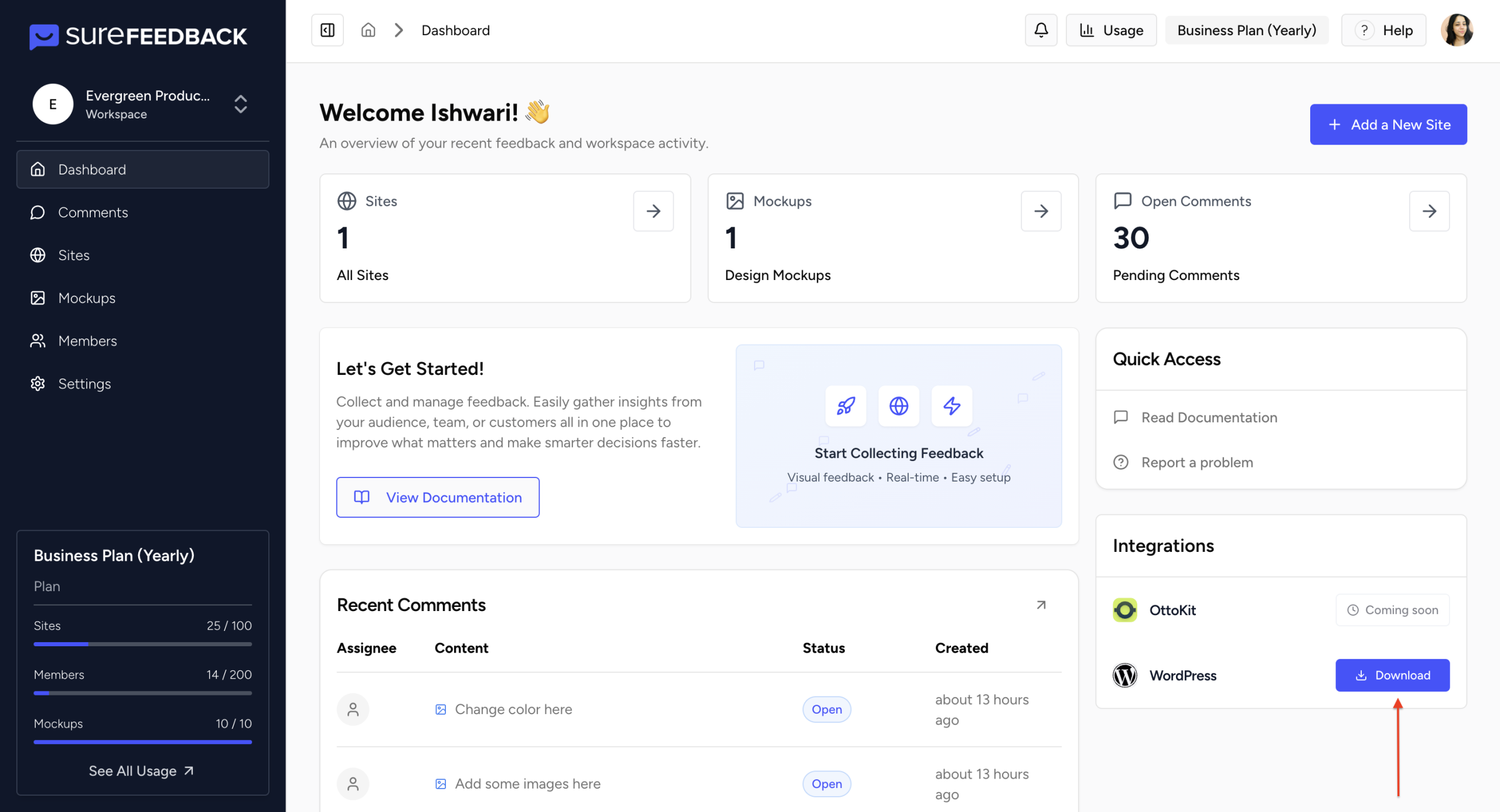
- Install & Activate
Upload the plugin file inside your WordPress admin by going to Plugins → Add New → Upload Plugin, then install and activate it.

- Sync Account
After activation, a setup wizard will open. Follow the prompts to authorize your SureFeedback organization and complete the connection.
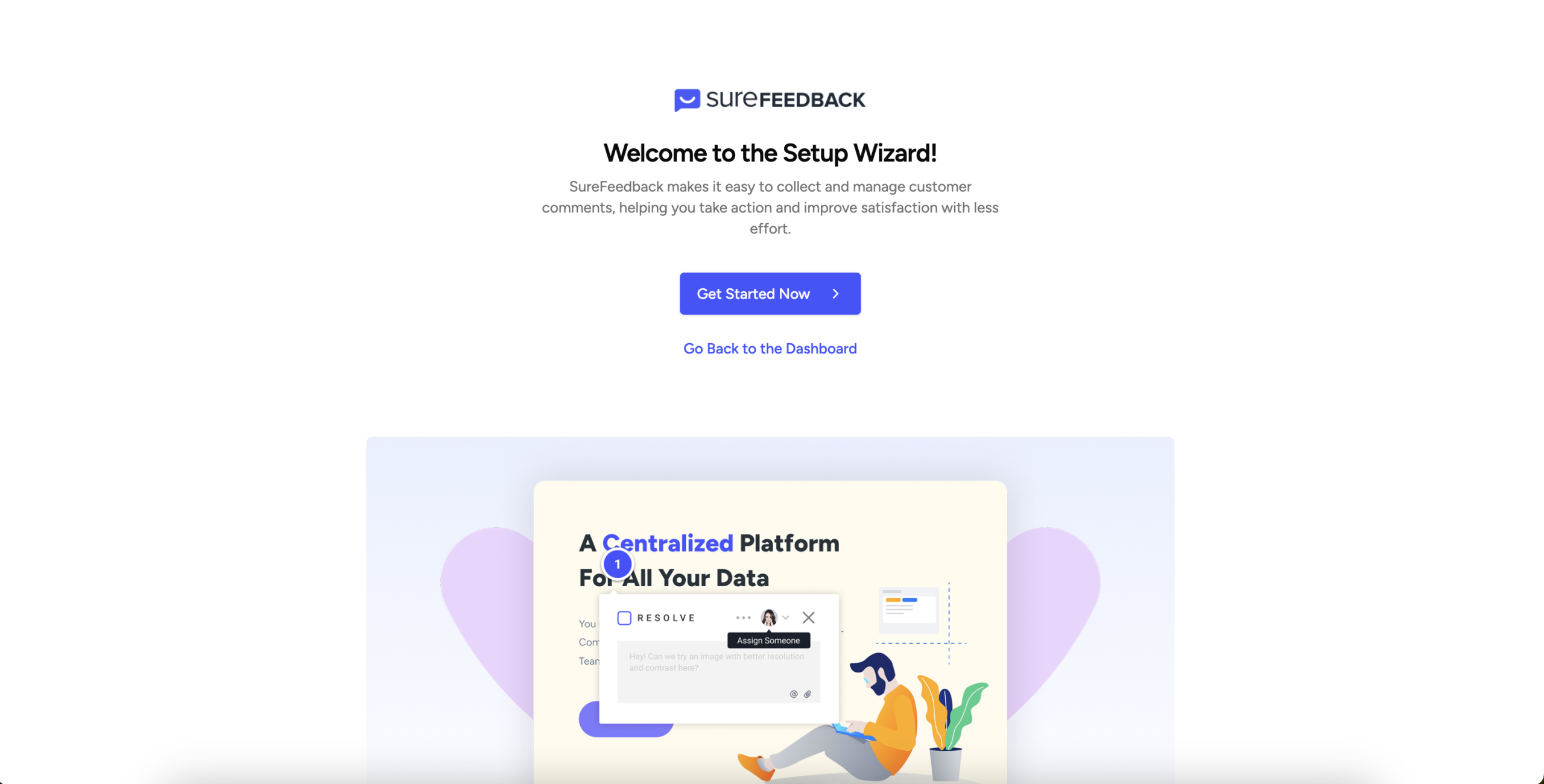
- Connected
Your WordPress site will now be connected to your SureFeedback dashboard and ready to use.
What to Do When Automatic Integration Fails
If the Add New Site process inside your SureFeedback dashboard cannot complete automatically, you’ll see a message prompting you to download the plugin. Follow the steps below:
1. Download the Required Plugin
- Use the link shown beneath the integration error.
- Download the plugin file and save it to your device.
2. Install the Plugin in WordPress
- Log in to your WordPress admin.
- Go to Plugins → Add New → Upload Plugin.
- Upload, install, and activate the plugin.
- The setup wizard will appear after activation.
3. Use the Setup Wizard
- Select Get Started.
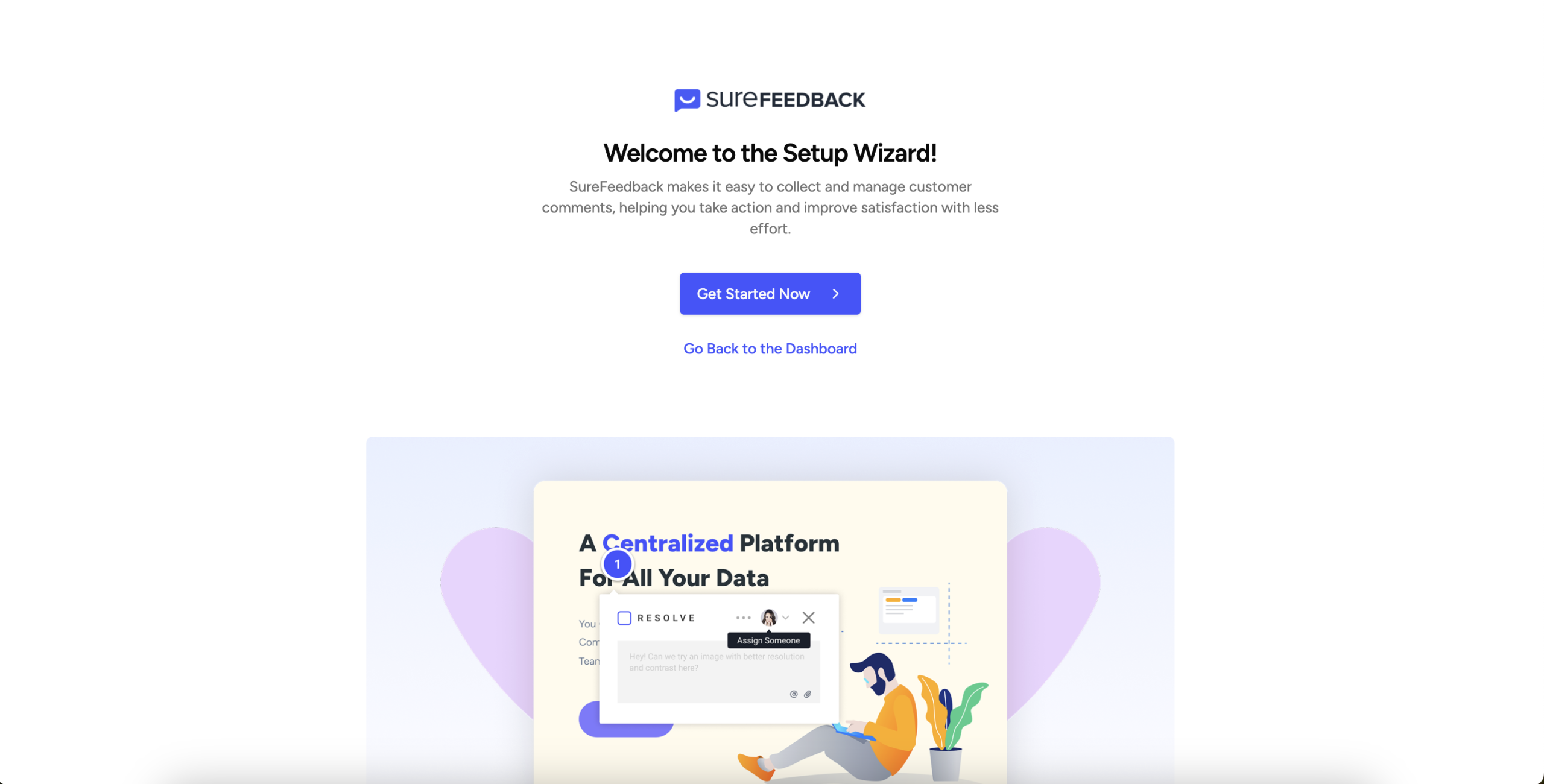
- Log into your SureFeedback SaaS account.
- If you don’t have an account, select Sign Up Free.
- Follow the prompts to continue.
4. Assign the Site to a Workspace
- Choose which workspace the site should belong to.
- Confirm your selection.
5. Connection Complete
Your site is now successfully linked to SureFeedback.
You can access it inside your dashboard and open it using the Magic Link to begin adding comments.
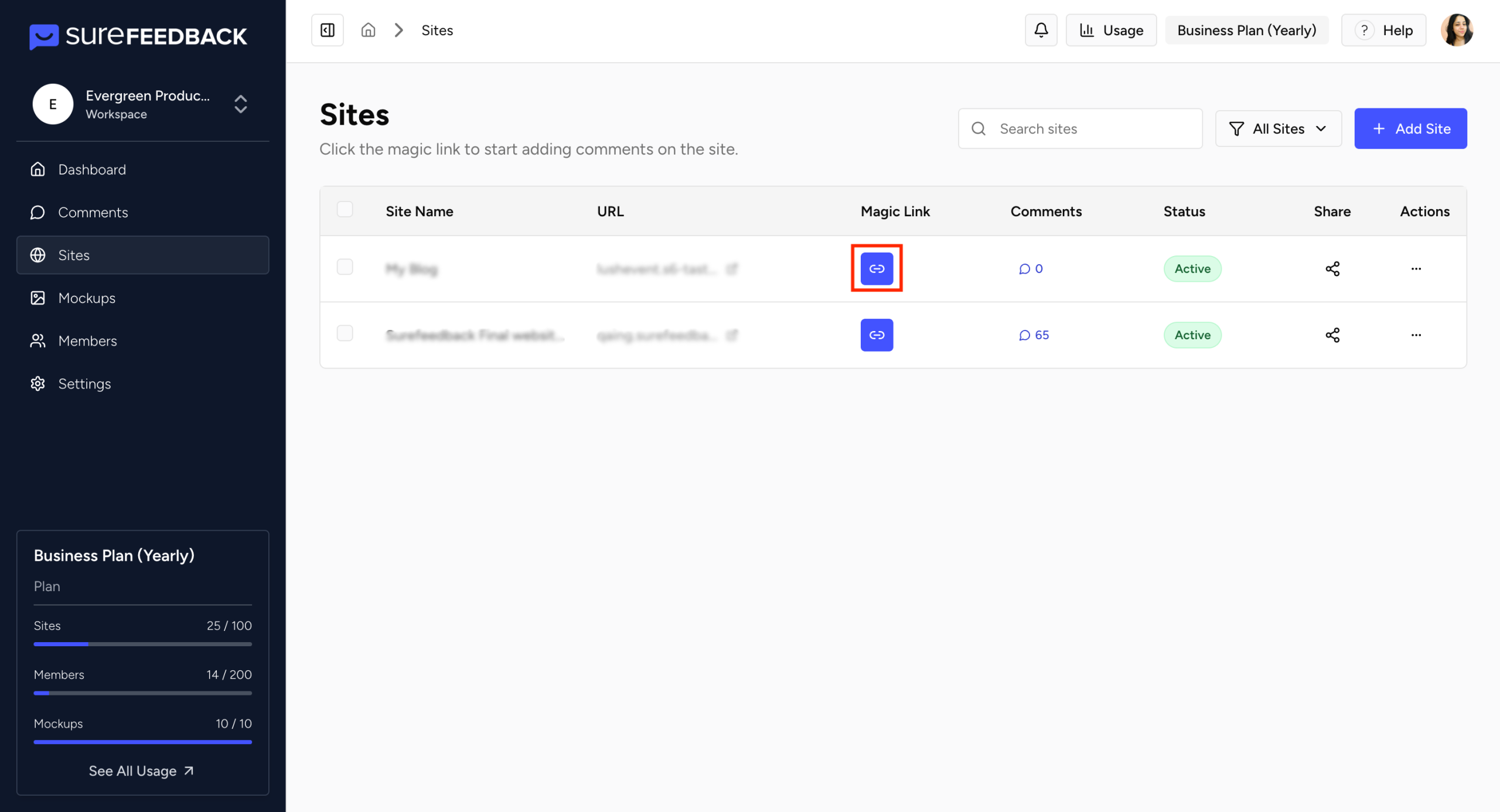
Need Help?
If you need assistance at any point, our team is here to help.
Visit our support page: https://surefeedback.com/contact-us/
We’ll be happy to guide you with setup, troubleshooting, or anything else you need.
We don't respond to the article feedback, we use it to improve our support content.