
Guest Commenting
What is Guest Commenting?
Guest Commenting allows you to collect comments from people who are not part of your SureFeedback workspace. You simply share a site link, and guests can open it in their browser. When they try to leave a comment, they will be asked to log in or quickly create an account using email or Google.
This makes it easy to gather feedback from clients, stakeholders, external reviewers, or anyone outside your team without giving them full workspace access.
Why Guest Commenting is important
Guest Commenting helps you:
- Collect feedback faster by removing the need to invite people into your workspace before they can respond.
- Keep your workspace secure because guests do not get workspace access, they only get the access if they are added in the workspace by the admin
- Work better with clients and stakeholders by giving them a simple way to review and comment without extra setup.
- Reduce back-and-forth since comments are captured directly inside SureFeedback and stay tied to the correct site.
How to enable Guest Commenting
- Go to the Sites tab in SureFeedback
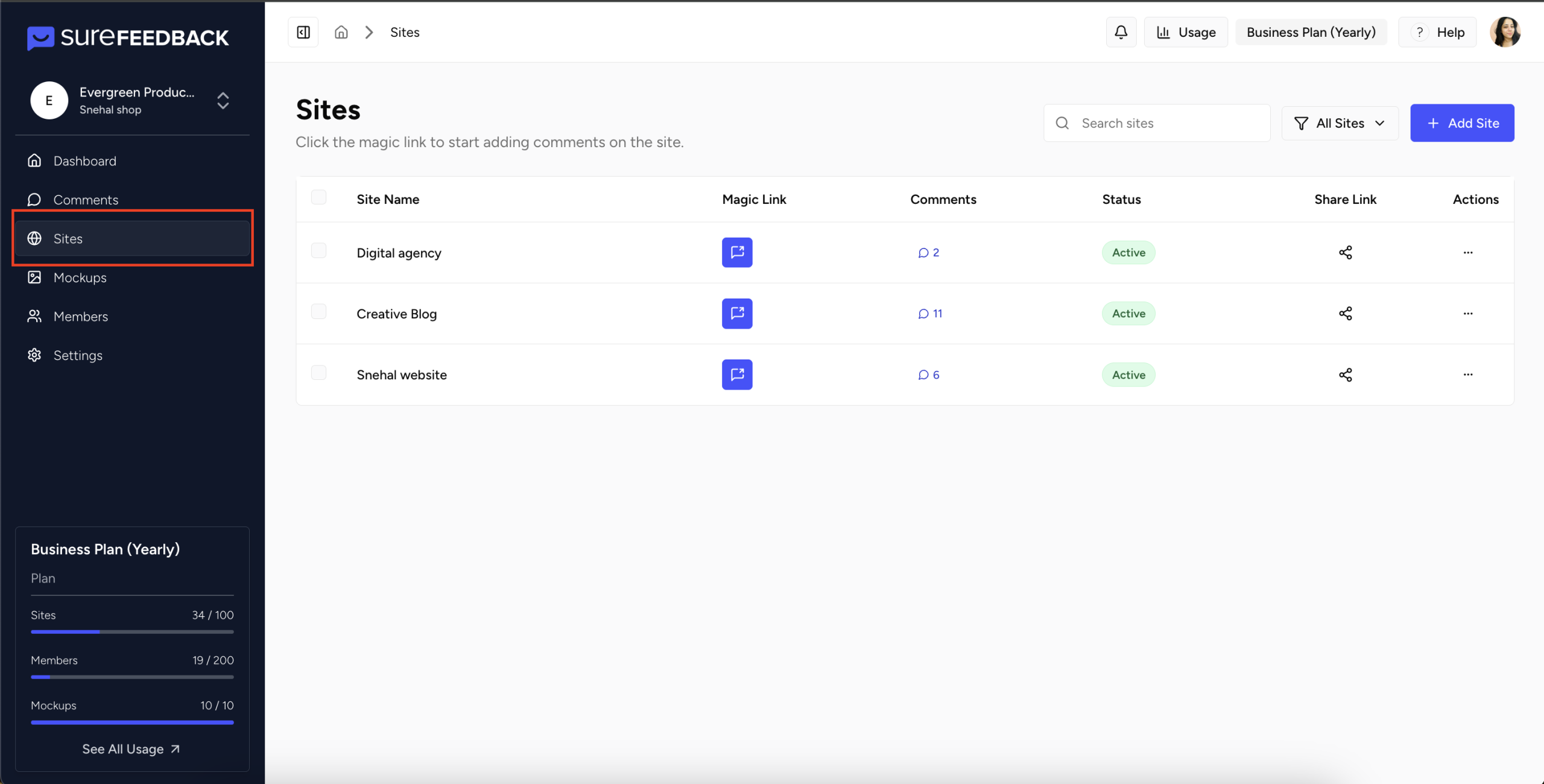
- Click the site you want to collect guest feedback on.
- Open the Settings tab for that specific site.
- Find Guest Commenting and switch it On.
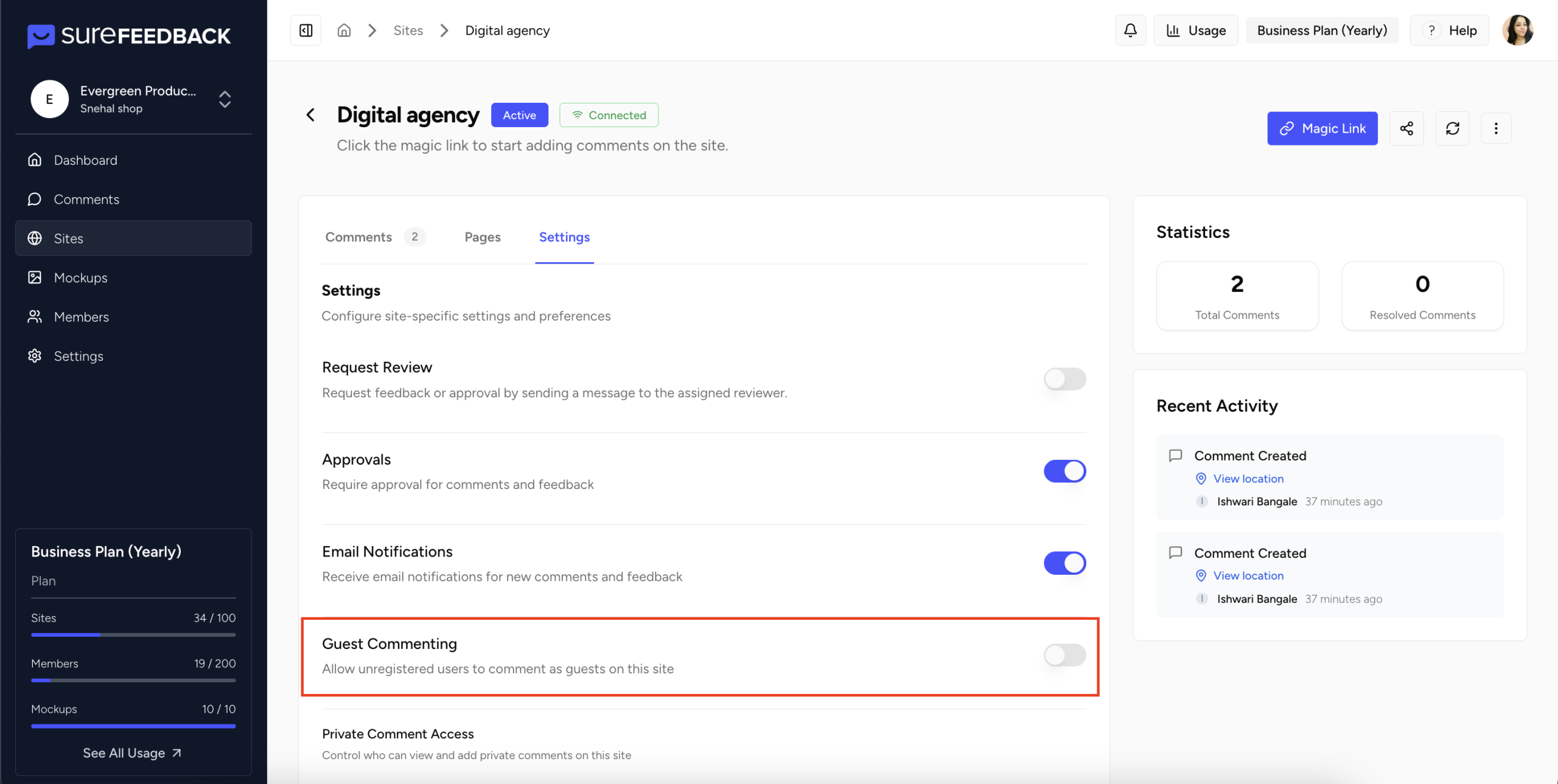
Once enabled, the site can accept comments from anyone who has the share link and completes the quick login step.
How to share the guest link
- Go to the Sites tab.
- Copy the site’s Share Link.
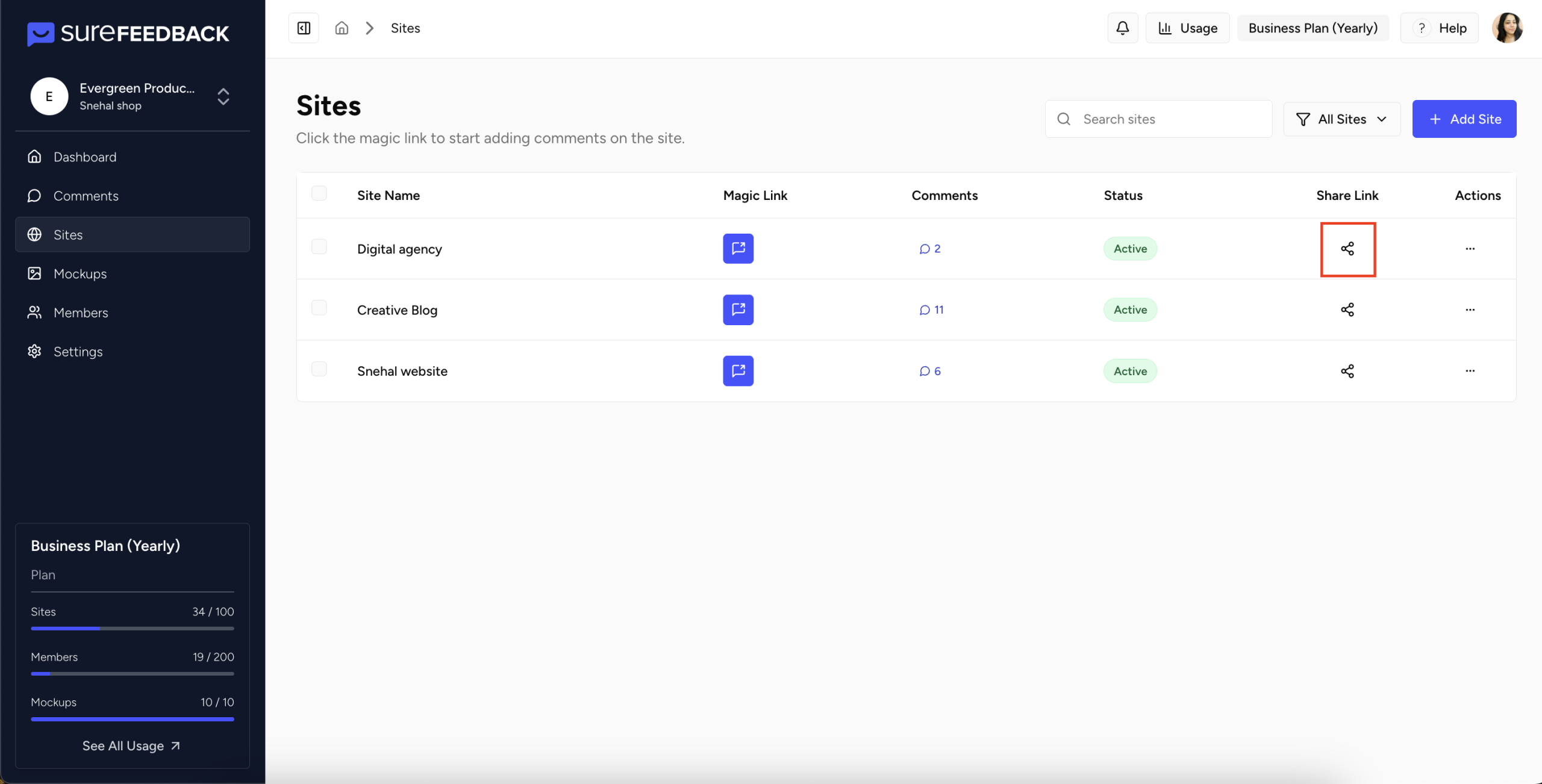
- Send that link to the person you want feedback from.
That’s all the admin needs to do. The guest does not need to be added to the workspace to open the link.
What the guest needs to do
- Open the share link.
- Click anywhere on the page to add a comment.
- A login popup will appear.
- The guest can:
- Log in if they already have an account, or
- Register using a valid email or Google
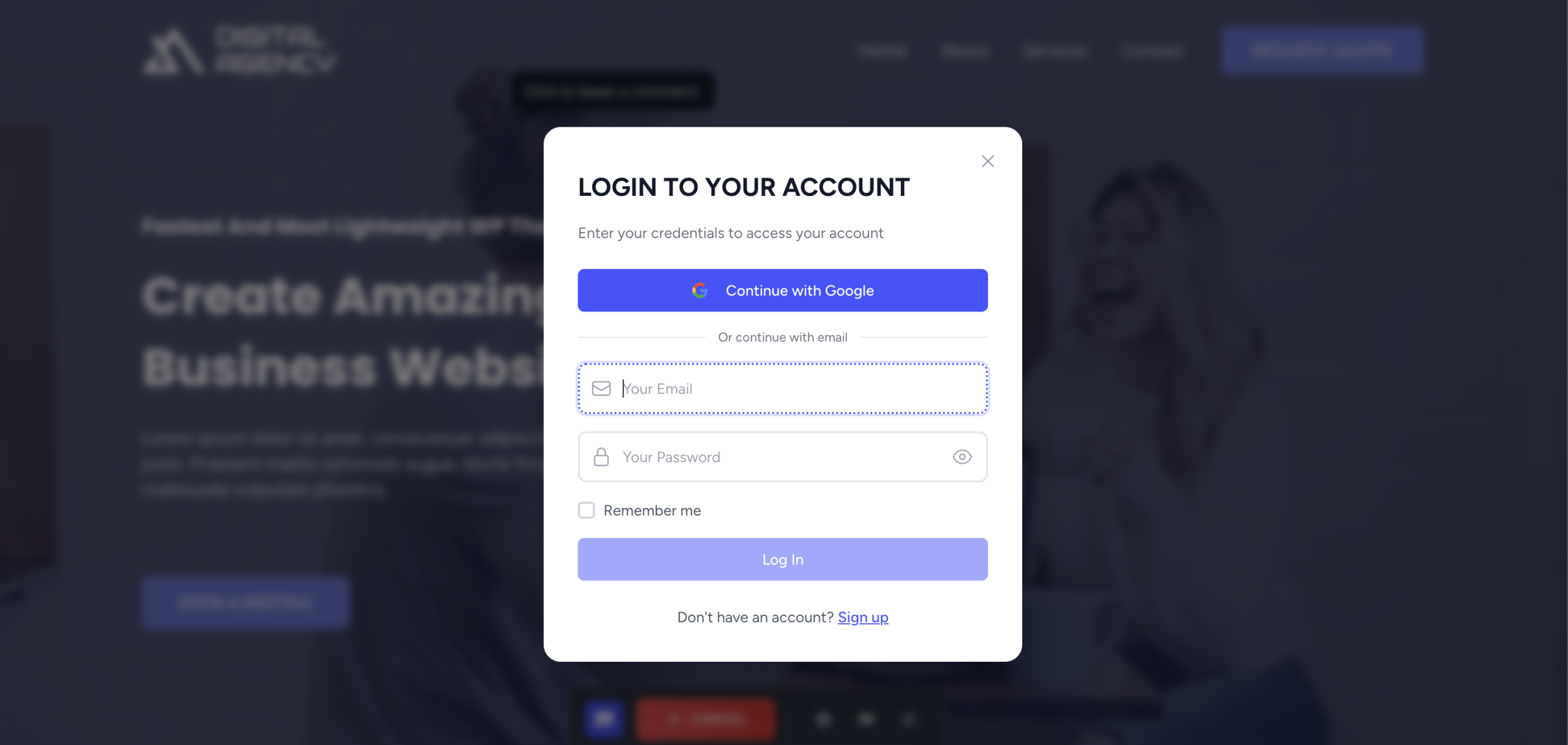
- After logging in or registering, the guest can add comments.

All guest comments are automatically saved inside your SureFeedback platform in comments tab
Where guest comments appear
As soon as the guest submits a comment The guest username will appear in SureFeedback , visible to your workspace members who have access to the site.
Admin control over guests
Admins can manage guests from the Members tab:
- Add to workspace: If you want the guest to become a full member.
- Block guest: If you want to prevent them from adding further comments.
Notes and tips
- Share the link only with people you trust, since anyone with the link can attempt to comment.
- If you are done collecting external feedback, turn Guest Commenting off anytime to stop new guest comments.
- Ask guests to use their real email so you can identify them easily in the Members tab.
- If a guest is unable to comment, confirm Guest Commenting is enabled for that site and ask them to refresh the page.
- If you receive unwanted comments, block that guest from Members to immediately stop further activity.
Need Help?
If you need assistance at any point, our team is here to help.
Visit our support page: https://surefeedback.com/contact-us/
We’ll be happy to guide you with setup, troubleshooting, or anything else you need.
We don't respond to the article feedback, we use it to improve our support content.