
- Install SureFeedback & Addons
- Update SureFeedback
- Translate SureFeedback
- WPML For Multilingual Sites
- Main Site Or Dedicated Installation?
- Automating SureFeedback Workflows With OttoKit
- Manage Licenses
- Caching & SureFeedback
- Litespeed Caching
- Chrome Incognito: Session Expired Notice
- Gridpane Compatibility
- Breeze Compatibility
- W3 Total Cache Compatibility
- Download Failed: Unauthorized
- Flywheel Cache Exclusion
- Generate Invoice
- WPRocket Compatiblity
- Swift Performance Caching
- Debugging
- Varnish Caching
- Website Comments Not working
- Flywheel Compatibility
- Emails Not Sending
- WPEngine Cache Exclusion
- Increasing WordPress Memory Limit
- Client & Colleague Accounts
- Permissions Cheatsheet
- Slack Integration
- Export Comments in PDF / CSV
- Provide Project Access
- Hosting
- Subscribed Projects Shortcode (Below 3.1.x)
- Activate SureFeedback License
- Dashboard Shortcode
- Cloudways Compatibility
- Known Issues
- SureFeedback On External Site
- Emails
- Project Shortcode
- Customization Settings
- Project Shortcode (Below 3.1.x)
How to Export Comments in PDF/CSV file?
SureFeedback helps you to collect feedback from clients on your web project and website.
You can view and manage all responses from your website dashboard. But sometimes you might need to export these responses and save them on your computer or on online storage.
This article will help you with it.
To export responses, its threads, mockups, and other data recorded with SureFeedback, you can use WP All Export plugin.
Here are steps to follow –
1. Go to the Plugins page and install WP All Export like any other WordPress plugin
2. Go to All Export in the dashboard.
3. Click on New Export and Choose a post type you want to export. You get the option to export all SureFeedback data like mockup conversation thread, mockup, websites, website conversation threads, project images.
4. You can download the data as it is or customize the file.
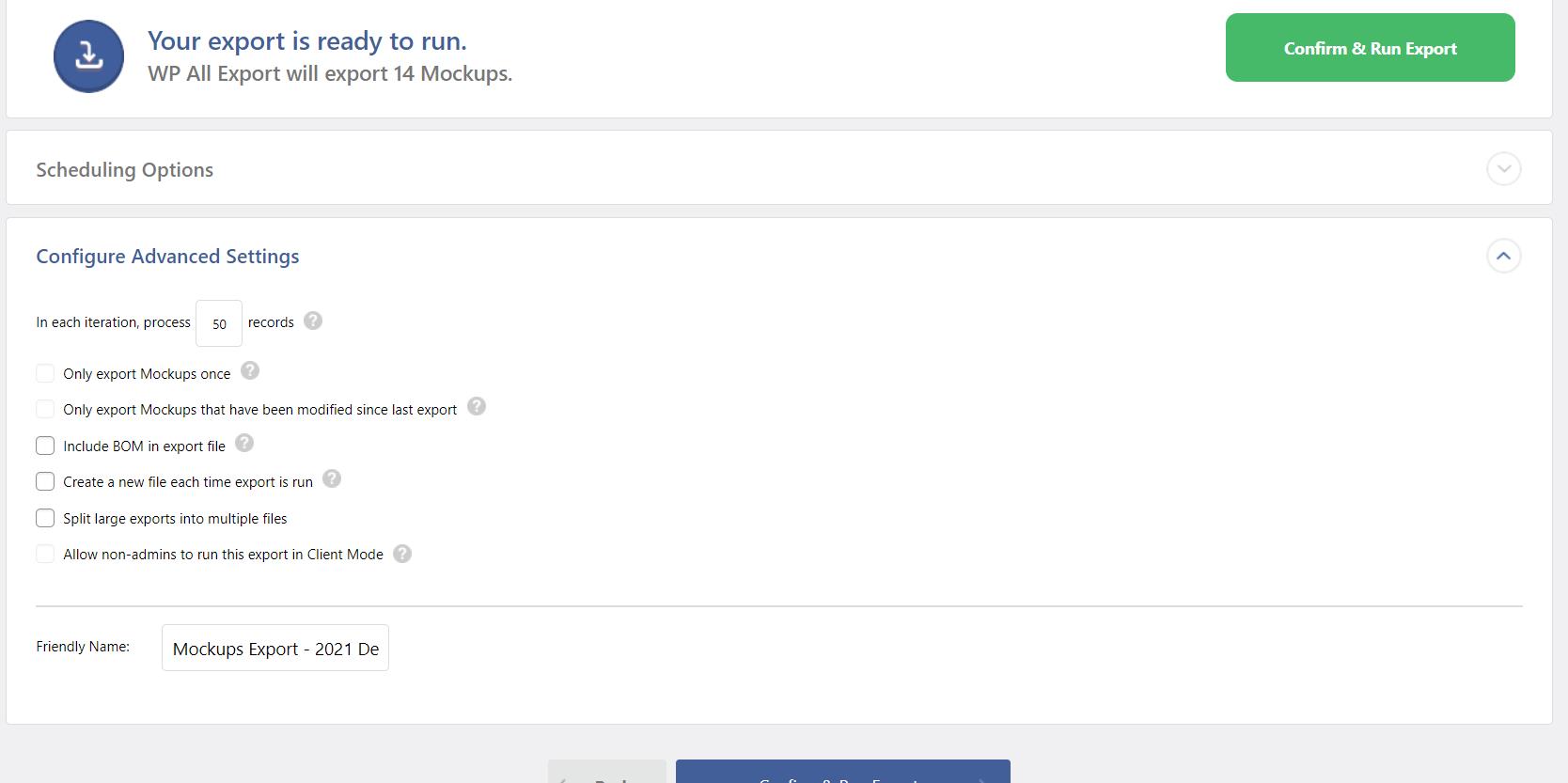
5. Once you configure the items you want to export click on confirm and run the Export.
6. Your file will be downloaded in CSV format on your computer
We don't respond to the article feedback, we use it to improve our support content.