
- Install SureFeedback & Addons
- Update SureFeedback
- Translate SureFeedback
- WPML For Multilingual Sites
- Main Site Or Dedicated Installation?
- Automating SureFeedback Workflows With OttoKit
- Manage Licenses
- Caching & SureFeedback
- Litespeed Caching
- Chrome Incognito: Session Expired Notice
- Gridpane Compatibility
- Breeze Compatibility
- W3 Total Cache Compatibility
- Download Failed: Unauthorized
- Flywheel Cache Exclusion
- Generate Invoice
- WPRocket Compatiblity
- Swift Performance Caching
- Debugging
- Varnish Caching
- Website Comments Not working
- Flywheel Compatibility
- Emails Not Sending
- WPEngine Cache Exclusion
- Increasing WordPress Memory Limit
- Client & Colleague Accounts
- Permissions Cheatsheet
- Slack Integration
- Export Comments in PDF / CSV
- Provide Project Access
- Hosting
- Subscribed Projects Shortcode (Below 3.1.x)
- Activate SureFeedback License
- Dashboard Shortcode
- Cloudways Compatibility
- Known Issues
- SureFeedback On External Site
- Emails
- Project Shortcode
- Customization Settings
- Project Shortcode (Below 3.1.x)
How to Integrate SureFeedback with Slack
Is your team using Slack for communication? Now, you can integrate SureFeedback with Slack and get notified as soon as somebody posts any comments on your project.
This document will show set-up Slack integration and keep track of your project changes.
How SureFeedback Works With Slack?
When integrated with Slack, SureFeedback can notify you of any changes happening on your project. Further, this works well for all projects, no matter if it’s a website or mockup. Thus, you’ll receive notifications on the Slack channel or direct messages for these events:
- The new comment is added;
- A comment is resolved/unresolved;
- Website/Page/Mockup is approved/unapproved.
In addition, you can customize the notification messages using the SureFeedback shortcodes at SureFeedback > Settings > Slack Integration:
- {ph_project_name} – for the project name
- {ph_commenter_name} – for the client name
- {ph_project_type} – Returns the project type (Mockup/Website)
- {ph_action_status} – This will return the project approved/unapproved, comment resolved/unresolved status as per the action
How To Integrate SureFeedback With Slack?
To set up Slack integration, you’ll first need to create an app and a webhook in your Slack account. Next, you’ll need to add a webhook and set the integration options.
Create Slack App And Webhook
Let’s start by creating an app for your workspace:
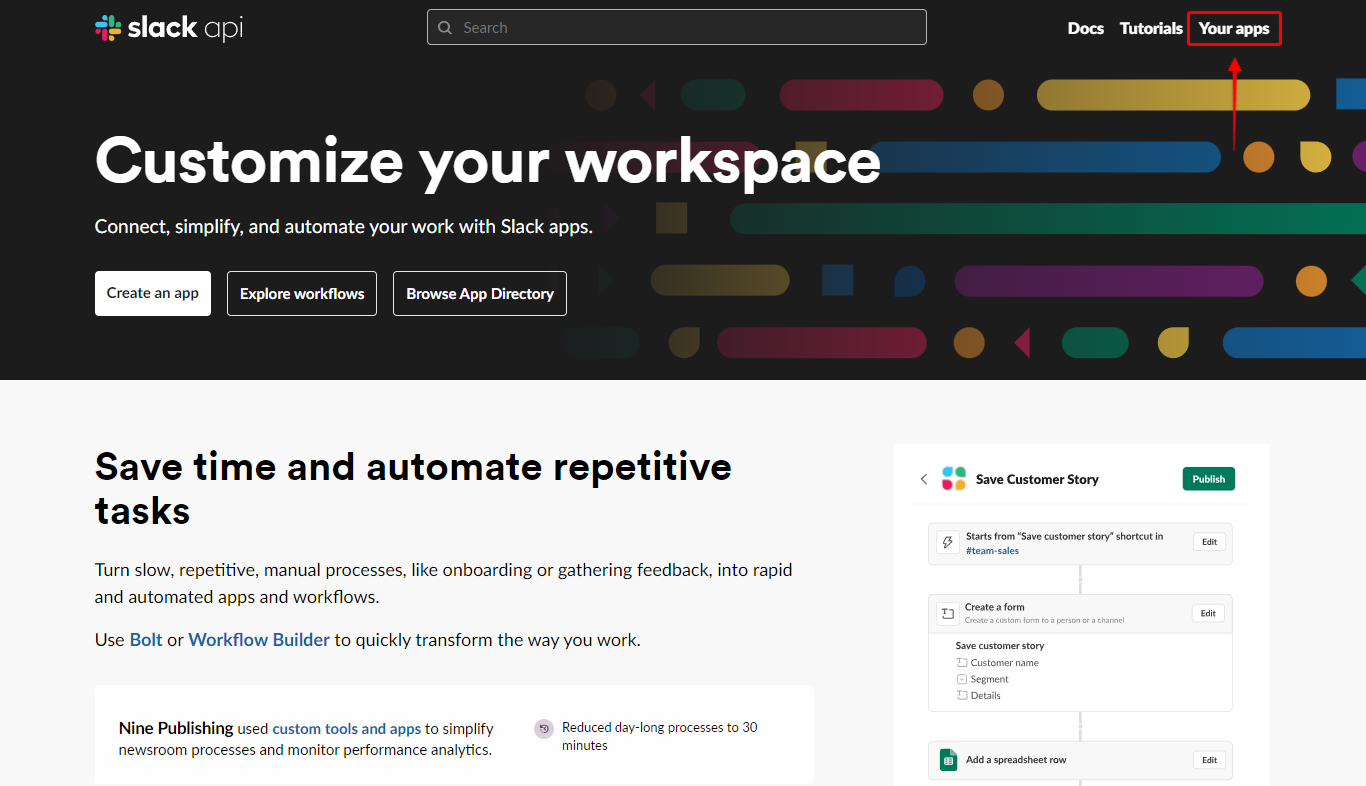
Step 1 – Log in to your Slack account and navigate to the Slack Developers site. Here, click on “Your Apps” in the top right corner;
Step 2 – Next, click on the “Create New App” button. You can find more details on creating an app in this article;
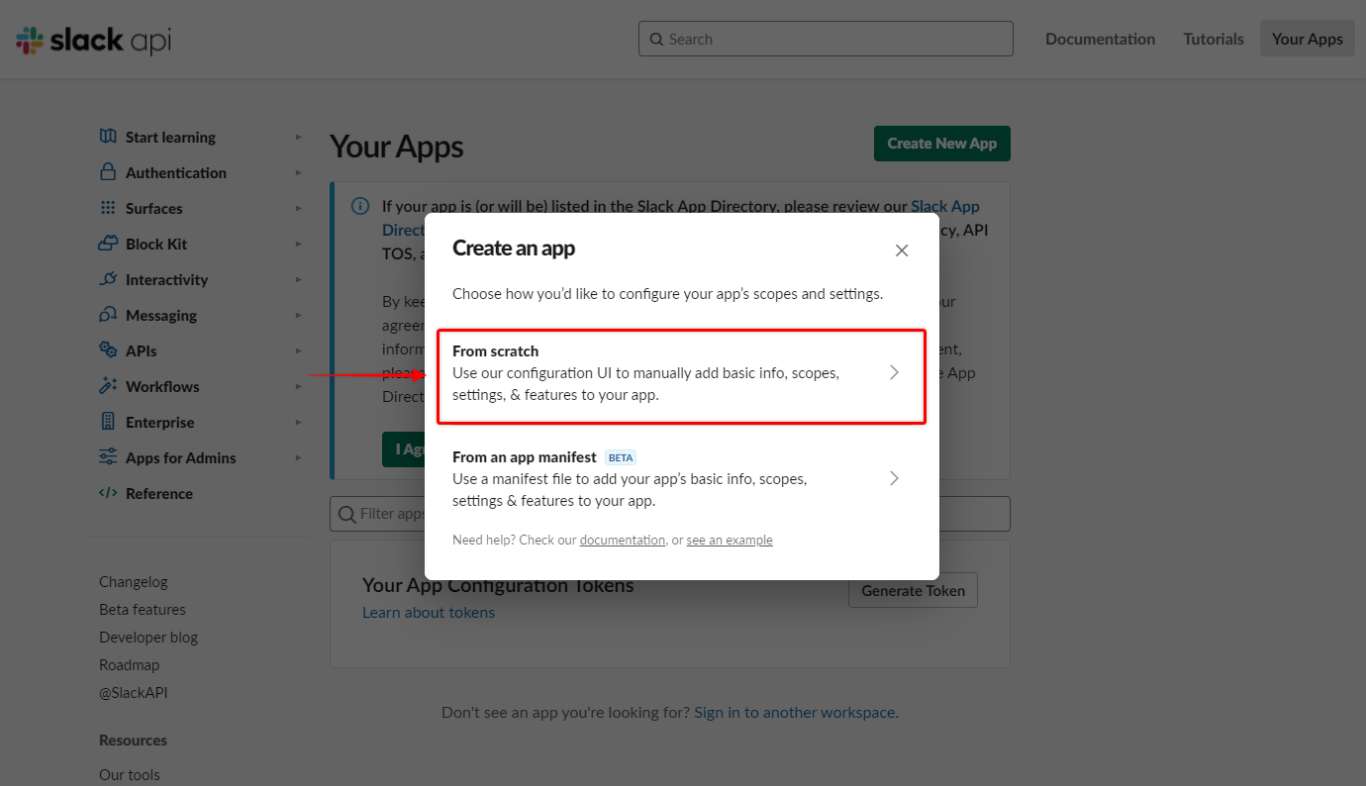
Step 3 – In the popup, click on the “From Scratch” option, add the app name, select the workspace, and click on the “Create App” button.
Now that you created an app, you need to create an incoming webhook:
Step 4 – Click on your newly created app on the Your Apps page. Further, scroll down and click on the “Incoming Webhooks” option in the left-side menu;
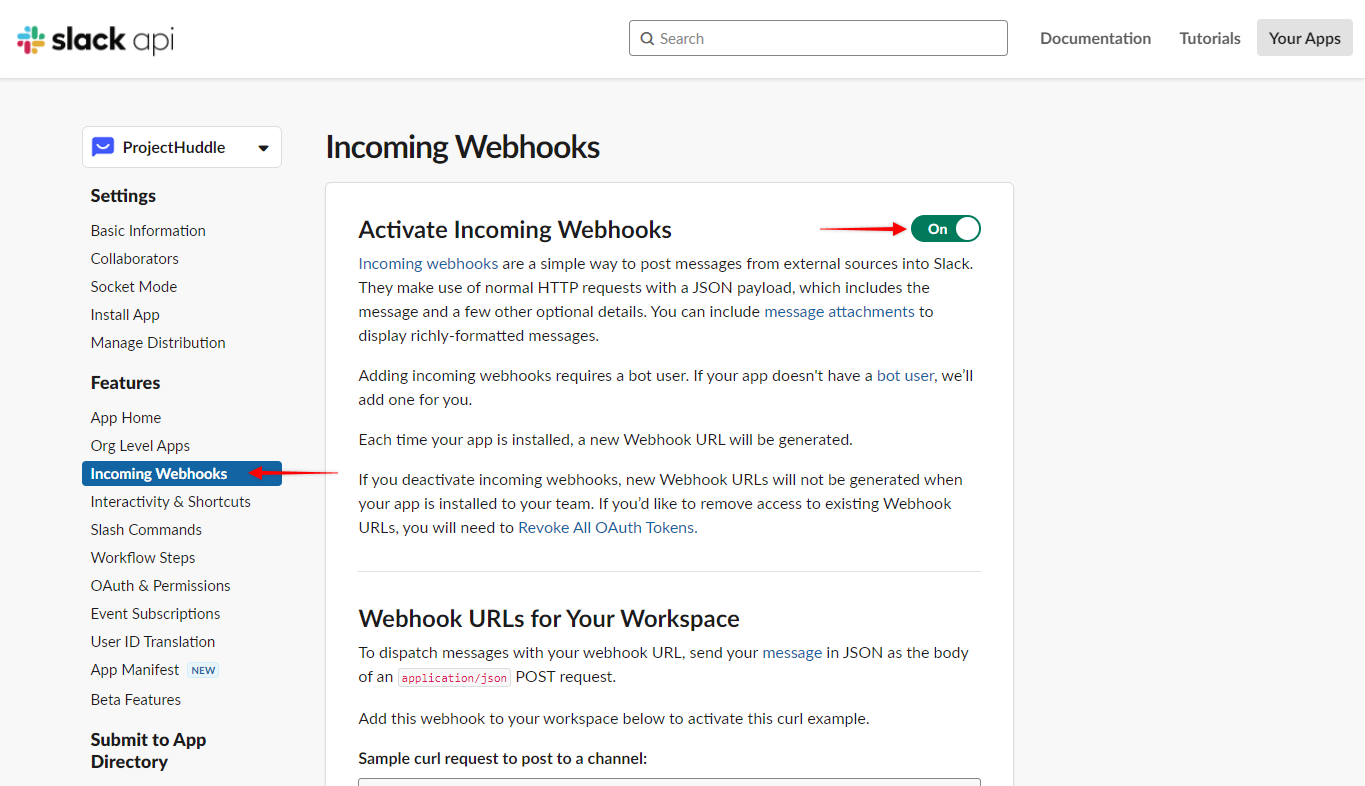
Step 5 – Here, click the “Activate Incoming Webhooks” toggle to enable this option. Then, scroll down and click on the “Add new webhook to Workspace”;
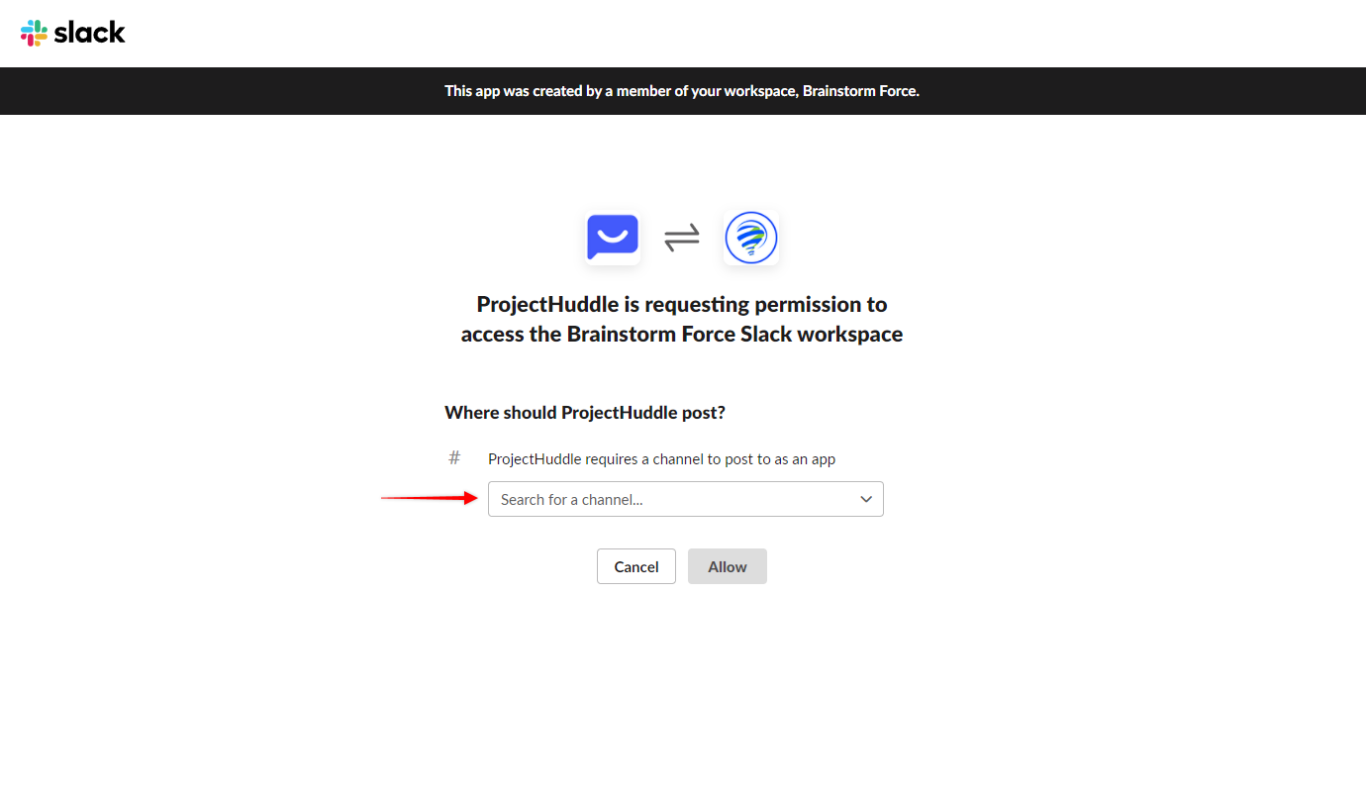
Step 6 – Next, select the channel or person where you want your notifications to be sent to, and click on “Allow”;
Setup SureFeedback Slack Integration
Once you have your webhook, you only need to add it to your SureFeedback settings:
Step 1 – Copy your slack app webhook URL from your Slack Incoming Webhooks page;
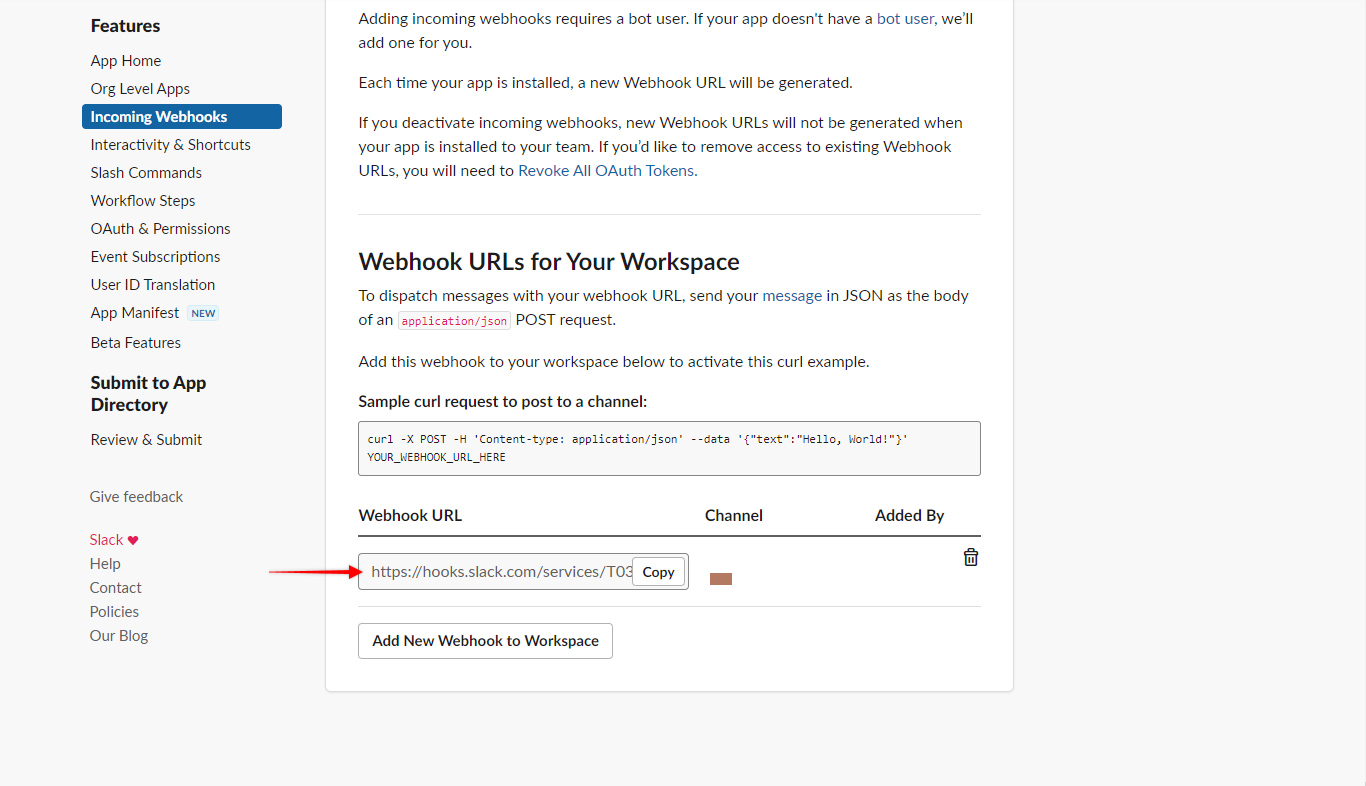
Step 2 – Log in to your Admin site and navigate to Dashboard > SureFeedback > Settings > Slack Integration;
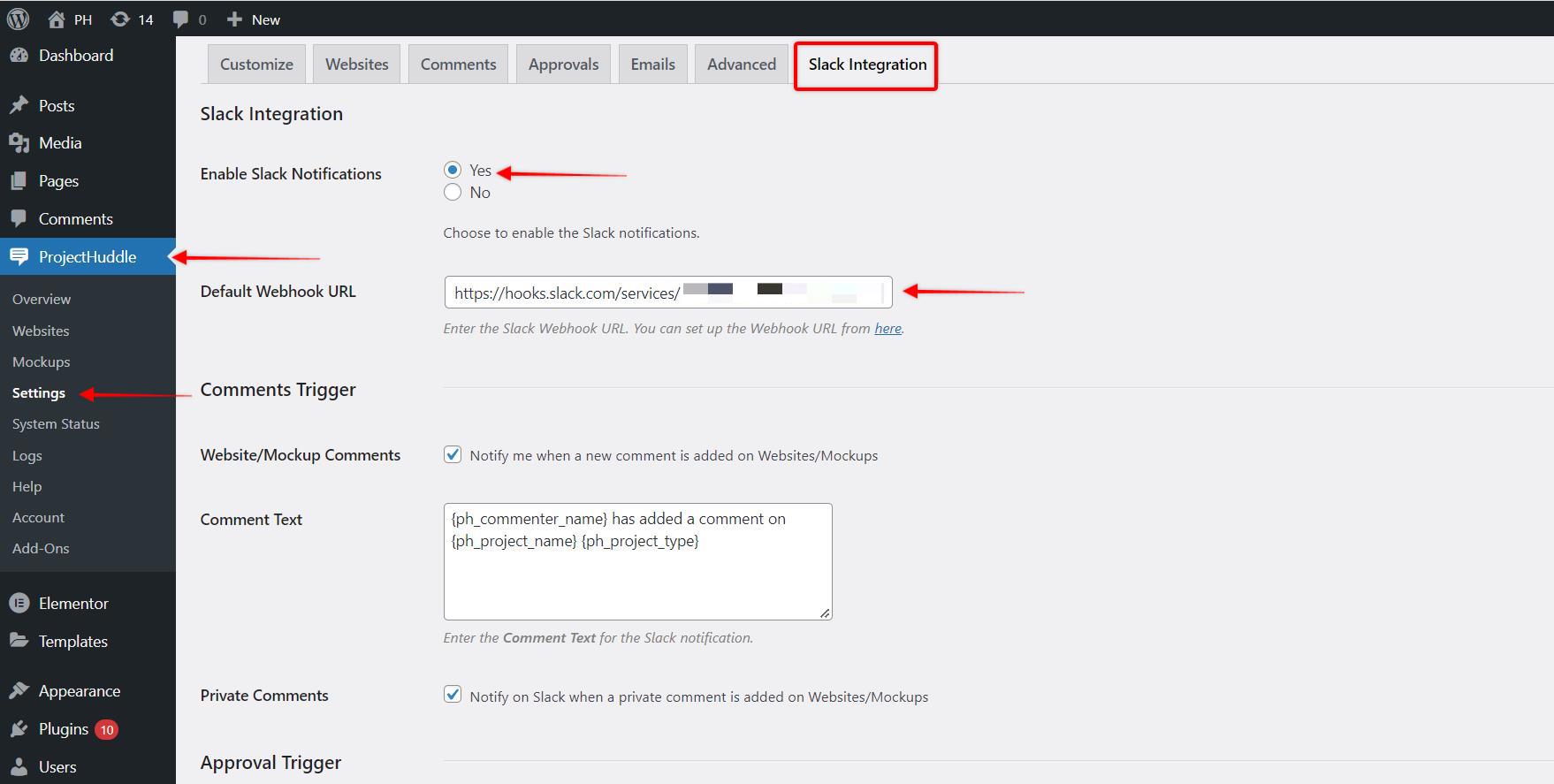
Step 3 – Here, enable slack notifications. Now, add your webhook URL to the “Default Webhook URL” field;
Step 4 – Finally, select notification triggers to choose for which events you want to be notified of. Also, here you can modify the notification text if needed.
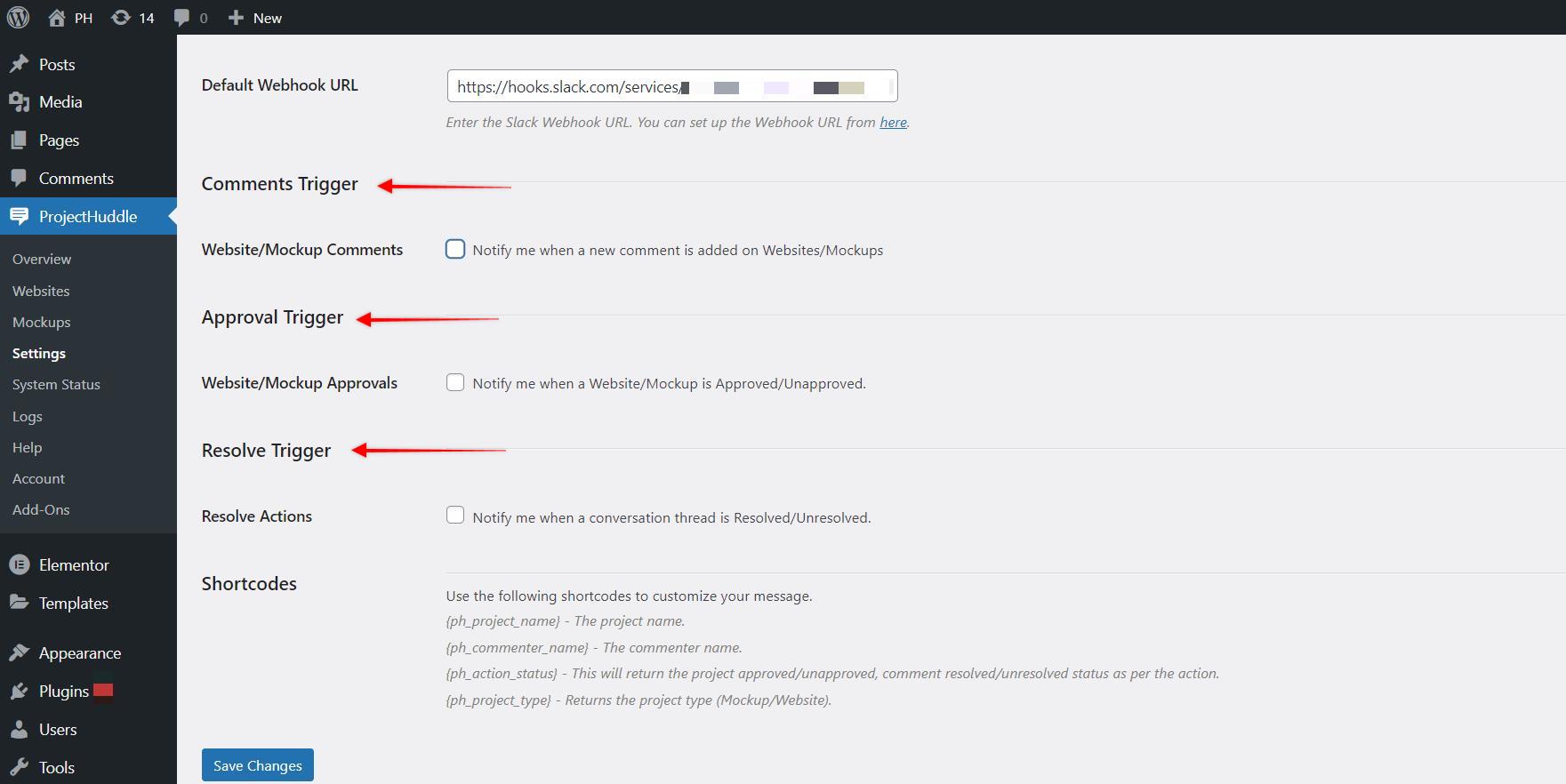
That’s it. Further on, you will receive all chosen notifications for all your projects on Slack.
For “Website” projects, you can alternatively add your webhook to a specific project. To do this follow these steps:
Step 1 – Copy your slack app webhook URL from your Slack Incoming Webhooks page;
Step 2 – Log in to your Admin site and navigate to Dashboard > SureFeedback > Websites and click on “Edit”;
Step 3 – Next, click on the “Settings” tab, scroll down and add your webhook URL to the “Webhook URL” field.
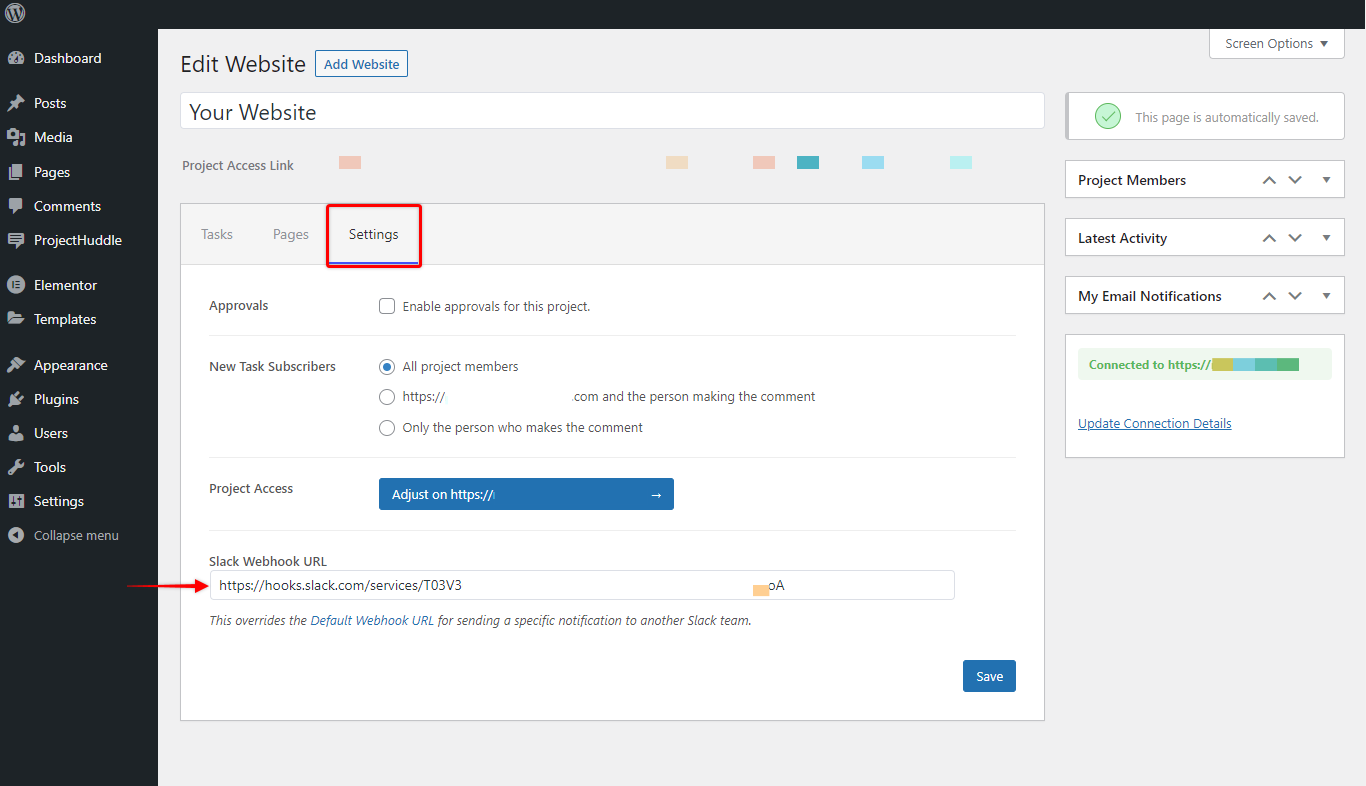
Now, this webhook will only work for this one website project. You can add an unlimited number of individual webhooks, one for each of your projects.
Keep in mind, that separate website project webhooks will work only if the “Default Webhook URL” field is empty. Thus, you can’t combine these integration options.
We don't respond to the article feedback, we use it to improve our support content.