
- Install SureFeedback & Addons
- Update SureFeedback
- Translate SureFeedback
- WPML For Multilingual Sites
- Main Site Or Dedicated Installation?
- Automating SureFeedback Workflows With OttoKit
- Manage Licenses
- Caching & SureFeedback
- Litespeed Caching
- Chrome Incognito: Session Expired Notice
- Gridpane Compatibility
- Breeze Compatibility
- W3 Total Cache Compatibility
- Download Failed: Unauthorized
- Flywheel Cache Exclusion
- Generate Invoice
- WPRocket Compatiblity
- Swift Performance Caching
- Debugging
- Varnish Caching
- Website Comments Not working
- Flywheel Compatibility
- Emails Not Sending
- WPEngine Cache Exclusion
- Increasing WordPress Memory Limit
- Client & Colleague Accounts
- Permissions Cheatsheet
- Slack Integration
- Export Comments in PDF / CSV
- Provide Project Access
- Hosting
- Subscribed Projects Shortcode (Below 3.1.x)
- Activate SureFeedback License
- Dashboard Shortcode
- Cloudways Compatibility
- Known Issues
- SureFeedback On External Site
- Emails
- Project Shortcode
- Customization Settings
- Project Shortcode (Below 3.1.x)
How to Activate your SureFeedback License?
SureFeedback comes with extensive features and integrations that will help you manage all website & design-related feedback.
Once you have bought the SureFeedback plugin, you’ll get your license key based on your plan.
To activate SureFeedback for your website all you need to do is follow these simple steps.
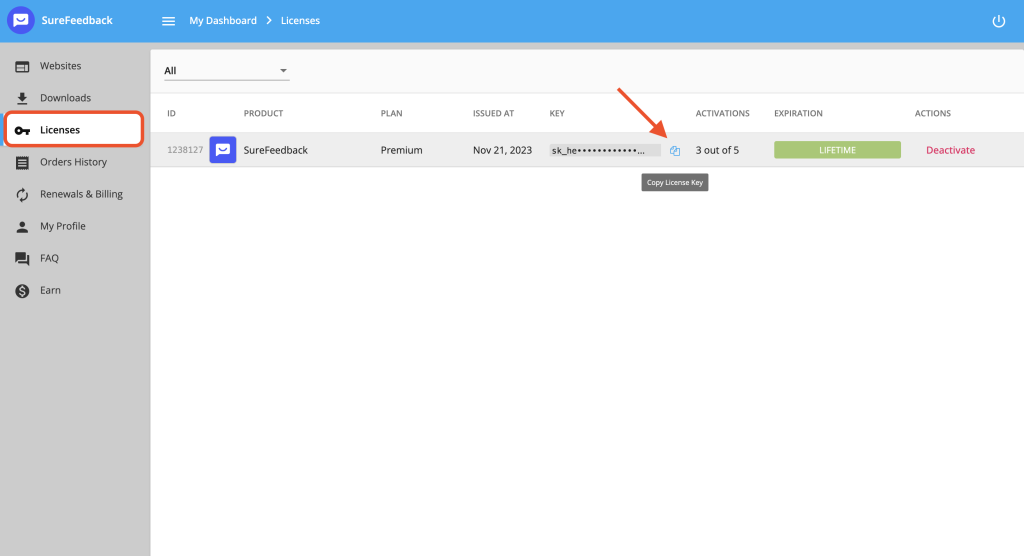
Step 1: Visit our store and log in to get the license key. Navigate to My Dashboard > Licenses. Click the Copy icon to copy the key value.
Step 2: Install the plugin on your WordPress website. After successful installation, a popup will open where you have to paste the copied key value.
Click on the “Activate License” button and your license will be activated and running.
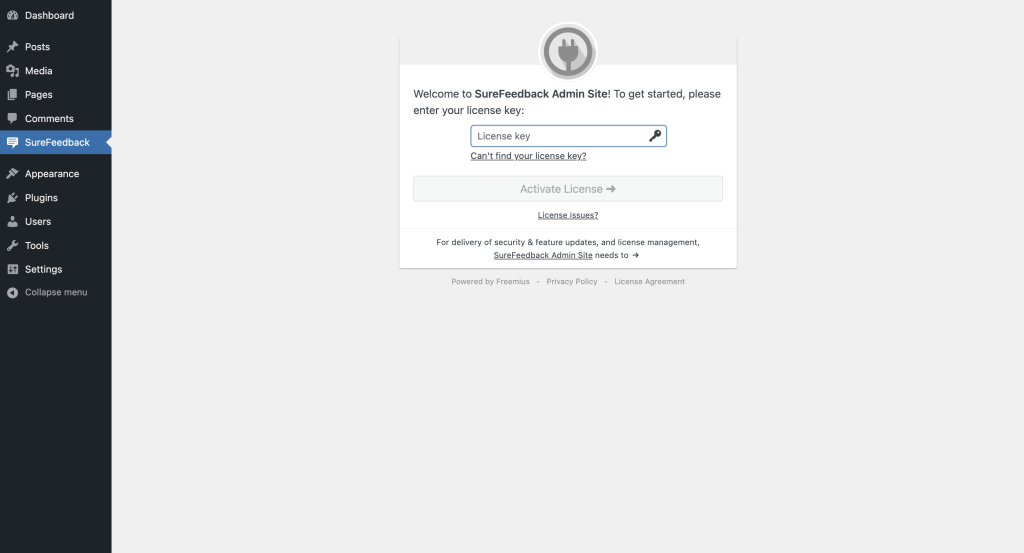
That’s it. Your SureFeedback license is now activated.
For any questions, feel free to open a ticket below!
We don't respond to the article feedback, we use it to improve our support content.